UEFI runs before your operating system
When you turn on a computer, its firmware starts first. On most modern PCs, that firmware uses UEFI, short for Unified Extensible Firmware Interface. It initializes essential hardware, checks what devices are available, and finds a bootable operating system. Once the operating system takes over, you rarely need to think about UEFI during everyday use.
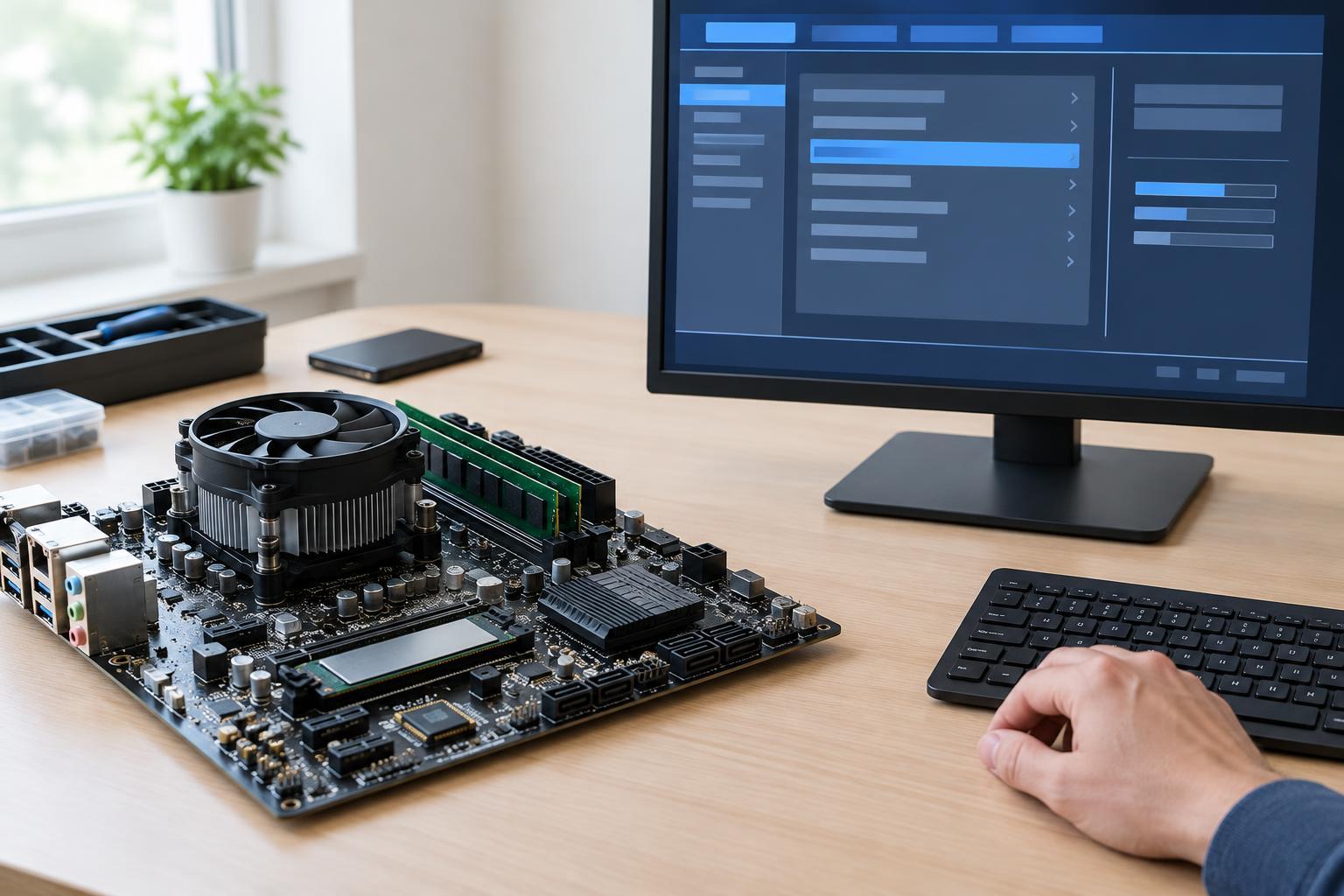
UEFI also provides a setup screen where you can view hardware details and change how the computer starts. The screen may carry a manufacturer’s name or still be called “BIOS setup,” even when the computer uses UEFI. Menus vary between devices, so a setting described in a guide for one PC may have a different name or may not appear on yours.
Think of UEFI setup as a control panel for the computer’s foundations, not as a general preferences menu. A change there can prevent a working operating system from starting. If the computer is working normally, there is usually no benefit in exploring by changing settings.
Useful things to check without changing them
The information screens can help you identify the processor, installed memory, detected storage drives, and firmware version. If a newly installed drive is missing from the operating system, checking whether UEFI detects it can help narrow down the problem. Simply viewing these details does not alter how the PC runs.
You may also see a boot-order list showing where the computer looks for an operating system. It is useful to know whether the internal drive appears there, but avoid rearranging entries just to experiment. If you entered setup by accident, look for an option to exit without saving changes. If you deliberately changed something and are unsure what it did, do not assume that exiting will discard it; check the confirmation prompt.
Before making any necessary change, record the original value and the setting’s exact name. A photo of the screen can be helpful. That small step makes it easier to undo a change, particularly when a menu contains several similarly named options.
Leave boot and storage settings alone unless you have a plan
Boot mode, compatibility settings, and storage-controller options affect how the operating system accesses its startup drive. Switching between UEFI boot and a legacy or CSM mode can make an existing installation appear unbootable. Changing a storage mode, such as an AHCI or RAID-related option, may also stop an installed operating system from loading. The right value depends on how that system was set up; there is no universal “faster” choice to select.
Boot order is worth changing only for a specific task, such as starting from an installer or recovery USB drive. Many computers offer a one-time boot menu that lets you choose the USB device without permanently changing the order. If you are following recovery instructions, identify whether they call for a one-time choice or a lasting firmware change.
Likewise, avoid resetting all firmware settings as an early troubleshooting step. Defaults are not guaranteed to match every computer’s previous configuration. A reset can undo settings needed for a particular operating system or hardware arrangement, leaving you with another problem to diagnose.
Treat security and performance options with care
Secure Boot helps the computer check startup software before it loads. A TPM or related security feature can support functions such as device encryption. Turning either feature off to get past an unfamiliar message may have consequences beyond that one startup attempt. In particular, changing firmware security settings can trigger an encryption recovery prompt on a protected device. Before touching them, understand the goal and make sure any applicable recovery key is available.
Firmware passwords and device-management options also deserve caution. A password can restrict access to setup, but forgetting it may be difficult to remedy. On a computer owned or managed by a workplace or school, do not change firmware settings without authorization; they may be part of the device’s security configuration.
Performance controls such as CPU overclocking, voltage adjustments, and memory profiles can affect stability, heat, or power use. A memory profile may be advertised as a supported feature of a memory kit, but enabling it is still a configuration change, not routine maintenance. Beginners are better served by leaving these controls at their existing values unless they are solving a specific, understood problem.
A sensible approach when a change is necessary
Start by defining the task: for example, booting a recovery drive, enabling a feature required by software, or checking whether a drive is detected. Consult documentation for the exact computer or motherboard model, because menu names and available options differ. Back up important files before work that could affect startup, and check whether device encryption requires you to keep a recovery key accessible.
Change one setting at a time and write down its previous value. Save, restart, and verify the intended result before changing anything else. If the computer no longer starts as expected, returning that one setting to its original value is easier than guessing which of several changes caused the issue.
UEFI is most useful to beginners as a place to confirm hardware information and perform a clearly defined setup or recovery step. You do not need to tune it to keep a healthy computer running. Knowing which settings to leave alone is a practical way to avoid turning a small question into a startup problem.