Start with how you will use the camera
Before comparing specifications, decide where the webcam will sit and what it needs to show. A camera used mainly for video calls has different demands from one used to demonstrate a product or record a presentation. For face-to-face calls, a clear image at eye level matters more than an especially wide view. If you need to show a desk, whiteboard, or several people, field of view and positioning become more important.
Consider what your video app, computer, and internet connection can comfortably handle. A webcam may capture at a high setting even when a meeting app sends a lower-resolution picture. That does not make the higher setting useless, but it is a reason to avoid choosing by a single number. List your priorities first: a natural-looking face, smooth movement, flexible framing, or a mount that works with your setup.
Understand what resolution can and cannot do
Resolution describes the number of pixels in the captured image. A 1080p webcam can generally show more detail than a 720p model when lighting, lens quality, and processing are comparable. A 4K option may be useful if you record locally or crop a wide shot into a closer one. For ordinary calls, however, the difference may be hard to see once the image is reduced by the app or displayed in a small window.
More pixels do not automatically produce a better picture. In a dim room, a webcam may increase brightness electronically, making the image look grainy or soft. Color, exposure, and focus also affect how clear you appear. If you can try a camera or inspect sample footage, look at skin tones, detail in shadows, and how it handles a bright window behind you. A modest-resolution camera with good lighting can look better than a high-resolution camera in a poorly lit spot.
Match frame rate to movement and light
Frame rate is the number of images the webcam captures each second. Thirty frames per second is a practical target for conversation, where you are usually seated and moving relatively little. Sixty frames per second can make gestures and demonstrations look smoother, provided the camera and software support that setting. Check specifications carefully: some webcams offer their highest resolution only at a lower frame rate.
A higher frame rate is not always the best setting. Each frame has less time to gather light, so a dim workspace can make a high-frame-rate image look darker or noisier. Higher video settings can also place more demands on the computer, connection, or recording storage. If your image looks rough, try adding a soft light in front of you before changing cameras. You can then compare frame-rate settings in the app you actually plan to use.
Choose a mount that supports good framing
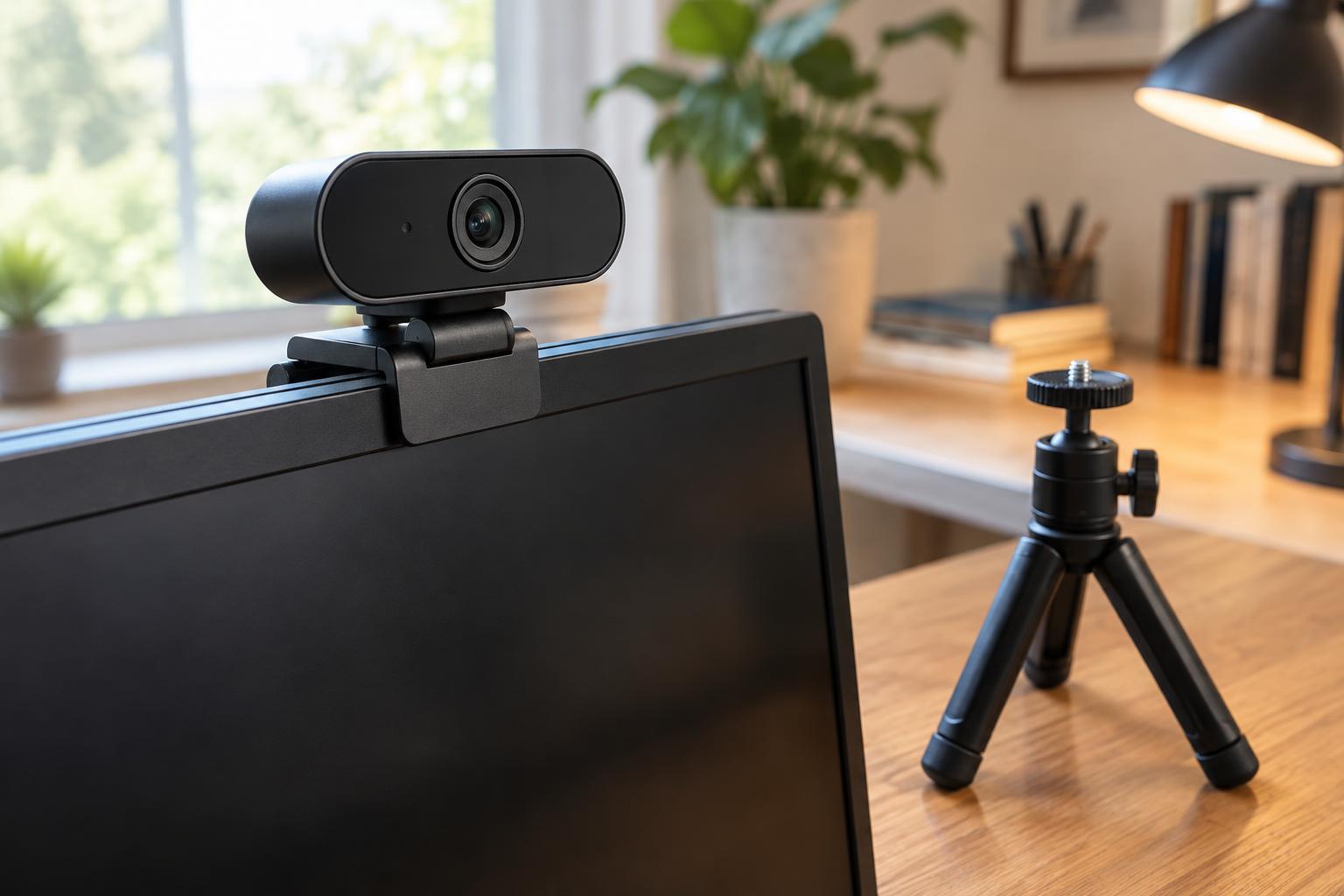
The familiar clip-on mount works well on many monitors, but check the thickness and shape of your screen. A clip that feels secure on a flat display may wobble on a thin laptop lid or curved monitor. Look for a stable hinge, useful tilt adjustment, and enough clearance for cables. If you move between workspaces, a compact camera with a clip that also rests securely on a shelf may be convenient.
A tripod socket or separate stand gives you more control over height and distance. Aim to place the lens roughly at eye level rather than pointing it sharply up from a desk. Moving the camera farther away can also make framing feel more natural, though you may need to crop the image afterward. Check whether the camera rotates or tilts enough for your intended position, and make sure its cable can reach the computer without being stretched.
Check everyday features before buying
Confirm that the webcam connects to your computer and works with your operating system and preferred apps. Autofocus is useful if you often hold objects toward the lens; fixed focus may be sufficient if you stay seated at a consistent distance. Built-in microphones are convenient, but a separate headset or microphone may give you more reliable audio, especially in a noisy room. A physical privacy shutter is useful if you want an obvious way to cover the lens between calls.
For a balanced choice, prioritize a secure mount, dependable image in your usual lighting, and a resolution and frame rate your apps can use. Then consider extras such as a wider field of view, recording options, or a more adjustable stand. Setting up the camera well often makes as much difference as upgrading it: face a gentle light, keep bright windows out of the background when possible, and test your framing before an important call.