Prepare the computer and your workspace
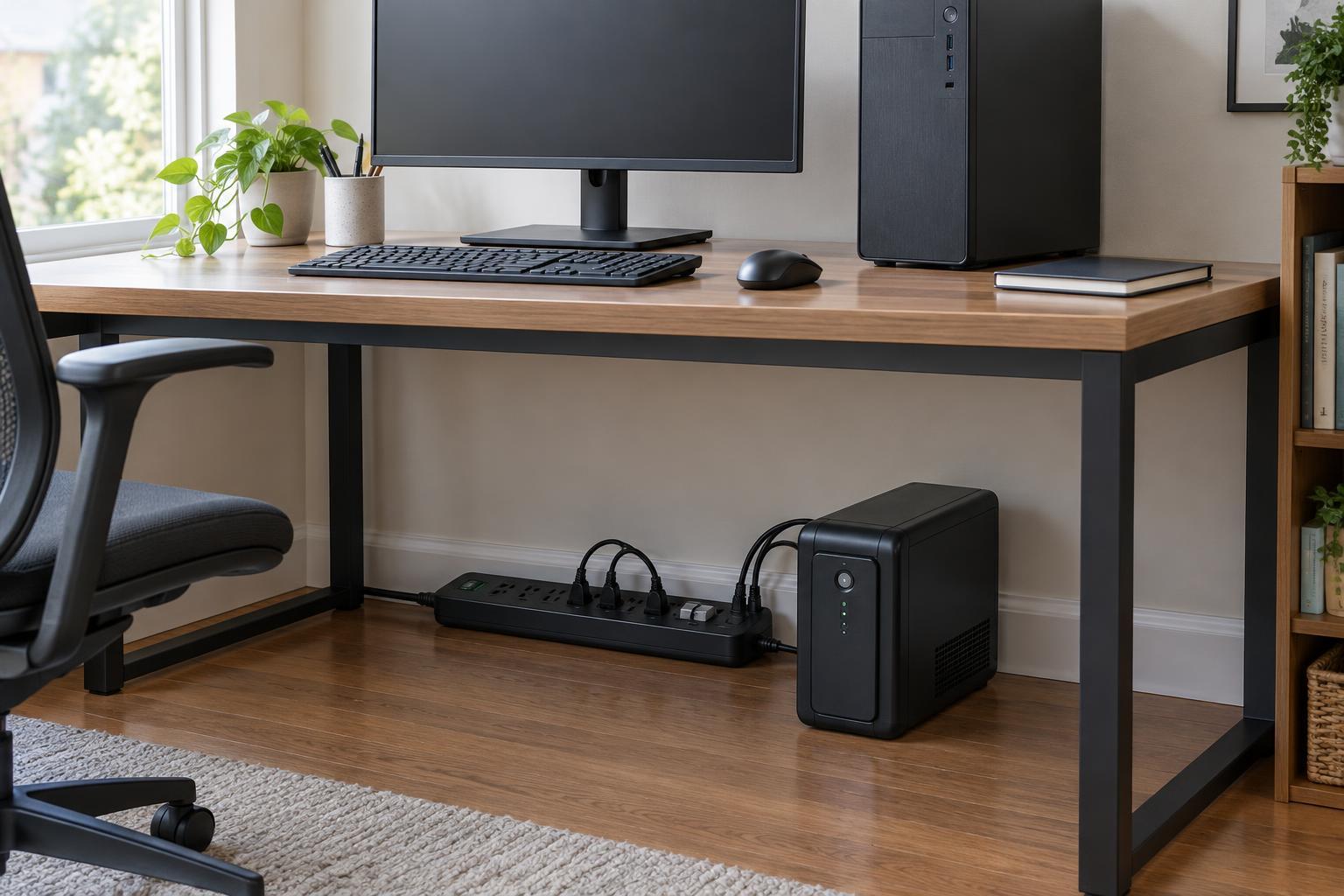
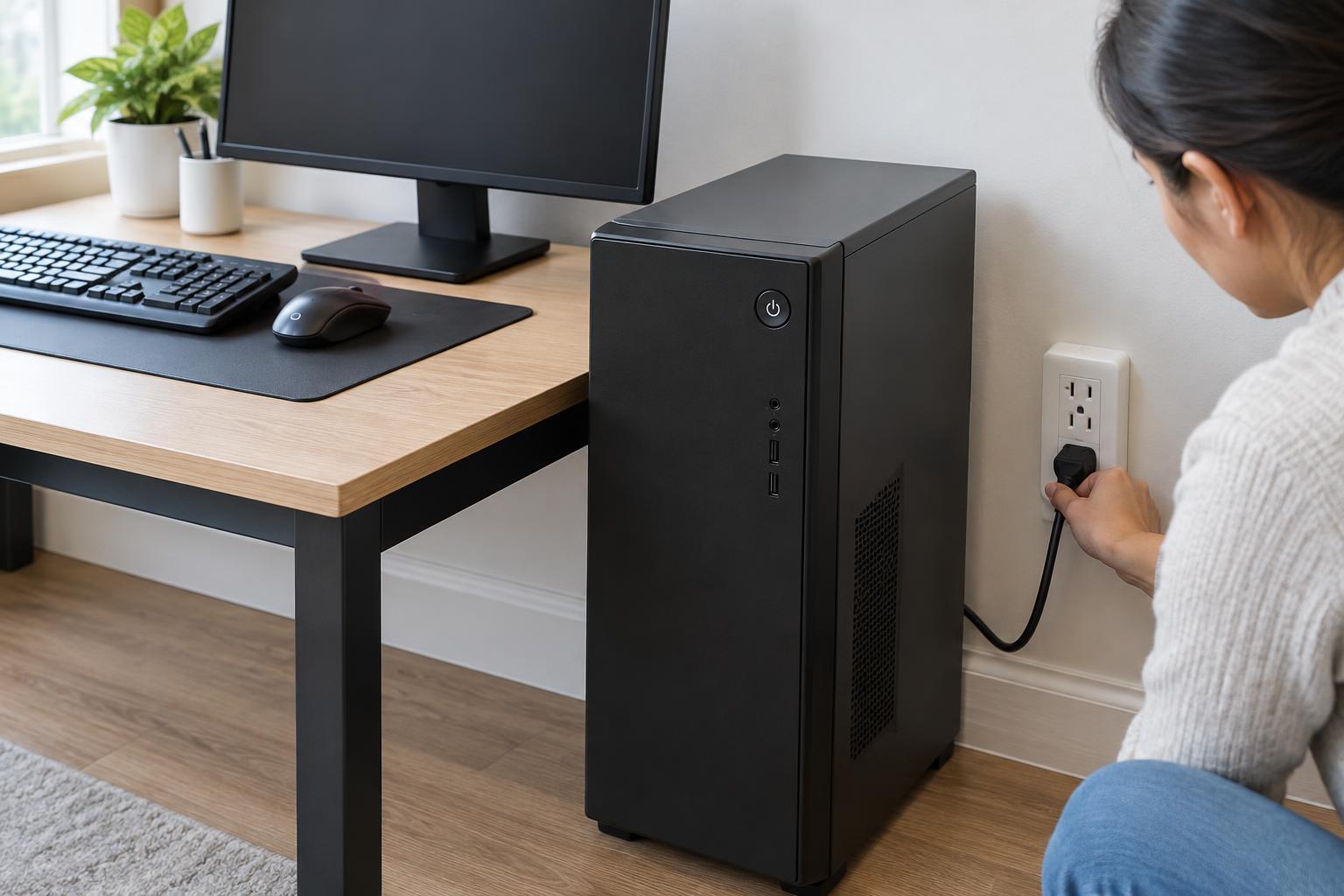
Computer cleaning is mostly about removing loose dust while keeping liquid, force and static discharge away from sensitive parts. Start by shutting the computer down, unplugging its power cable and disconnecting peripherals. If it is a laptop, unplug the charger; remove the battery only if the design and manufacturer’s instructions make that straightforward. Let warm components cool before opening anything.
Work on a clear, dry table with good lighting. Avoid carpet if possible, and place small screws in a container so they do not get lost. Before opening a case, check the device’s instructions: some laptops and compact computers are difficult to access safely, and opening them may affect warranty coverage. If you are unsure how a panel releases, do not force it.
Gather a soft microfiber cloth, a clean soft-bristled brush and a can of compressed air or a purpose-made electronics air blower. A vacuum can generate static and snag small parts, so keep an ordinary household vacuum out of the computer. You can use it to collect dust from the surrounding floor after the computer is closed.
Clean the case, vents and removable filters
Begin outside the computer. Wipe the case with a dry microfiber cloth. For stubborn marks on an unpowered exterior surface, lightly dampen the cloth with water, then wipe and allow the surface to dry fully. Never spray cleaner directly onto a vent, port, seam or screen; liquid can run inside even when the device is switched off.
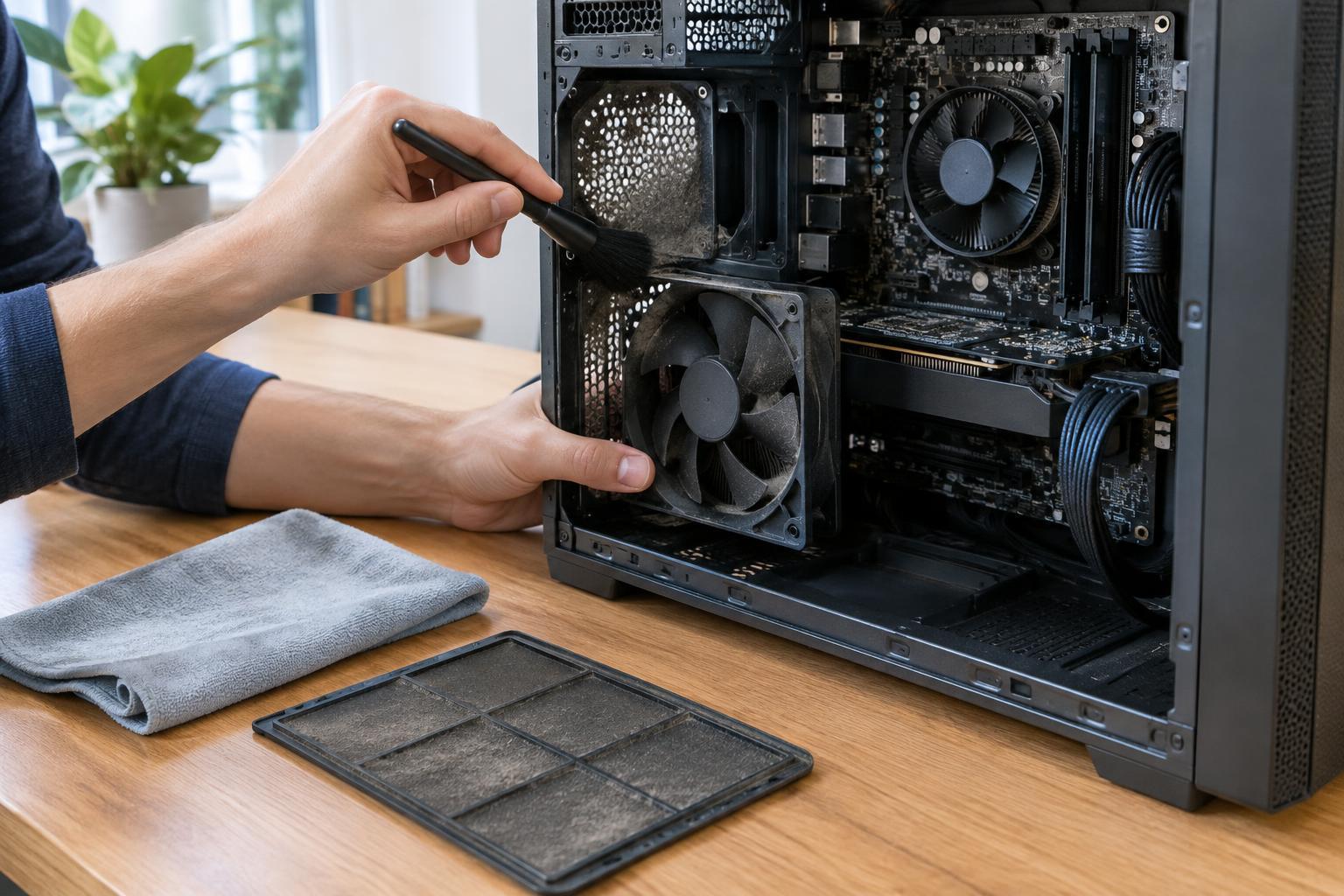
If a desktop case has removable dust filters, take them out and clean them separately. Brush or rinse a washable filter only if its design allows it, and make sure it is completely dry before reinstalling it. Clear dust from intake and exhaust grilles with a brush or short bursts of air. Keep the air source at a sensible distance rather than pressing its nozzle against components.
On a laptop, focus on accessible vents rather than trying to drive dust deeper into the enclosure. If airflow still seems restricted after gentle exterior cleaning, internal service may be more useful than repeated blasts of air through the vents.
Remove dust from fans and accessible internal parts
For a desktop you can open safely, remove the side panel and inspect before touching anything. To reduce static risk, avoid rubbing clothing against components and touch an unpainted metal part of the chassis before working inside. Handle parts by their edges. Do not open the power supply: it contains components that can retain a charge even after the computer is unplugged.
Use short bursts of air to move dust out of heatsinks, case corners and fan blades. Hold each fan still with a finger or a nonmetal tool while cleaning it; high-speed spinning from an air blast can strain the fan. Keep a compressed-air can upright so it does not expel liquid propellant, and follow its label. A soft brush can loosen dust that air alone will not shift, but use little pressure around circuit boards and connectors.
There is usually no need to remove the graphics card, memory or cooler for routine dusting. Unplugging parts creates opportunities to bend pins, disturb cables or leave something incompletely seated. If heavy buildup is trapped beneath a cooler or a fan cannot turn freely, consult the component’s service instructions rather than pulling it apart at random.
Treat screens, keyboards and ports differently
Screens need a gentler approach than metal cases. Turn the display off, then wipe it lightly with a clean microfiber cloth. If the display maker permits a damp cloth, use only a small amount of water on the cloth and keep moisture away from the edges. Avoid abrasive towels, window cleaner and heavy pressure, which can damage coatings or the panel.
For a keyboard, first turn it upside down gently to dislodge crumbs, then use a brush or short bursts of air between keys. Wipe keycaps with a cloth that is only slightly damp, without letting liquid drip beneath them. Do not pry off laptop keys unless the model’s instructions explicitly support it; their small retaining clips can break.
Inspect ports with a light before cleaning them. Remove loose debris gently with air or a soft, dry brush, without pushing material farther in. Do not insert metal tools or pour liquid into a port. A bent contact, corrosion or a connector that will not seat properly calls for repair rather than more aggressive cleaning.
Reassemble, check and set a sensible routine
Before reconnecting power, confirm that filters and panels are secure, no cloth fibers or tools remain inside, and cables have not shifted into a fan’s path. Make sure every surface you dampened is fully dry. After startup, listen for rubbing or rattling and check that fans are turning normally. If the computer fails to start or makes an unfamiliar noise, power it down and recheck only the areas you accessed.
There is no universal cleaning schedule. A computer near pets, carpet or an open window may collect dust faster than one in a cleaner space. Inspect vents and filters periodically, then clean when buildup becomes visible. Regular light cleaning is generally safer and easier than waiting until dust is packed tightly into a heatsink.