DNS connects names to addresses
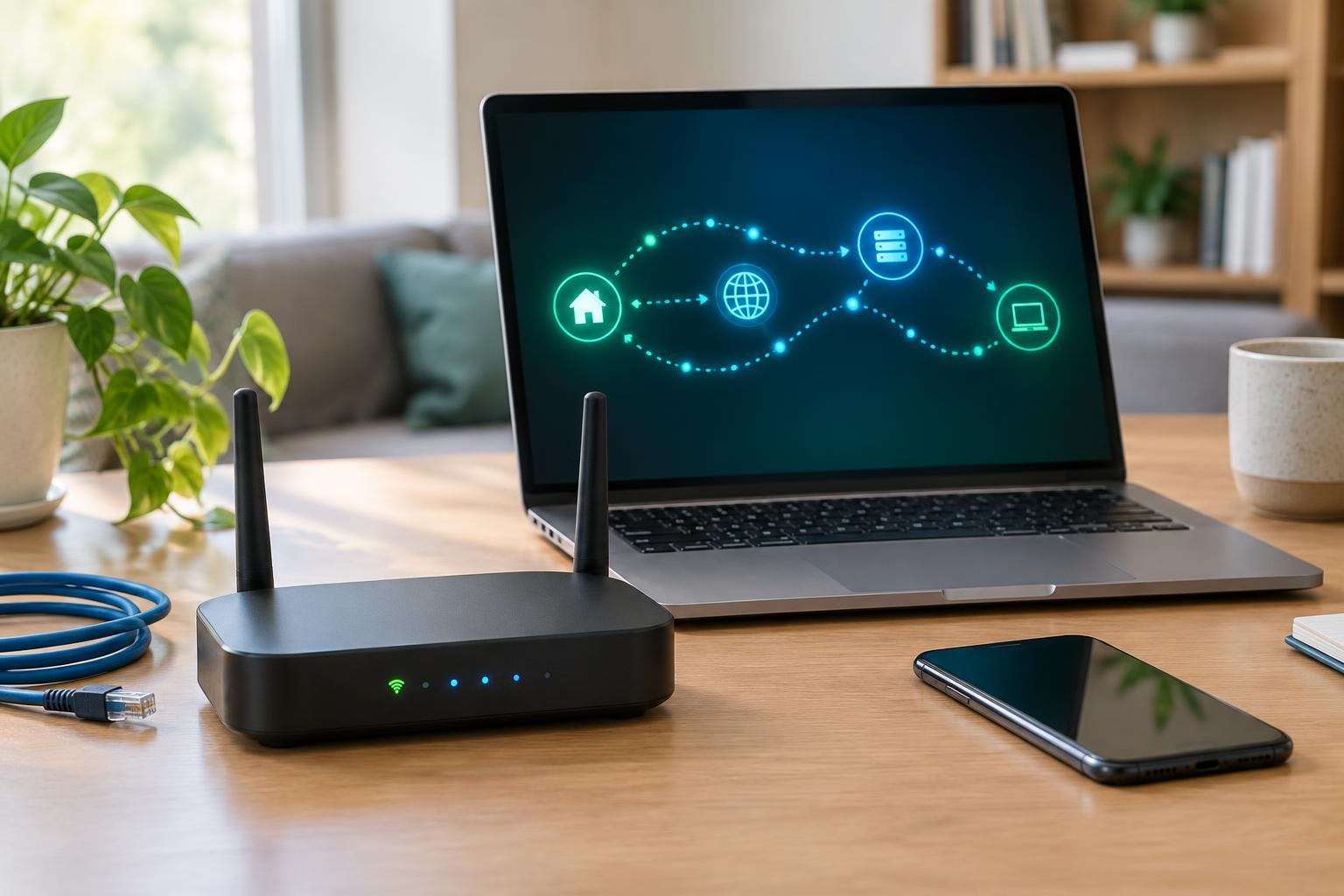
When you type a website name into a browser, your device needs an address it can use to contact the site. The Domain Name System, or DNS, helps find that address. A DNS lookup can also return other kinds of records, such as those used to direct email. DNS is often compared to an address book, but it is a distributed system rather than one central list.
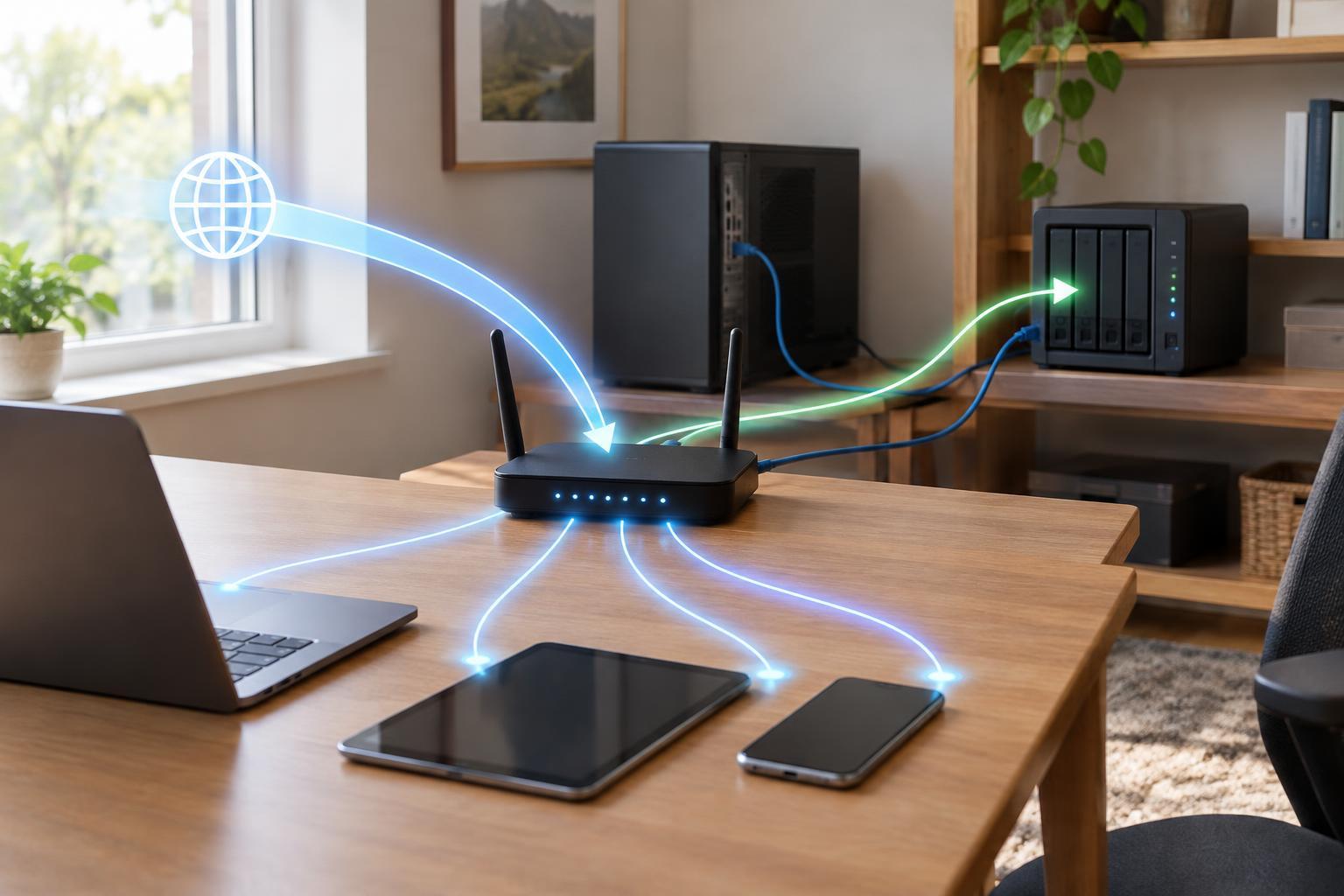
Your device usually asks a DNS resolver selected through its network settings. On a home network, the router may provide its own address as the DNS server and then forward requests to another resolver. If the resolver does not already have an answer cached, it can consult other DNS servers to find the records for the requested name. Cached answers make repeat lookups quicker, but they also mean a recent change to a domain’s records may not appear everywhere immediately.
DNS provides the address needed to start a connection; it does not carry the entire web page. After the lookup, your device still has to connect to the destination. That distinction matters when troubleshooting: a DNS problem can prevent a name from resolving, while a slow download or unstable Wi-Fi may have an entirely different cause.
Where your home network gets its DNS settings
Many routers receive DNS server settings from the internet service provider and pass DNS information to connected devices automatically. Some routers handle requests themselves; others tell devices to contact external resolvers directly. A device can also have a manual DNS setting that overrides what the router provides.
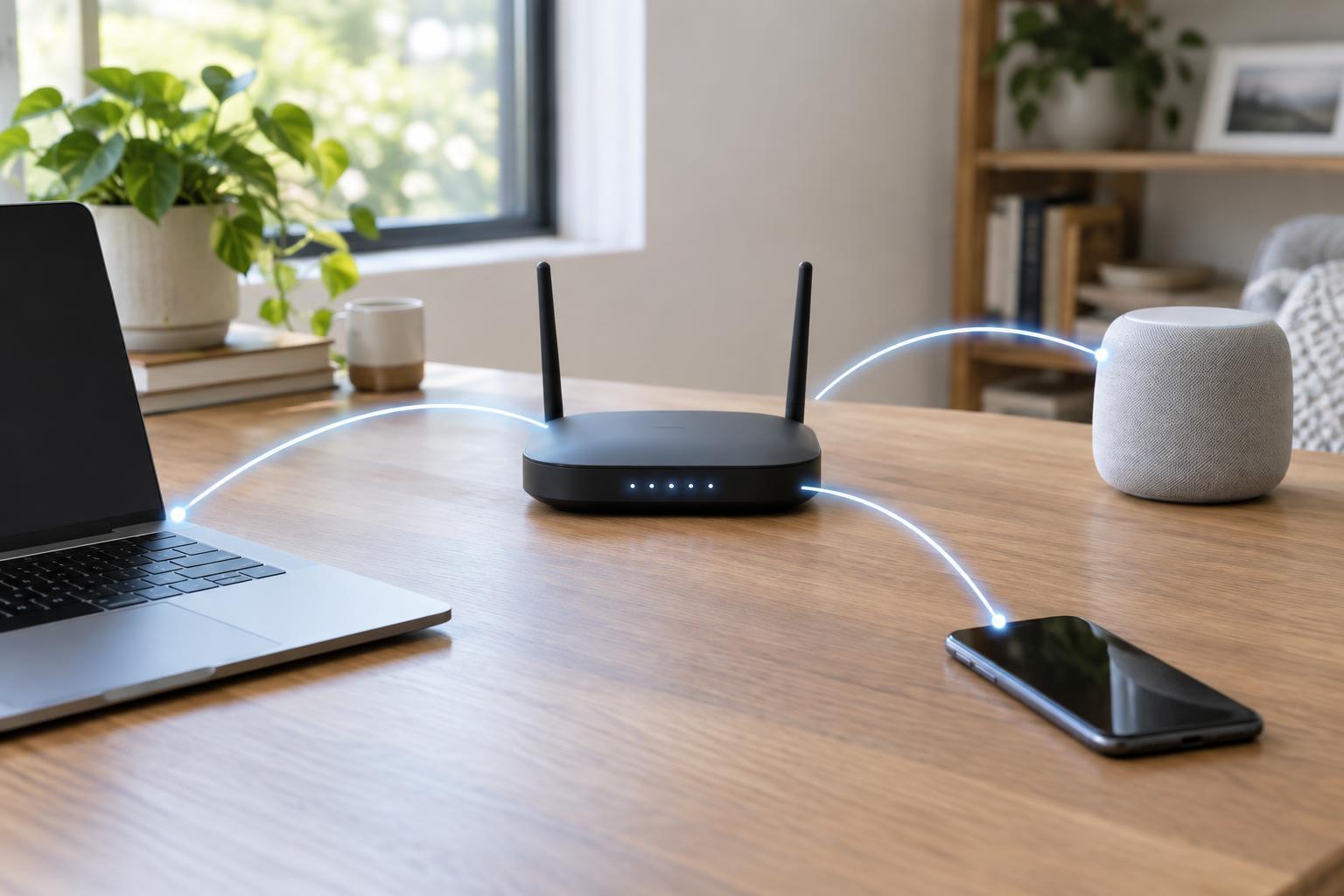
The settings a device uses may depend on how it connects. A phone can have different DNS behavior on home Wi-Fi and mobile data. Some browsers and operating systems can use encrypted DNS with a resolver chosen in their own settings. A work-managed device or a VPN may also direct lookups elsewhere. As a result, changing DNS on the router does not guarantee that every device or application will use the new resolver.
When a different resolver might help
Changing resolvers may be worth testing if website names repeatedly fail to resolve while the internet connection otherwise works, or if lookups are noticeably slow across several devices. It may also be useful if you want a resolver with a particular privacy policy or an optional filtering feature. Compare those features carefully: filtering can block unwanted domains, but it can also block something you intended to use.
A resolver closer to you or with a useful cache may answer some lookups faster. That does not necessarily make pages load noticeably faster. Browsers cache results too, and much of a page’s loading time happens after DNS has finished. Switching DNS will not fix poor Wi-Fi coverage, an overloaded connection, a website outage, or a device that has lost network access.
DNS filtering has limits as a security measure. It generally works at the domain level, so it may block a whole site rather than a specific page, and applications using another resolver may bypass it. Likewise, changing DNS does not hide all your activity from a network provider or make a connection secure on its own. Encrypted DNS can protect DNS requests in transit to the chosen resolver, but that resolver still receives the requests.
How to change DNS without losing track of the problem
Start by noting your current settings so you can restore them. If you want to test one computer or phone, change DNS on that device first. If you want to offer the same resolver to most devices at home, look for DNS settings in the router’s internet or local-network configuration. Router menus differ, so check whether a setting controls the router’s own upstream resolver or the addresses it distributes to devices.
If you enter DNS servers manually, use the addresses supplied by the resolver you chose, and consider both IPv4 and IPv6 settings where your network uses both. Otherwise, some requests may continue through a different resolver. After saving a router change, devices may need to reconnect or renew their network settings before they receive the new information.
Test with a few familiar sites and, if possible, check which DNS server a device reports using. Change one thing at a time and compare behavior before and after. If the problem persists, restore the original setting rather than treating DNS as the cause.
Check for local names and special connections
Before making a router-wide change, consider whether you use names for local devices, such as a printer or network storage box. A router or other local DNS service may know those names, while a public resolver generally will not. Pointing a device straight to a public resolver could therefore make local names stop working even though the devices remain reachable by other means.
Public Wi-Fi sign-in pages, VPNs, and organization-managed networks can also depend on particular DNS behavior. If a connection stops working after a change, return DNS to automatic and test again. The most useful DNS setting is not necessarily the same for every network: choose one that resolves names reliably, supports the features you need, and leaves you with a clear way to undo the change.