Why devices need a local address
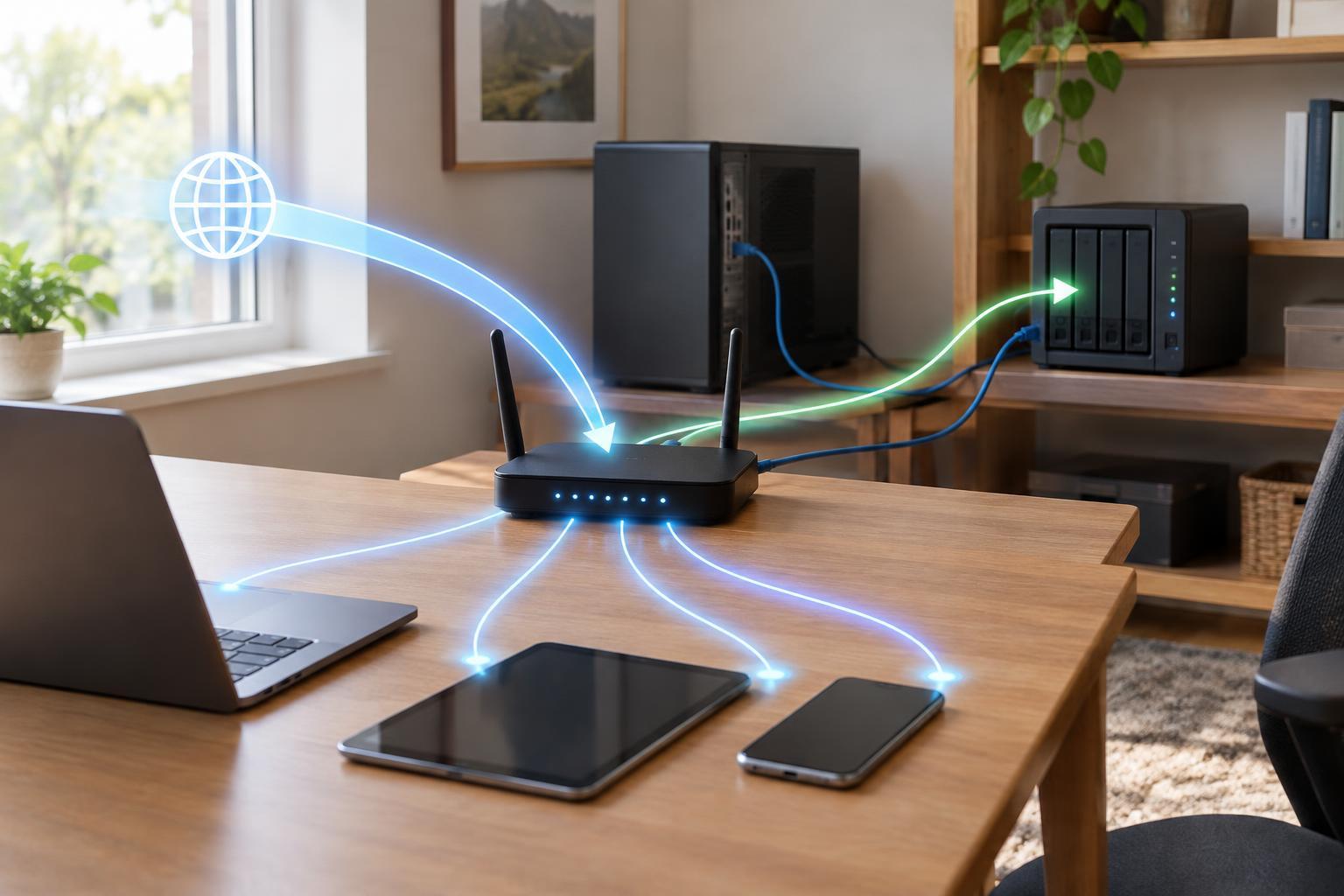
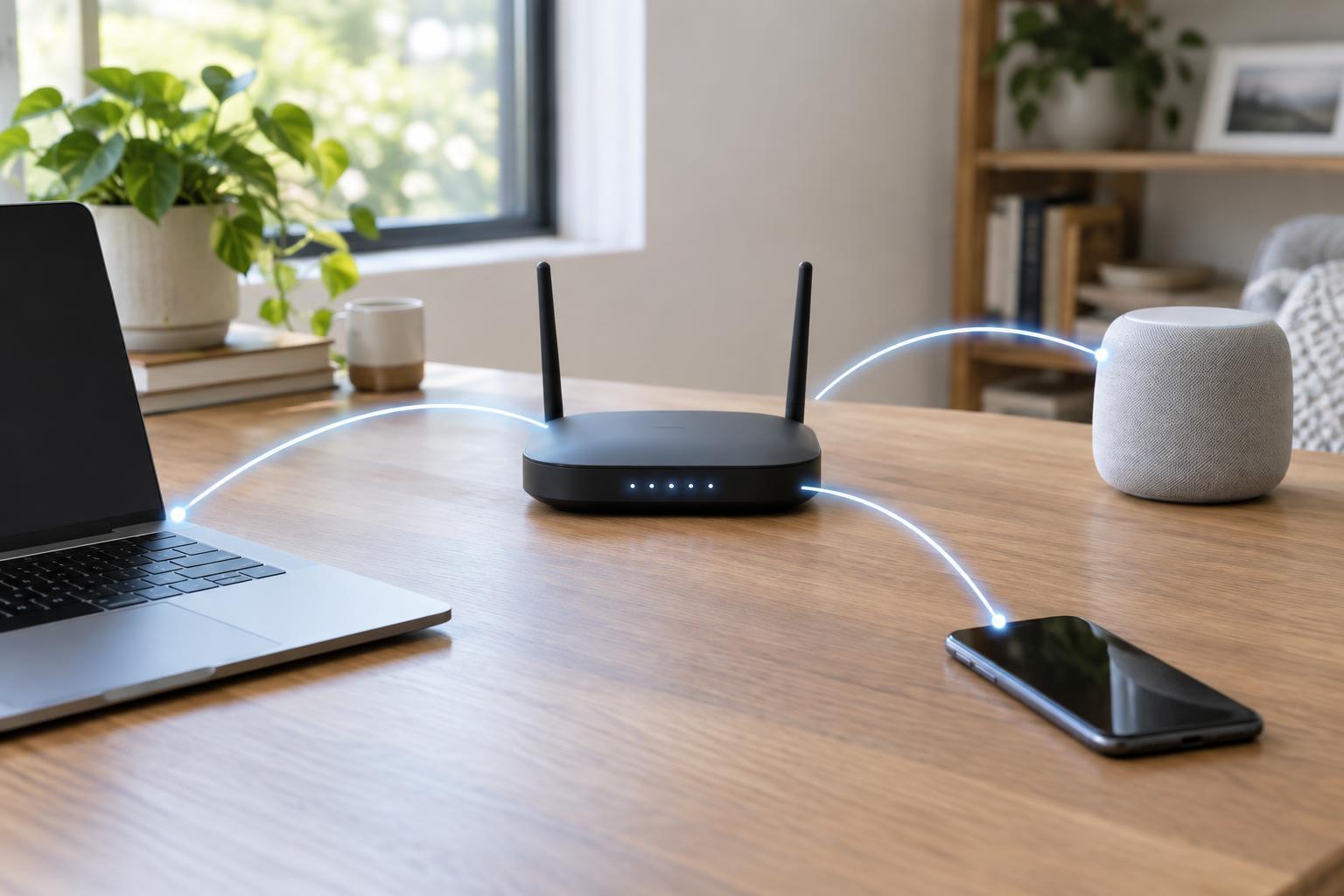
Every device on a home network needs a way to be identified so data can reach the right laptop, phone, printer, or smart device. For IPv4 traffic, that identifier is a local IP address, often something like 192.168.1.25. Devices also need related settings, such as the address of the router they use to reach other networks. Entering those details by hand on every device would be tedious and easy to get wrong.
Dynamic Host Configuration Protocol, or DHCP, handles this setup automatically. On most home networks, the router acts as the DHCP server. It keeps a range of addresses available for assignment, sometimes called an address pool, and gives a joining device a temporary assignment known as a lease. The address identifies the device within that local network; it is not necessarily the public IP address that websites see when the household accesses the internet.
What happens when a device joins
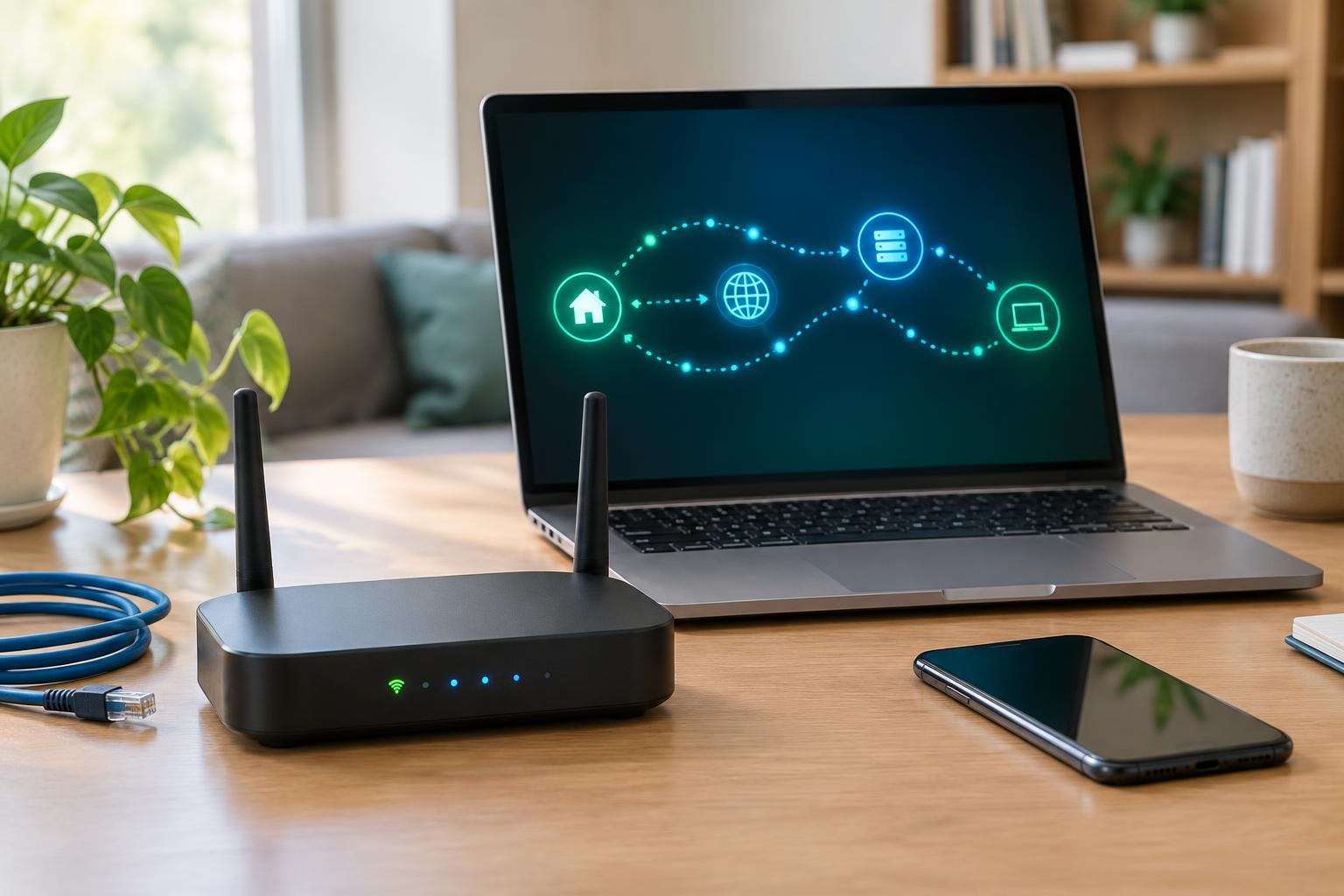
A device that does not yet have a usable IPv4 address can begin by sending a DHCP discovery message on the local network. Because it may not know the server’s address, this message is typically broadcast. A DHCP server responds with an offer that includes an available address and other configuration details. The device requests the offered address, and the server acknowledges the assignment. These steps are commonly called discover, offer, request, and acknowledgment.
The acknowledgment can provide more than an IP address. It commonly includes a subnet mask, which helps the device recognize which destinations are on the local network; a default gateway, usually the router; and DNS server addresses, which help translate names such as website addresses into IP addresses. DHCP therefore helps a device communicate both with neighbors on the same network and with services beyond it. The exact settings depend on how the network is configured.
Why an address may change
A DHCP assignment has a lease time rather than lasting forever. A connected device normally tries to renew its lease before it expires, often keeping the same address. A device that leaves the network for long enough may receive a different address when it returns, especially if another device has been assigned the old one. Restarting a device does not, by itself, guarantee either a new address or the same one.
If a printer or another device needs a predictable local address, many routers support a DHCP reservation. This tells the router to offer a chosen address to a particular device, usually identified by its network adapter’s MAC address. A reservation is often easier to manage than configuring a static address on the device itself. If you do set an address manually, check that it fits the network’s settings and does not conflict with an address the DHCP server might hand out.
DHCP is not the whole addressing story
DHCP is most familiar as the way devices obtain IPv4 settings. IPv6 networks can work differently: a device may create its own IPv6 address using information advertised by the router, receive settings through DHCPv6, or use a combination of methods. Seeing an IPv6 address on a device therefore does not necessarily mean a DHCP server assigned it.
DHCP also does not replace routing or network address translation. It supplies configuration that lets a device find the router, while the router handles traffic between the home network and other networks. Likewise, a working DHCP lease does not prove that the internet connection is working. A device can have a valid local address and still be unable to reach a website because of a DNS, router, or upstream connection problem.
How to check a DHCP problem
If a device joins Wi-Fi but cannot get online, start by checking its network details. Look for an IPv4 address, a default gateway, and DNS settings. Compare them with those on a device that works on the same network. An address beginning with 169.254 can indicate that the device assigned itself a link-local IPv4 address after failing to obtain a usable DHCP lease; such an address usually will not provide normal access through the router.
Try disconnecting and reconnecting the affected device, or using its option to renew the DHCP lease. If several devices have the same problem, check whether the router’s DHCP server is enabled and whether its address pool has room for more devices. An unintended second DHCP server can also give clients conflicting settings. Change one thing at a time and note what improves: separating address assignment from Wi-Fi, DNS, and internet problems makes troubleshooting much more effective.