What a guest network does
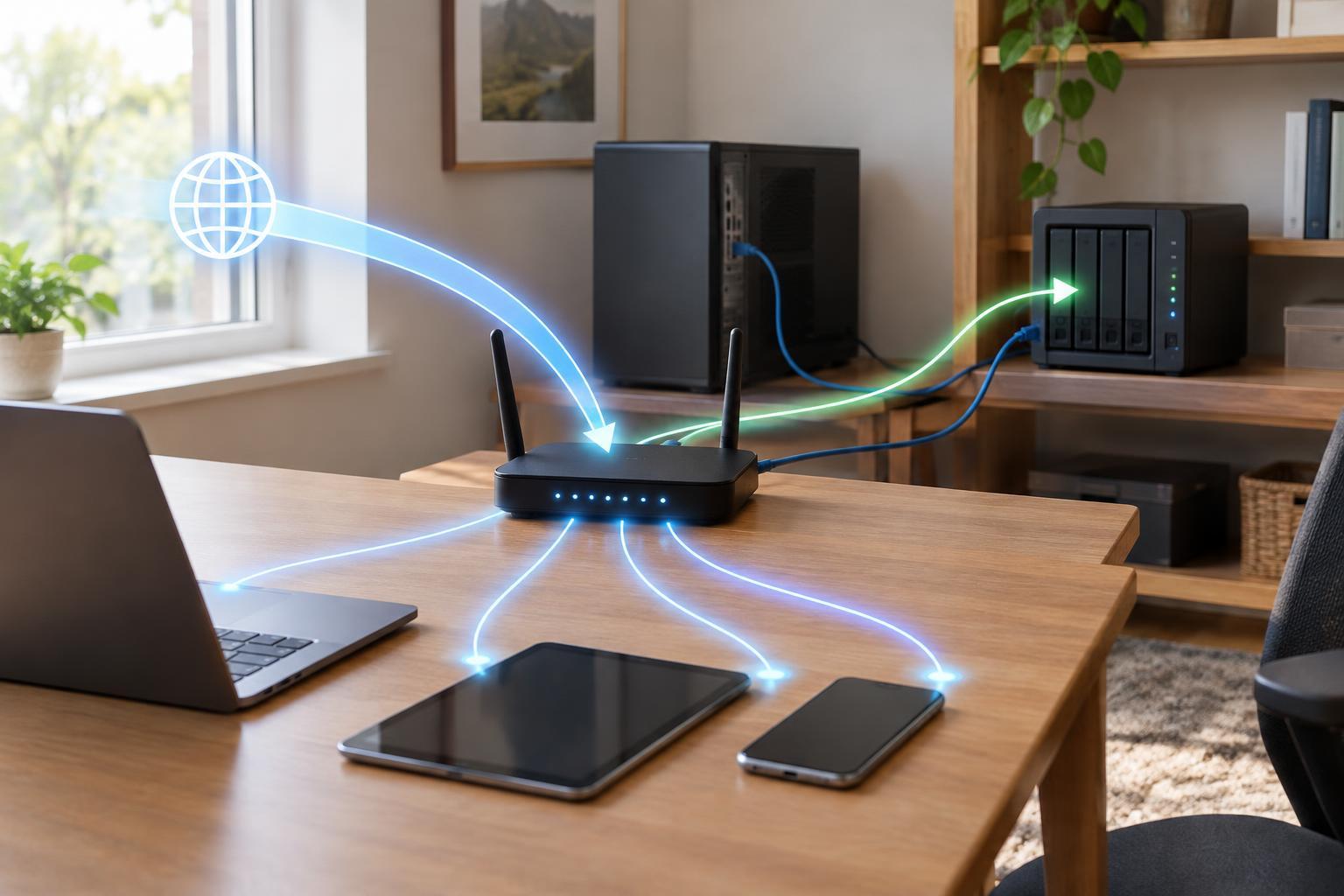
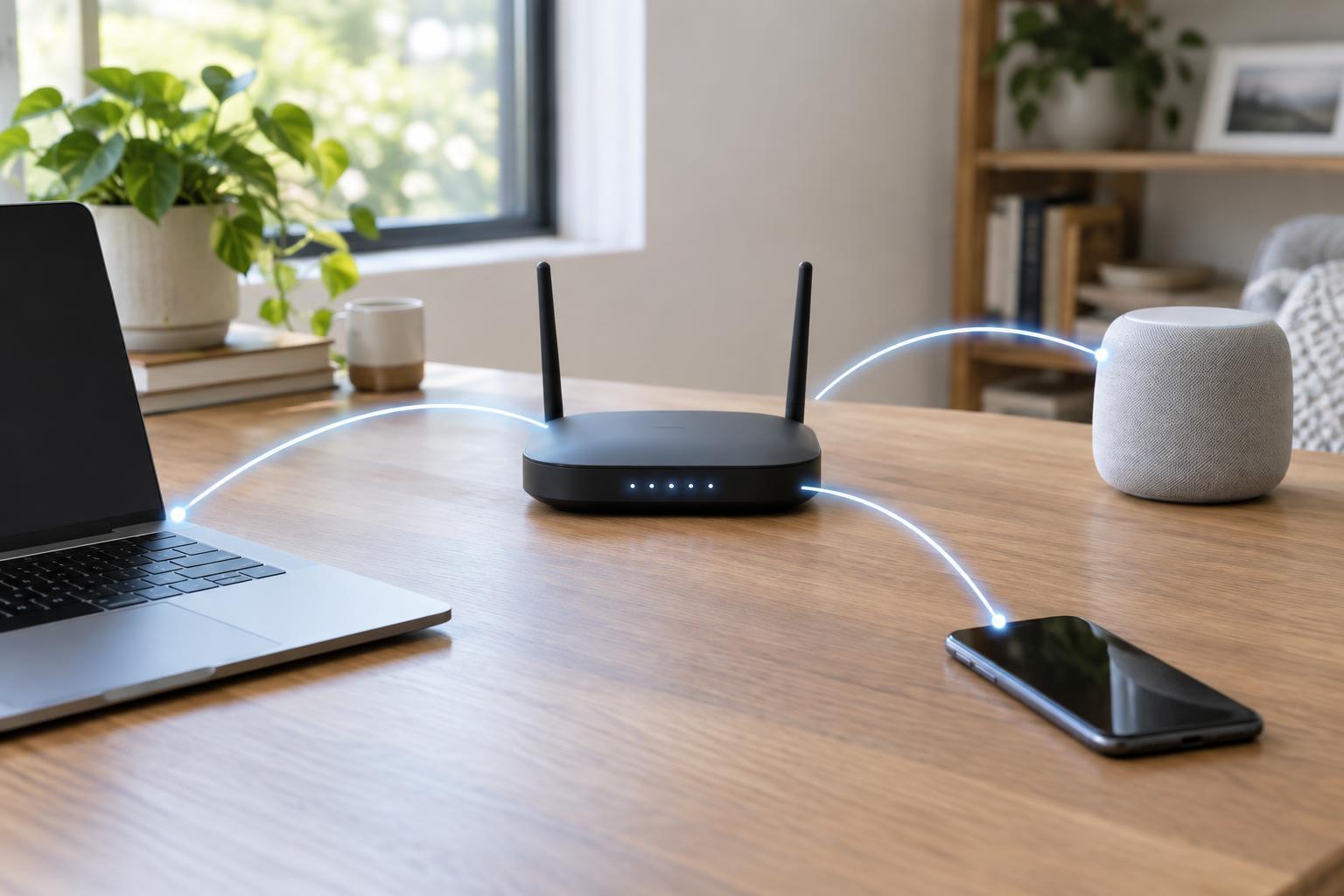
A guest Wi-Fi network gives visitors a separate network name and password for connecting to your router. Its main purpose is to offer internet access without handing out the credentials for the network used by your computers, phones, storage devices, and other equipment. It can also make it easier to change the guest password later without reconnecting every device in your home.
A separate name does not automatically mean complete separation. Guest-network features vary by router: some block access to devices on the main network by default, while others provide a switch for that rule. Before relying on the feature, check what your router calls it and what its access settings actually do. The goal for most homes is straightforward: guests can reach the internet, but not devices on your private network or the router’s administration page.
Create the network in your router settings
Open your router’s management app or web interface using the instructions supplied with the device. Find a setting labeled Guest Wi-Fi, Guest Network, or similar, and enable it. Choose a recognizable network name that is different from your main Wi-Fi name. Avoid putting your address or other personal details in it.
Set a distinct, strong password. If the router offers WPA3-Personal and your guests’ devices support it, that is a suitable choice. WPA2-Personal with AES is a practical alternative for broader compatibility. Avoid an open network unless you have a specific reason to provide one: a sign-in page, where offered, is not a substitute for Wi-Fi encryption. Save the settings, then connect a phone to the new network to confirm that it can browse the internet.
Keep the router’s administrator password separate from both Wi-Fi passwords. If your router offers automatic firmware updates, consider enabling them; otherwise, check for updates periodically through its management interface. These steps protect the router itself, regardless of which Wi-Fi network a device joins.
Choose what guests can reach
For ordinary visitors, look for an option such as “allow access to local network,” “intranet access,” or “access home network,” and leave it off. This generally prevents guest devices from connecting to devices on the main network, such as shared folders, printers, and smart-home hubs. Some routers also offer client isolation, which stops devices on the guest network from communicating with one another. Enable it if visitors only need internet access, especially when many unrelated people may connect.
There are reasons to make a different choice. A guest may need to print, cast to a TV, or control a shared device. Turning on broad local-network access may make that possible, but it can also expose more than the one device you intended. A safer approach, if your equipment supports it, is a specific rule that permits access only to the required device or service. Discovery-based features such as casting may still fail across separated networks even when a connection is allowed. For occasional use, moving the relevant device to the same network temporarily may be simpler, provided you are comfortable with the resulting access.
You may also be tempted to put smart-home devices on the guest network. That can be useful when they need only internet access, but some devices require local communication with a phone or hub. Check those requirements before moving them. On equipment that supports VLANs or multiple isolated networks, a dedicated network for smart devices can offer more control than a basic guest setting, though it takes more configuration.
Test the boundaries, not just the connection
After setup, connect a device to guest Wi-Fi and verify that websites load. Then try to reach a device on your main network that you normally use locally, such as a printer or a shared folder. Check whether the router’s management page is reachable from the guest connection. If client isolation is enabled, test whether two devices on guest Wi-Fi can see each other. Router interfaces use different labels, so these checks are more useful than assuming a setting behaves exactly as its name suggests.
Run the checks again after changing router settings or replacing the router. Keep the guest password available for people who need it, and change it when access should end. A guest network is a helpful boundary, not a guarantee against every risk: guests should still use their own devices responsibly, and your main-network devices should remain updated and protected with appropriate passwords.