Start with the shape
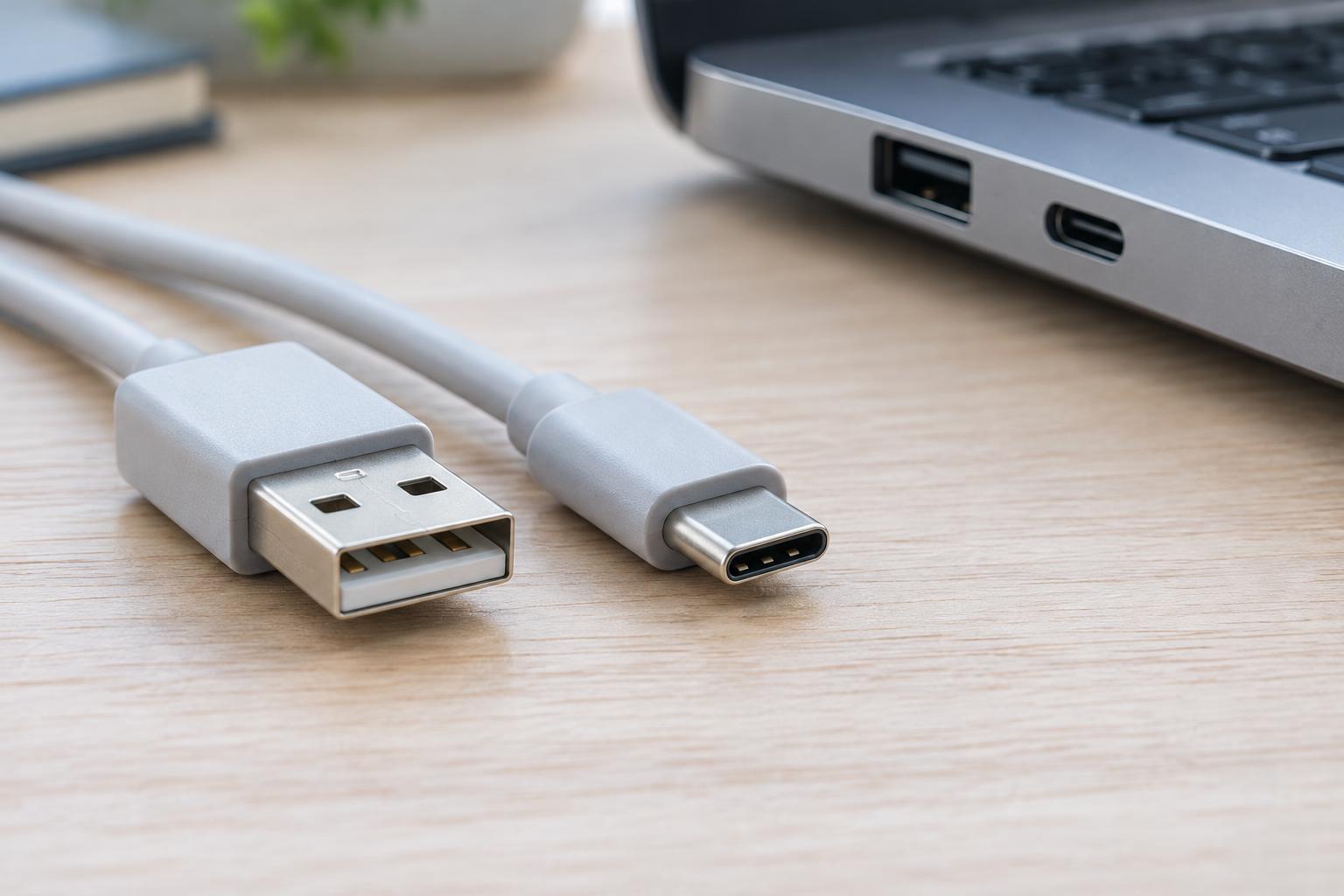
USB-A is the familiar rectangular connector found on many computers, hubs, chargers and peripherals. Its plug fits only one way into a USB-A port. USB-C is smaller, with a rounded, symmetrical shape; its plug can be inserted either way up. A USB-C cable may have a USB-C plug at both ends, while a cable for an older device may have USB-A at one end and another connector at the other.
These names describe physical connectors, not a complete set of capabilities. A USB-C port may offer fast data transfers, basic data transfers, charging, video output or some combination of those features. Two ports that look alike can behave differently. USB-A ports vary too, although the older connector is generally associated with fewer of the newer USB-C features.
Why shape does not determine speed
Data speed depends on the USB capabilities supported by the devices and ports at both ends of a connection, as well as the cable between them. For example, a USB-C cable intended mainly for charging may transfer data at basic USB speeds. Another USB-C cable may support much faster transfers. Likewise, USB-A ports can support different USB data generations despite sharing the same shape.
A connection normally operates within the capabilities of its slowest relevant component. Plugging a fast external drive into a slower port, or using a cable that lacks the needed data support, can limit performance. The drive’s own storage hardware also affects how quickly files move. If speed matters, check the stated data rate for the particular port and cable rather than relying on connector shape, cable color or a broad label such as “fast USB.”
Some USB-C ports also support features such as video output or USB4, but neither is guaranteed merely because the port is USB-C. Consult the device’s port specifications before buying a display adapter, dock or high-speed external drive.
Charging: compatibility is not the same as power
USB-A chargers and ports can supply power, but the amount available varies by charger, port and charging method. They are often suitable for smaller accessories and can charge many phones, though charging performance may differ. USB-C provides a path to higher-power charging through USB Power Delivery, commonly called USB PD. With compatible equipment, USB PD lets the charger and device agree on a supported power level rather than assuming that every USB-C connection supplies the same amount.
A USB-C laptop charger will not necessarily charge every USB-C laptop at full speed. The charger must offer enough power, the laptop must support charging through that port, and the cable must be suitable for the required power level. Some higher-power USB-C arrangements require a cable designed and electronically identified for that use. A device may still charge slowly with a lower-power charger, or it may not charge as expected while in use.
A USB-A-to-USB-C cable can be useful for connecting a newer device to an older charger or computer. It does not turn the USB-A port into a full-featured USB-C port, however. In particular, you should not expect the same charging options or data features that a compatible USB-C-to-USB-C connection might provide.
How to choose the right cable and port
Begin with the job you need to do. For a keyboard, mouse or occasional phone connection, basic data support may be enough. For a fast external SSD, check that the drive, computer port and cable all support the desired data rate. For a monitor or dock, verify the exact video or docking features required by both the computer port and the accessory. For charging, compare the device’s power requirements with the charger’s output and the cable’s rating.
Keep cable descriptions specific when shopping or organizing a shared workspace. “USB-C cable” tells you the plug shape, but not its data speed, video support or power rating. Retaining packaging or labeling cables by their known capabilities can save troubleshooting later. If a connection works but seems unexpectedly slow, test it with a cable and port whose specifications you can verify before assuming the device is faulty.
The simple rule to remember
USB-A and USB-C make it clear what will physically fit. They do not, by themselves, promise a particular transfer speed or charging rate. Treat the connector as your starting point, then check the capabilities of the device, port, charger and cable for the task you have in mind.