Why airflow matters inside a PC
A PC turns some of the electricity it uses into heat. The processor and graphics card generate much of it, but storage drives, power-delivery components, and other parts also warm the air inside the case. Heatsinks transfer heat from components to that air. Case airflow then helps carry the warm air away and replace it with cooler room air. If warm air lingers, component fans may spin faster to maintain suitable temperatures.
Airflow is not just a matter of adding more fans. Air needs a reasonably clear route through the case. Solid panels, tightly packed cables, drive cages, and filters can all resist its movement. The case’s position matters too: an intake pressed against a wall or buried in carpet has less access to fresh air. A sensible layout gives intake openings room to breathe and provides a path for warm air to leave.
Intake, exhaust, and a useful airflow path
Intake fans pull room air into the case; exhaust fans push case air out. A common starting layout uses front or lower openings for intake and rear or upper openings for exhaust. This can create a path across the components that need cooling. The best arrangement depends on the case and its contents, so check the fan-direction arrows on each fan’s frame rather than assuming which way it blows. Fans mounted in the same area should generally work together, not against one another.
You may hear a layout described as having positive or negative air pressure. In practical terms, this describes whether intake airflow tends to exceed exhaust airflow or vice versa. A modest intake bias can encourage air to enter through filtered openings instead of gaps around the case. It is not a guarantee of a dust-free PC: fan speed, panel design, and restrictions all affect where air actually travels. Strong, unobstructed airflow matters more than achieving a pressure label.
What dust filters help with—and what they cost
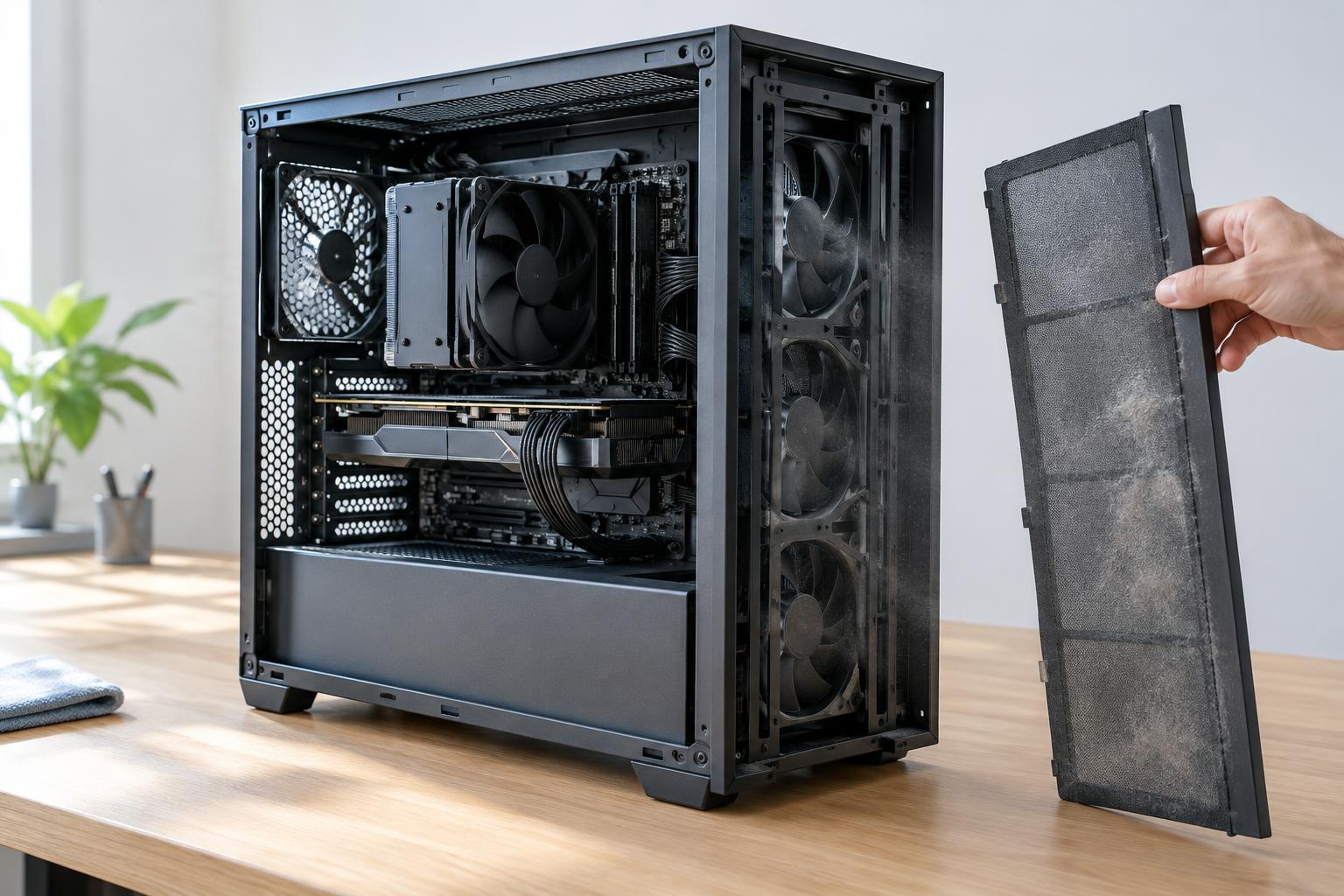
Dust filters catch some particles before they enter an intake. That can slow the buildup on heatsink fins and fan blades, where debris makes cooling harder and cleaning more involved. Filters are most useful on openings that draw air into the case. They cannot stop every particle, and a PC will still need occasional inspection, especially in a dusty room or a home with pets.
A filter also makes it harder for air to pass through an opening. A fine or clogged filter may reduce airflow or prompt fans to run faster, increasing noise. Filtered intake works best when the intake area is generous and the filter is kept clear. An open, unfiltered exhaust usually does not need a filter while its fan is running, because air is leaving the case. If a case has a filtered opening but no fan behind it, whether that opening acts as an intake can vary with the rest of the layout.
How to spot an airflow problem
A PC that grows noticeably louder during familiar tasks, feels unusually hot near its exhaust, or shows higher component temperatures than it used to may benefit from an airflow check. These signs do not prove that the case is at fault: room temperature, software load, fan settings, and the condition of component coolers also matter. Compare temperatures under similar workloads and room conditions rather than judging by one reading. Some fans becoming louder during a demanding game or other heavy task is normal.
Start with simple observations. Look for blocked vents, dust-covered filters, and fans that are not spinning when expected. Check whether cool air can reach the intake side and whether cables or large parts obstruct the path through the case. If temperatures improve when a removable front panel is temporarily opened, restricted intake may be a factor. That comparison is a diagnostic clue, not a reason to leave the PC exposed during everyday use.
A practical maintenance routine
Power down and unplug the PC before removing panels or cleaning. Take out removable filters according to the case instructions, clear the collected dust, and let any washed filter dry completely before reinstalling it. Use a soft brush or carefully directed compressed air to clear accessible debris from vents and heatsinks. Keep fan blades from spinning freely while blowing air through them, and avoid pressing on delicate connectors or components.
How often to clean depends on the room and how quickly dust accumulates; inspect the filters periodically and adjust the schedule to what you find. Keep the case off thick carpet if it draws air from below, and leave space around its vents. If cooling remains inadequate after cleaning, consider whether fan direction, intake area, or an overly restrictive filter is the limiting factor before buying additional fans. A clear airflow path and clean filters are often a better first step than simply increasing fan speed.