Start with the devices, not the connector
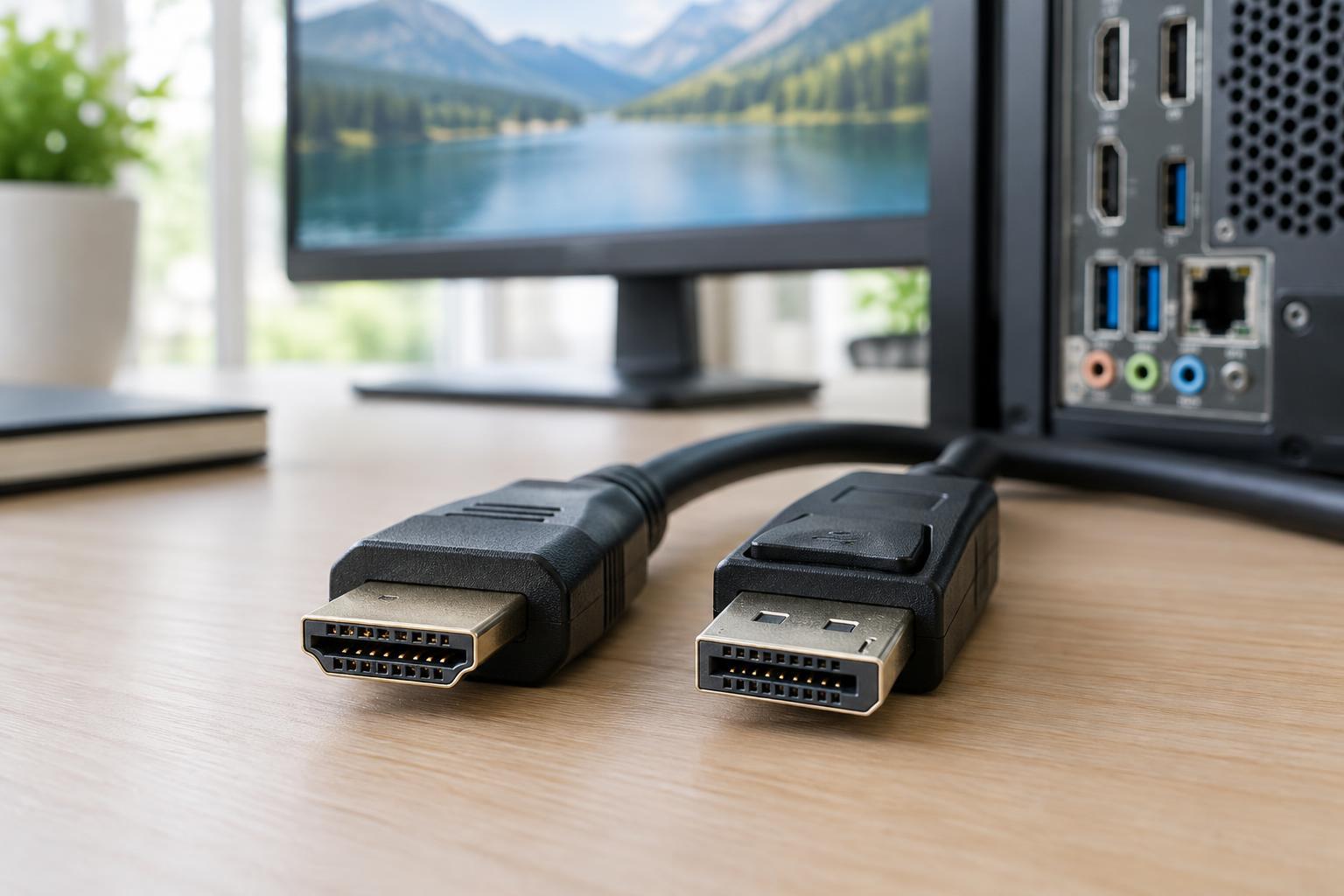
HDMI and DisplayPort both carry digital video and audio. For an ordinary desktop setup, either can produce a sharp, stable image. If your computer and monitor support your preferred resolution and refresh rate over both connections, you are unlikely to see a picture-quality difference just because you changed the cable.
The connector alone does not tell you what a setup can do. A graphics card, laptop, monitor, adapter, and cable can each impose a limit. Two ports that look identical may support different features or maximum display modes. Before buying anything, check the specifications for the particular computer output and monitor input you intend to use. Look for supported resolution, refresh rate, and features rather than relying only on an HDMI or DisplayPort version number.
Match the connection to your resolution and refresh rate
A monitor’s resolution tells you how many pixels it displays; its refresh rate tells you how often it can update the image. Higher values generally require more connection bandwidth. Color depth, HDR, and the way color information is transmitted can also affect which modes are available. That is why a port may support a monitor’s native resolution at one refresh rate but not at a higher one.
Neither HDMI nor DisplayPort is universally faster. Their capabilities vary by implementation. For a high-refresh-rate or high-resolution monitor, find the monitor’s supported modes for each input, then compare them with the computer’s output specifications. Pay attention to notes about Display Stream Compression, often called DSC, if a desired mode depends on it. DSC is designed to make demanding display modes possible, but both ends of the connection must support the relevant setup. If you already own the equipment, testing a direct connection is often the simplest way to confirm which modes appear in your display settings.
Consider the extras you actually need
DisplayPort is often convenient in computer-focused setups. Some DisplayPort equipment supports Multi-Stream Transport, or MST, which can carry more than one display signal through a compatible hub or daisy-chain arrangement. This is not a feature of every port or monitor, and the available bandwidth is shared. Check the specifications of the computer, any hub, and the monitors before planning a multi-screen desk around it.
HDMI is common on televisions, game consoles, and many laptops, making it a practical choice when you move between a monitor and other displays. Features such as variable refresh rate can make compatible games look smoother, but support depends on the specific devices and their settings, not merely on the presence of an HDMI or DisplayPort socket. If your monitor has several inputs, using the connection that leaves the most useful ports free for your other devices may be the deciding factor.
Treat USB-C, adapters, and cables as part of the setup
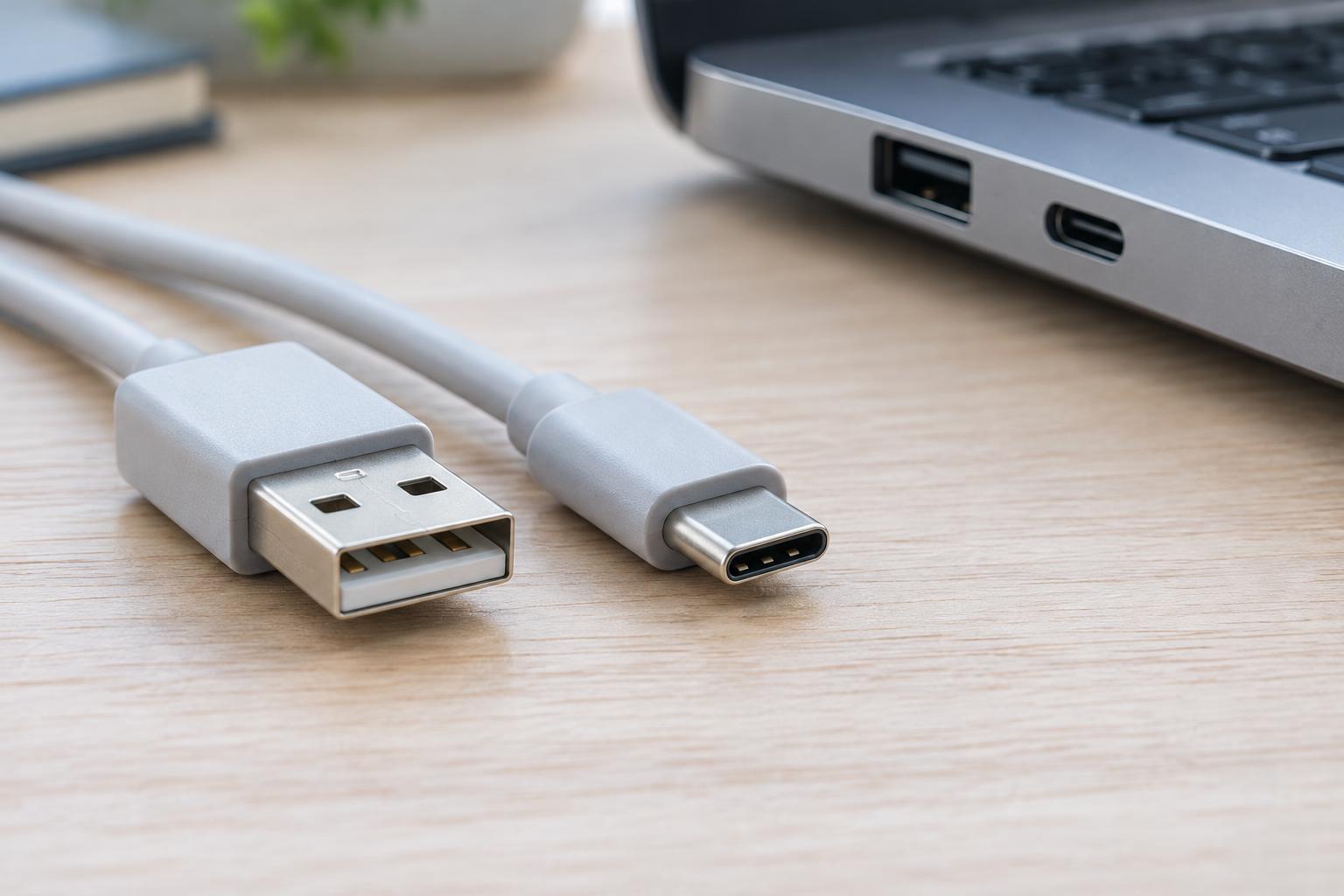
A USB-C port on a laptop may carry a DisplayPort video signal, but USB-C describes the connector shape, not a guarantee of video output. The laptop, dock or adapter, and monitor must support the required connection. A dock that shares its available bandwidth among displays and other devices may offer different display modes from a direct cable. If you are choosing a dock for two monitors, verify its supported combinations at the resolutions and refresh rates you want.
Use a cable suited to the mode you intend to run, particularly for demanding high-resolution or high-refresh-rate setups. A reputable, appropriately certified cable is a better guide than vague claims printed on packaging. Keep the cable run reasonably short, and avoid unnecessary adapters while troubleshooting. Adapters are especially worth checking closely: they may support video in only one direction, or they may limit the available refresh rate. A connector that physically fits is not proof that the whole signal path will work.
Make the choice with a quick compatibility check
First, list the monitor mode you want: resolution, refresh rate, and any must-have features such as HDR or variable refresh rate. Next, confirm that the monitor supports that mode on the input you plan to use and that the computer supports it on its matching output. Include any dock or adapter in this check. If both HDMI and DisplayPort meet your needs, choose the one that makes your desk easier to connect and leaves suitable ports available for other devices.
After connecting, open your operating system’s display settings and select the intended resolution and refresh rate; the default may be lower than the monitor can handle. If the option is missing or the screen flickers, try a direct connection, another suitable cable, or a different port before assuming the monitor is faulty. In short, choose the complete connection path that reliably supports your desired display mode—not the connector with the more impressive-sounding name.