What a PCIe slot does
Peripheral Component Interconnect Express, or PCIe, is the connection used by many internal expansion cards. A card plugs into a PCIe slot on the motherboard to add a function the computer lacks or to upgrade one it already has. Unlike an external USB device, an expansion card sits inside the case and may also need power from the power supply.
PCIe connections use lanes to carry data. Slot labels such as x1, x4, x8 and x16 describe lane counts, but a slot’s physical length does not always tell you how many lanes are connected. A long x16-sized slot, for example, may operate at x4. PCIe also has generations, which affect the speed available per lane. A card and slot from different generations can generally work together at a speed both support. Check the motherboard specifications for the actual lane count and generation of each slot.
Common cards you can add
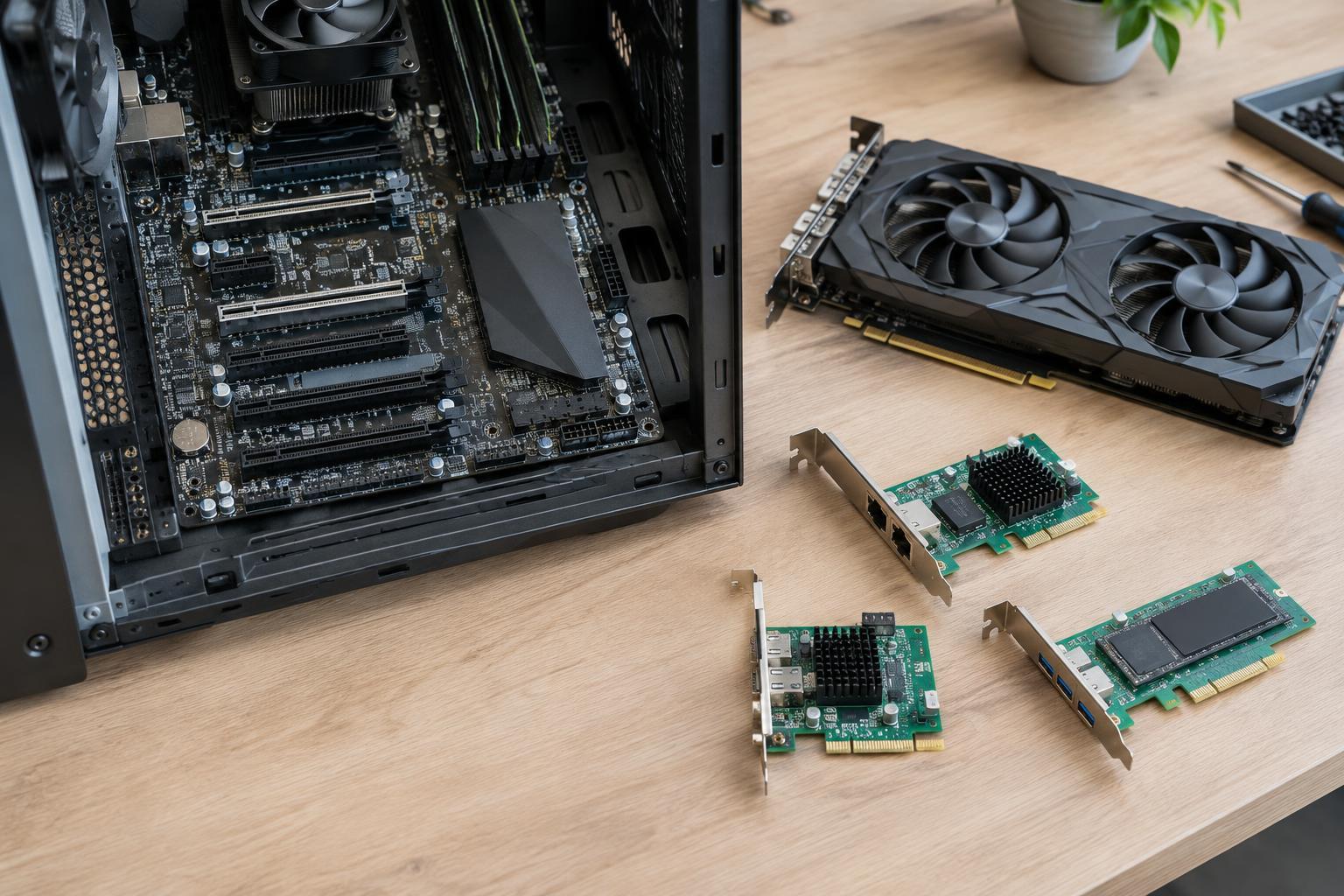
A graphics card is a familiar PCIe upgrade. It usually uses an x16-sized slot and can improve gaming, video work or support for particular displays. Before choosing one, check more than the slot: the card must fit inside the case, leave room for cooling and stay within the power supply’s capacity. Some graphics cards also require separate power connectors.
Other cards solve narrower problems. A network card can add Ethernet ports or Wi-Fi; a USB card can provide extra ports; and an audio card can add inputs or outputs. Capture cards accept video from another device, while storage controller cards can provide connections for additional drives. PCIe adapters can also hold NVMe SSDs, though the ability to boot from a drive on an adapter depends on the computer’s firmware. The card’s intended use and required software matter as much as its connector.
How to match a card to a slot
Start with the card’s connector and the motherboard’s available slots. A short x1 card can normally fit in a longer PCIe slot. A longer card will not fit in a shorter closed-ended slot, even if it could operate with fewer lanes. Some slots are open-ended, but do not assume that a card extending past the slot will have enough physical clearance. Consult the motherboard and card specifications rather than relying only on appearance.
Next, consider bandwidth. A low-demand USB or audio card may work well with an x1 connection, while a graphics or high-speed storage card may benefit from more lanes. Using fewer lanes or an older PCIe generation can limit performance, although the effect depends on the card and workload. Also check whether the slot is already occupied or blocked by a wide graphics card.
The compatibility details that are easy to miss
Motherboards sometimes share resources between slots and built-in connections. Installing a card in one slot might reduce the lanes available to another slot or disable a particular M.2 or SATA connection. The motherboard manual should describe these combinations. It can also tell you whether a slot is connected through the processor or the chipset, which may matter for devices that transfer large amounts of data.
Physical fit is another separate check. A small-form-factor case may need a low-profile card and matching bracket. A tall card, its cables or a nearby component may interfere with the case even when the connector fits. Check the card’s operating-system support, driver requirements and any auxiliary power connector, too. A free PCIe slot alone does not guarantee a usable upgrade.
A practical way to plan an upgrade
Identify the capability you need first: another display, a faster network connection, more storage ports or something else. Then look up the card’s slot, lane, power and space requirements. Compare those requirements with the motherboard manual, power supply connectors and case dimensions. If you are adding storage, confirm which drives and interfaces the card supports rather than assuming every storage card works with every SSD.
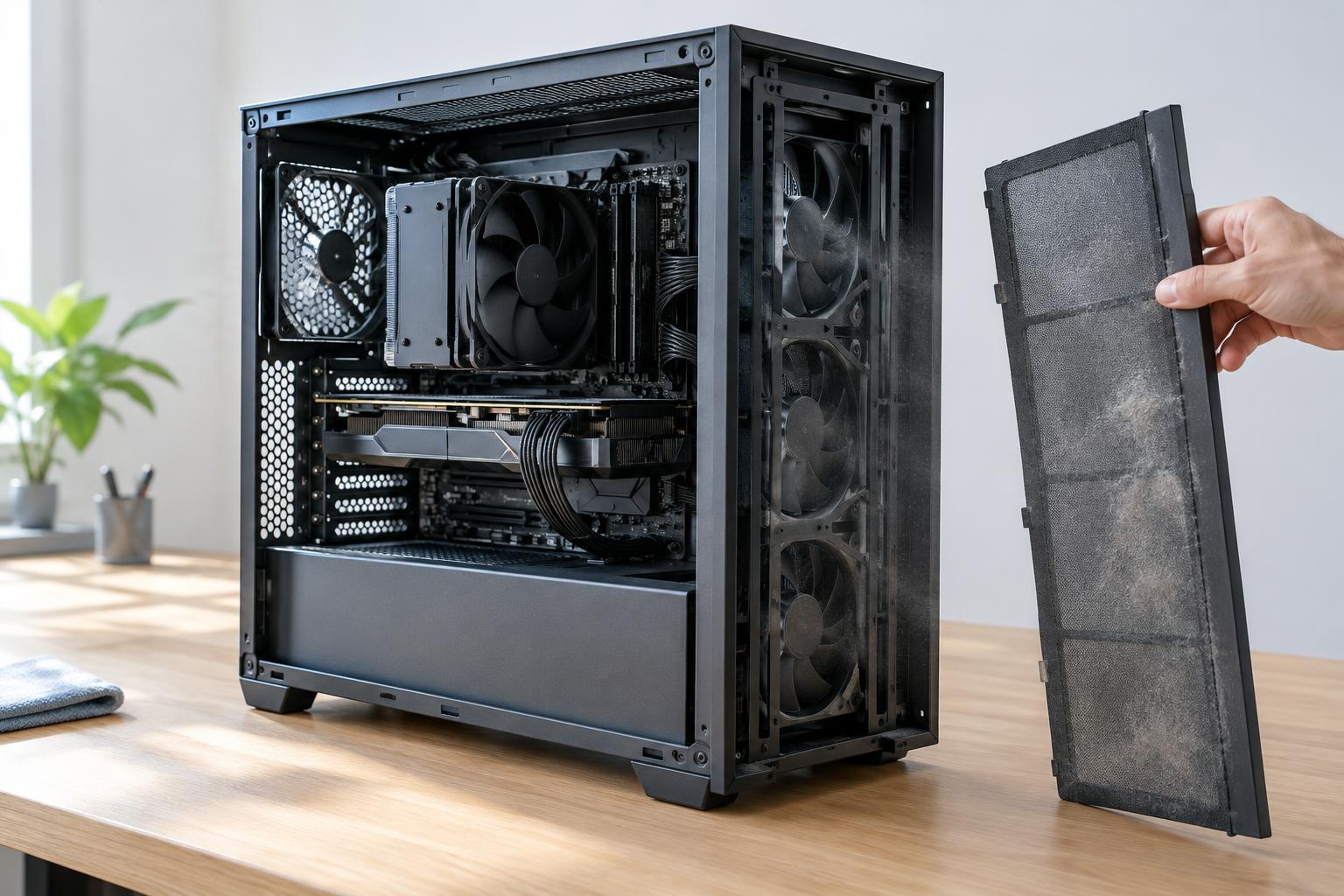
Before opening the case, shut down the computer, unplug it and follow the manufacturer’s handling guidance. Install the card securely, connect any required power, and leave its vents unobstructed. After startup, check that the operating system detects it and install appropriate drivers if needed. This step-by-step approach makes PCIe upgrades less about guessing which card looks right and more about confirming that the whole system can support it.