First, identify what “won’t power on” means
Press the power button once and watch and listen closely. Do you see any indicator lights, hear a fan, or notice keyboard lights? If the computer shows signs of activity but the screen stays black, it may be starting without displaying an image. That calls for a different set of checks than a machine that appears completely unresponsive.
If a monitor is involved, confirm that it is on and connected to power. Check that its video cable is firmly seated at both ends and that the monitor is set to the input you are using. On a desktop with both motherboard and graphics-card video ports, the display may need to be connected to the graphics card. These checks are especially useful when the PC seems to run but nothing appears on screen.
Note any brief flash of light, fan movement, clicking, unusual smell or visible damage. You do not need to diagnose the cause yet; these observations will help you decide what to try next and describe the problem if you seek help.
Check the power path outside the computer
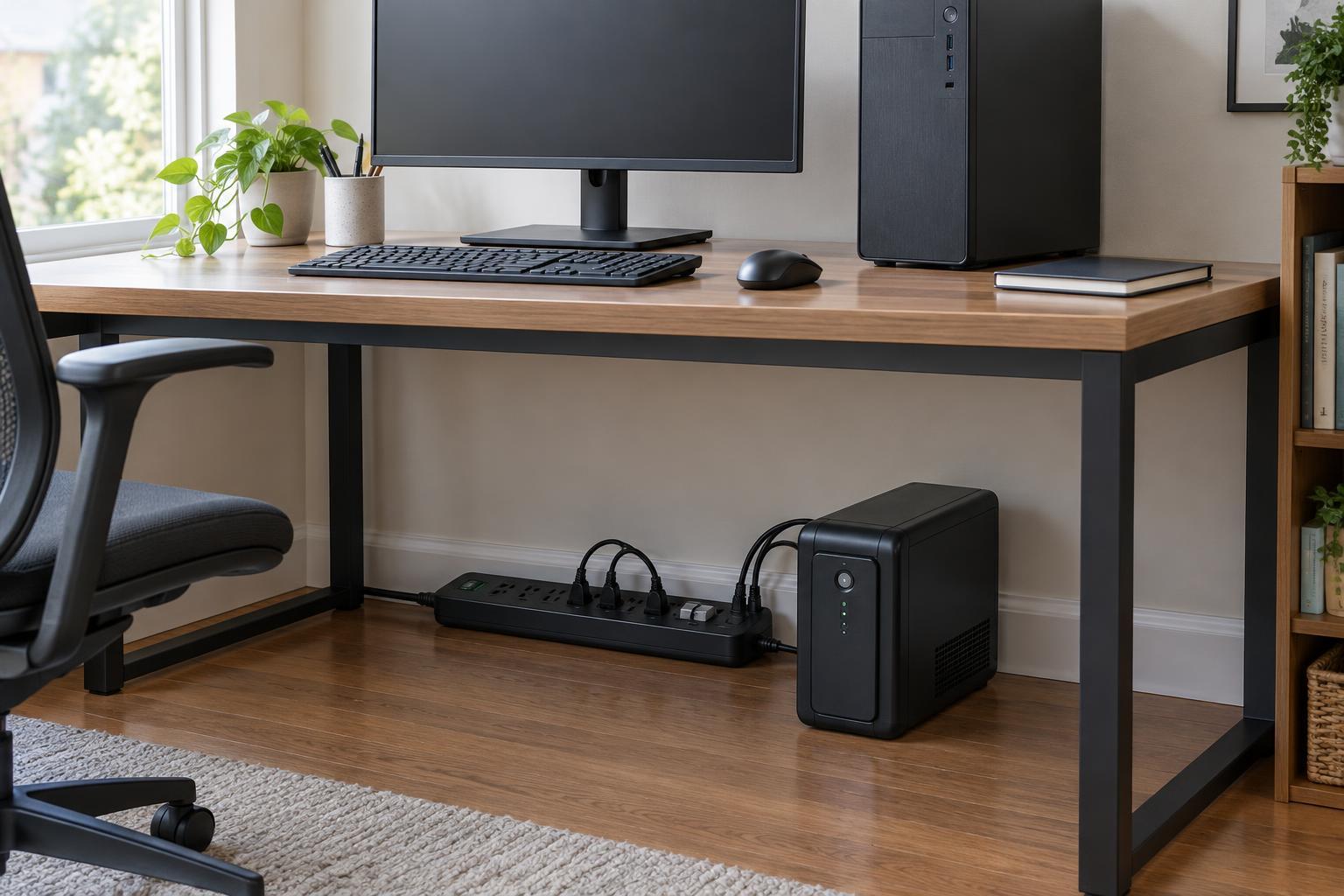
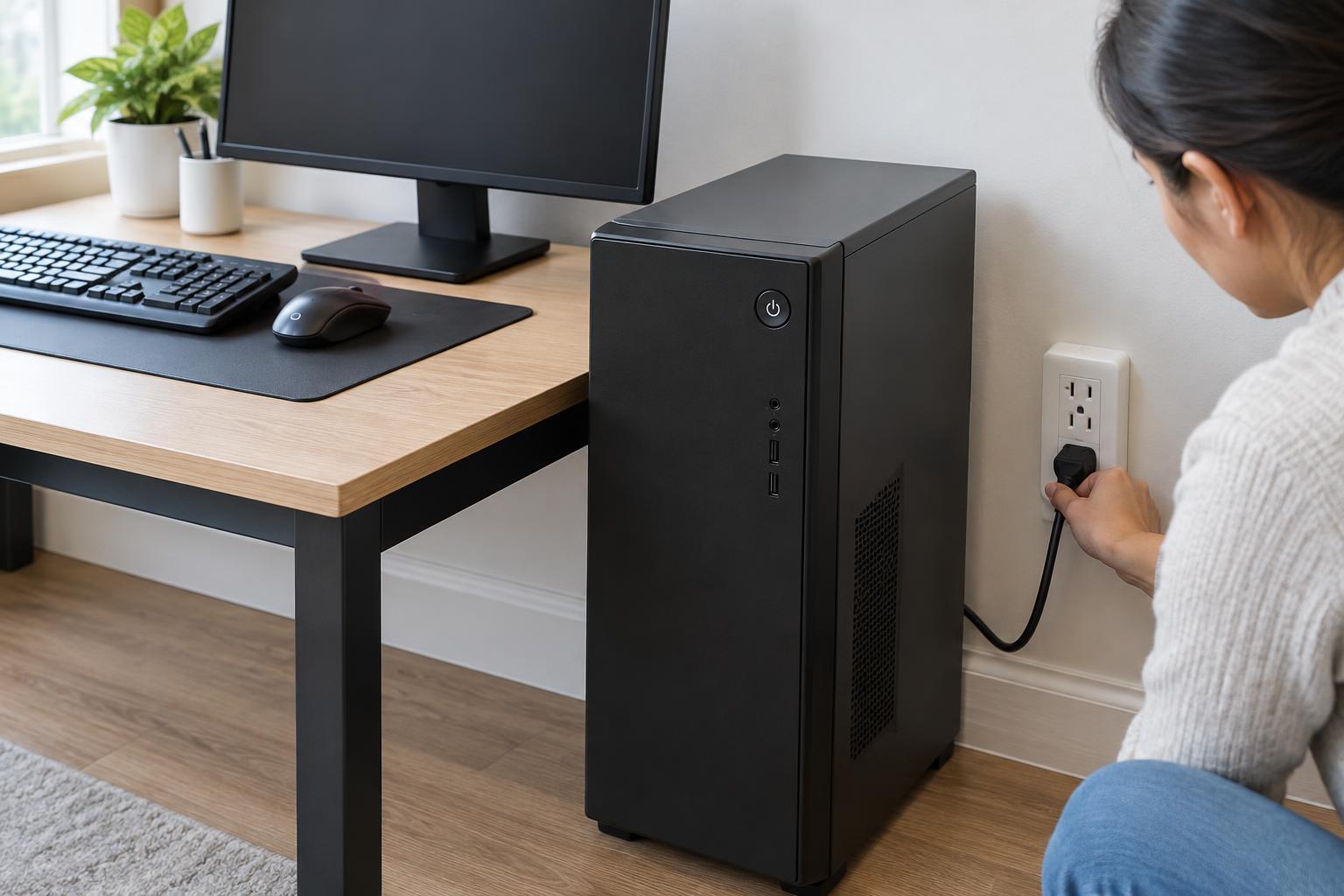
Start at the wall. Make sure the plug is fully inserted, then test the outlet with a device you know works. If the PC is connected through a power strip or surge protector, check that its switch is on. You can temporarily connect the computer directly to a working outlet to rule out the strip. Do not use an outlet, plug or cable that looks damaged or feels unusually hot.
For a desktop, push the power cable firmly into the back of the PC and check the power supply’s rear switch, if it has one. The switch should be in the on position, often marked “I” rather than “O.” If you have another compatible, undamaged power cable available, swapping the cable is a simple way to test it.
For a laptop, check each connection between the wall, charger and computer. Use a charger intended for that laptop; a connector that fits does not necessarily deliver suitable power. If the laptop has a charging indicator, look for a change when you connect the charger. Where possible, try another compatible charger or charging port. Leave a fully depleted laptop connected for a while before testing the power button again.
Remove accessories and try a simple reset
Disconnect nonessential devices, such as USB drives, external storage, printers, docks and adapters. Keep only the power connection and, for a desktop, the equipment needed to observe startup. A faulty accessory or connection can sometimes interfere with startup, and removing extras makes the test easier to interpret.
With the computer unplugged from power, hold its power button for about 15 seconds. Then reconnect power and press the button once. On a laptop with a removable battery, follow the manufacturer’s instructions if you want to test with the battery removed and the charger connected. Do not pry open a laptop or remove a battery that is not designed for user removal.
If the PC turns on after these steps, reconnect accessories one at a time to see whether the problem returns. If it still does nothing, avoid repeatedly pressing the power button; move on to deciding whether further inspection is appropriate.
Consider internal checks only if you are comfortable
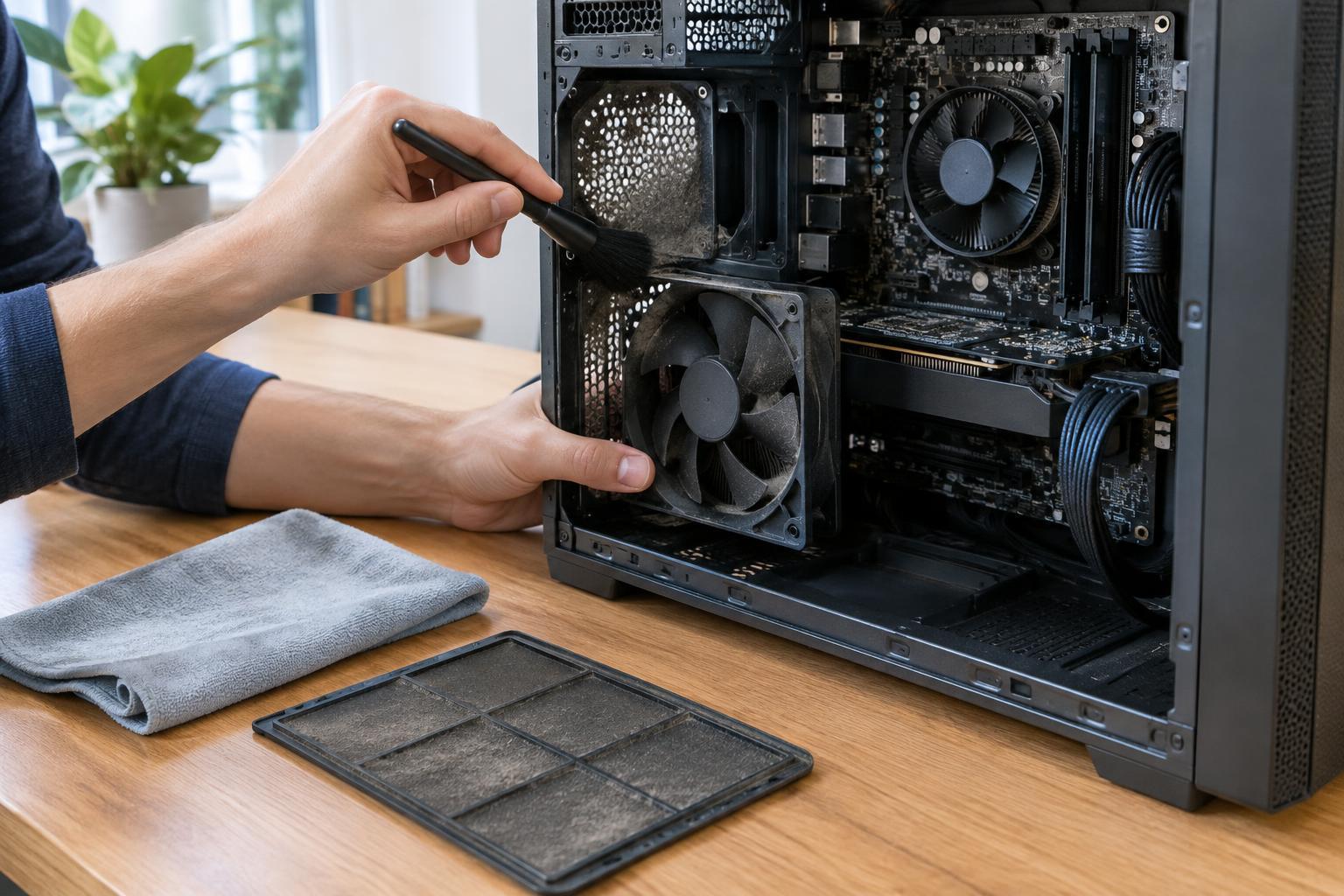
A desktop that remains unresponsive may have a loose internal connection, a faulty power button, or a failed component. Opening the case is optional, not a required beginner step. If you choose to inspect it, shut the PC down, unplug it, and follow the case or computer manufacturer’s guidance. Touch an unpainted metal part of the case before handling components, and avoid pulling on wires.
You may be able to visually check whether accessible motherboard power connectors appear firmly seated. Do not open the power supply unit: it contains parts that can retain a hazardous electrical charge after the PC is unplugged. Do not attempt to repair damaged wiring, bypass the power button, or work inside a computer after a liquid spill. For a laptop, internal power checks are usually better left to a qualified repair technician.
Know when to stop and what to record
Stop using the computer and seek qualified help if you notice smoke, a burning smell, liquid damage, exposed wiring, a swollen battery or a hot, damaged charger. If basic external checks have not helped, a repair technician can test the power supply and other components with appropriate equipment. Tell them which outlets, cables or chargers you tried and whether the PC showed any lights or fan movement.
A PC that will not start has not necessarily lost its files. Avoid replacing or erasing storage as a first troubleshooting step. If the computer contains important data, mention that before authorizing repairs, and ask how the storage will be handled. Once the PC is working again, maintaining a separate backup will make the next hardware problem less stressful.