The basic difference
A password is a secret you know and enter when you sign in. The service checks it against a stored representation of your password. Because you can type the same password anywhere, you can also type it into a convincing fake sign-in page. If you reuse it, a password exposed through one account can put others at risk.
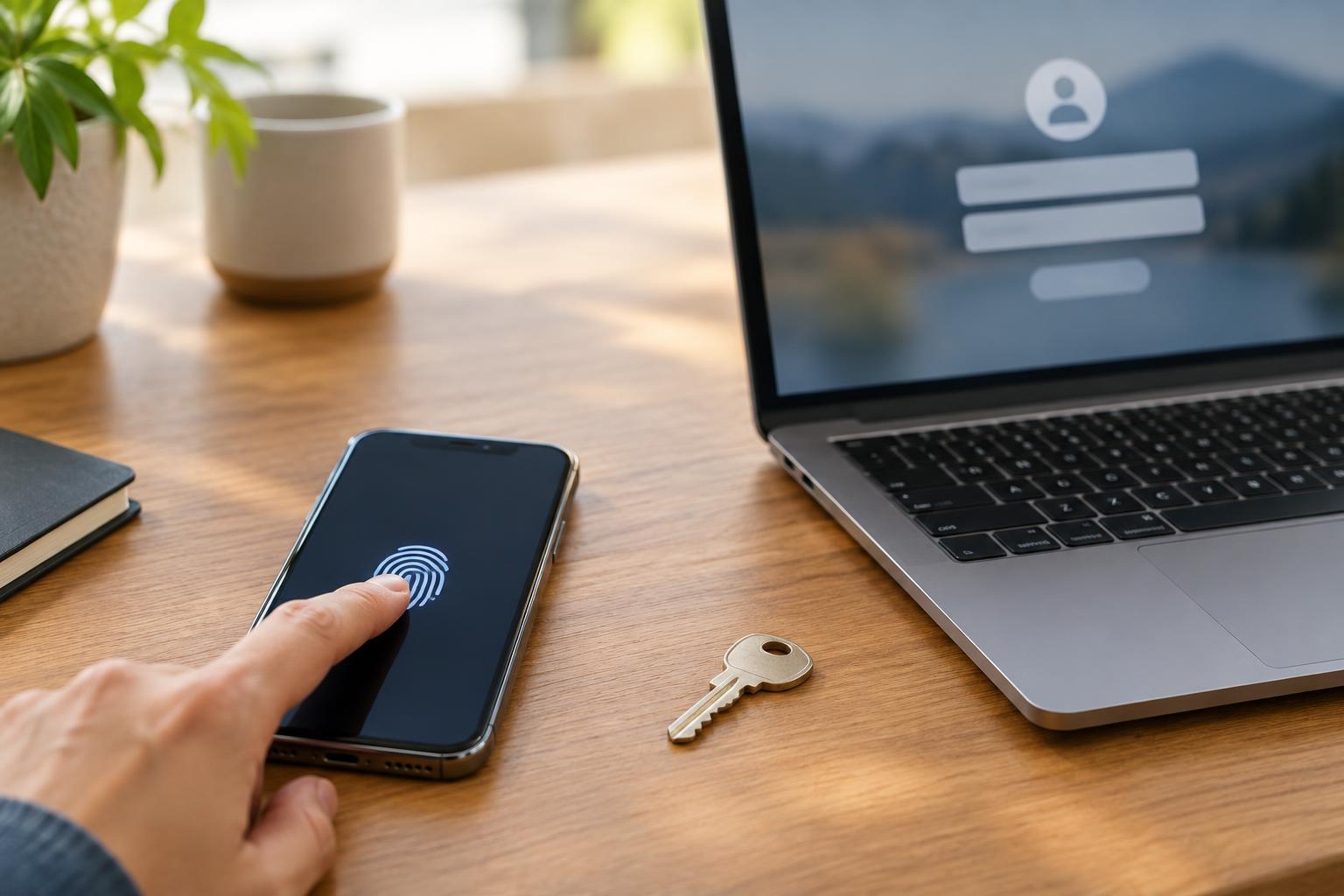
A passkey is a pair of cryptographic keys created for a particular account. The service keeps the public key; the private key stays with your device or passkey provider. During sign-in, the service sends a challenge that the private key signs. The service verifies the response without receiving the private key. You usually approve the sign-in by unlocking a device with a PIN, fingerprint, or face recognition. That local unlock does not mean your fingerprint or face is sent to the website.
Why passkeys resist common phishing attempts
Passkeys are tied to the website or app they were created for. A lookalike site on a different domain cannot normally request and use the passkey for the real site. This is an important difference from passwords, which you might unknowingly enter into an imitation page. Passkeys also remove the need to invent and remember a new secret for every account.
That protection does not make every account risk disappear. Someone who gains access to an unlocked device, takes over an account through its recovery process, or persuades a user to approve another form of access may still cause harm. A passkey protects the sign-in method; it does not replace device security, careful account recovery settings, or attention to unexpected prompts.
Where passkeys live and how you use them
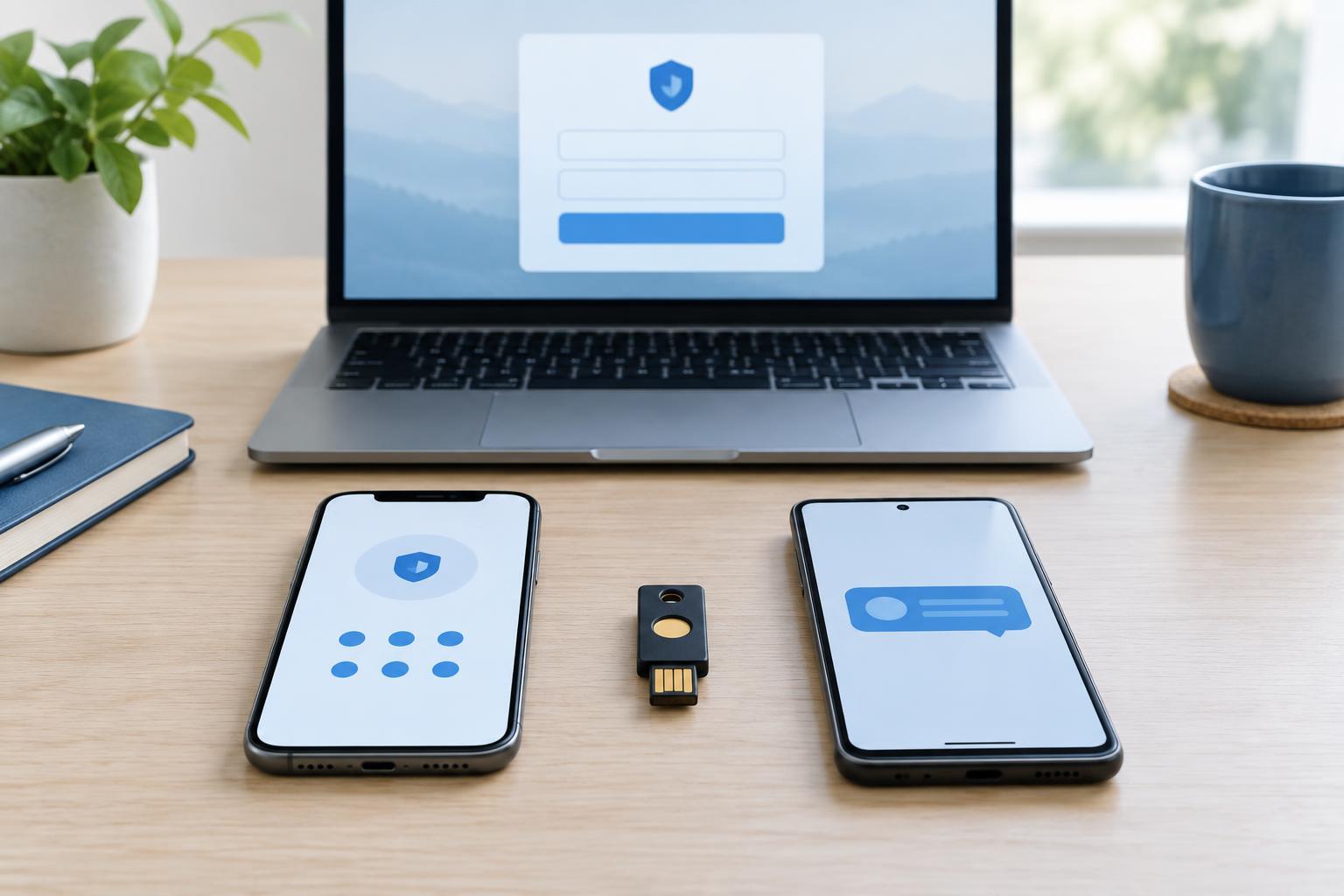
Some passkeys are stored in a device’s built-in credential system or a password manager and can sync to your other devices. Others are device-bound, such as a passkey held on a security key. Syncing can make it easier to sign in after changing phones or computers, while a device-bound passkey gives you a distinct physical item to manage. The exact options depend on the service, operating system, browser, and passkey provider.
You may also be able to sign in on one device using a passkey held on another, often by scanning a QR code and confirming the request on your phone. Follow the sign-in instructions shown by the legitimate service, and check that you are signing in to the account you intended. Before relying on any one device, find out how you would regain access if it were lost, replaced, or unavailable.
When a password is still the right tool
Use a passkey when a service offers one and you have a reliable way to store and recover it, especially for accounts you use often. Keep in mind that adding a passkey may not remove the password or other sign-in methods from that account. Review the available methods and protect the remaining routes into the account.
Passwords remain necessary when a service does not support passkeys or when a device or workflow cannot use them. In those cases, create a long, unique password for each account and store it in a reputable password manager rather than reusing a memorable favorite. Enable multifactor authentication where available, preferably using an authenticator app or security key if the service supports one. A strong password paired with an additional factor is far better than a reused password.
Build a sign-in plan you can recover
Start with an important account and check its security settings for a passkey option. Add a passkey on a device you control, then test a normal sign-in before changing anything else. Look for a second way to sign in if your primary device fails, such as another passkey, a security key, or recovery codes offered by the service. Store recovery codes separately from the device they are meant to replace.
For a household or small organization, avoid tying shared work to one person’s phone. Give people their own accounts where possible, document which approved sign-in methods are in use, and plan how access will be restored when a device is lost. The best choice is not simply “passkeys everywhere” or “passwords forever.” Use passkeys where they are supported and manageable, maintain strong passwords where they are needed, and check that recovery paths are secure enough to support both.