What a password manager does
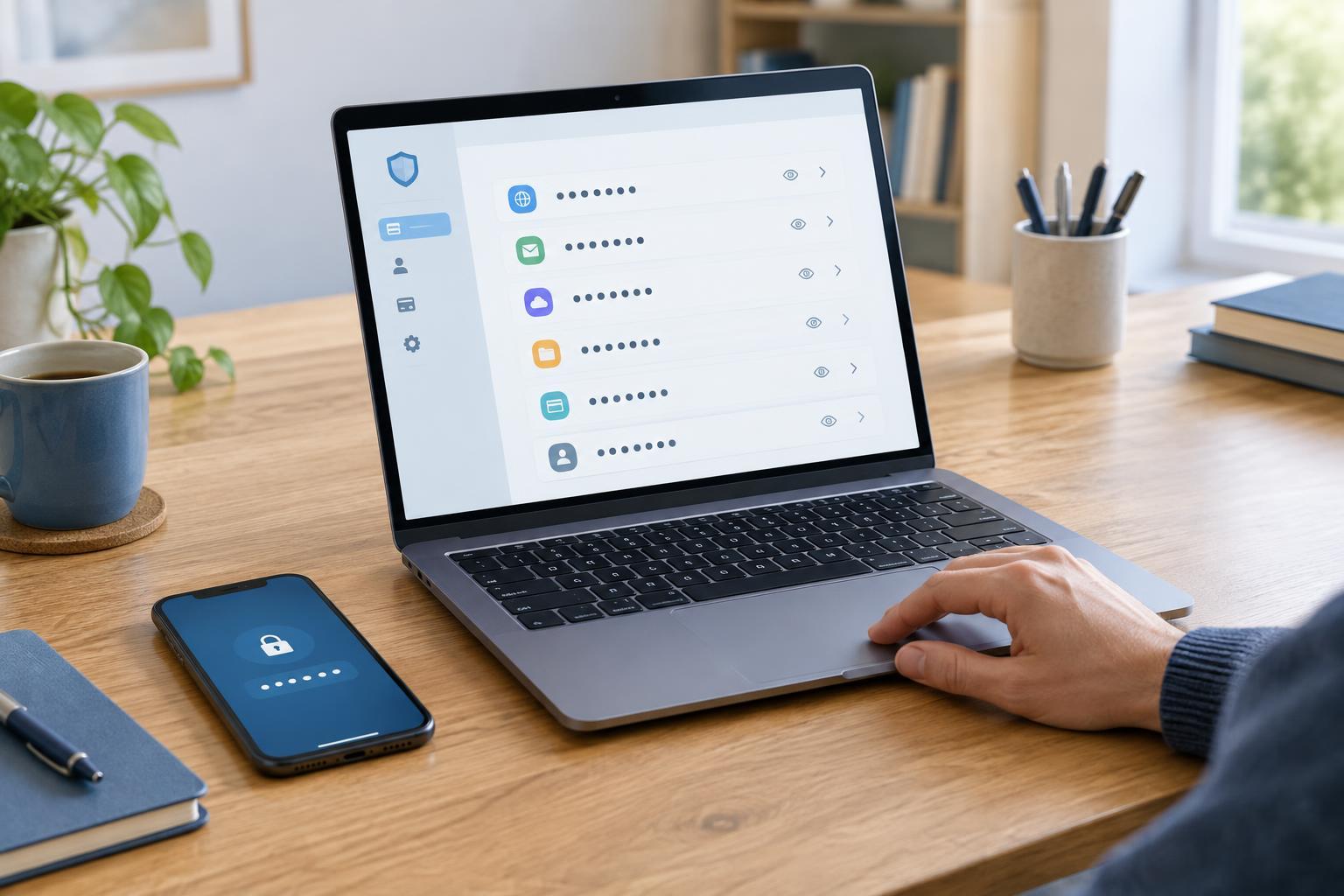
A password manager stores account credentials in a protected vault and helps fill them in when you sign in. Its main benefit is making unique passwords practical: you can generate a long, different password for each account instead of reusing one you can remember. If one website has a breach, a password used only there cannot be used to sign in to your other accounts.
Managers come as standalone apps, browser features, or services that sync across devices. Before choosing one, check that it supports the computers and phones you use, offers a password generator, and provides a recovery approach you understand. If you share accounts with family members or coworkers, look for a dedicated sharing feature rather than sending passwords in messages. Choose a tool you will consistently use; a well-designed setup is less helpful if it is too awkward to maintain.
Set up your vault and recovery options
Install the manager through its official website or your device’s app store, then create your account or local vault. Follow its setup prompts to add the browser extension and mobile app where needed. Pay attention to which devices will sync and whether the manager offers a way to use your vault offline. If you already have passwords saved in a browser, you may be able to import them, but review the imported entries for duplicates and outdated accounts.
Set up the recovery options the manager provides before you rely on it. These might include a recovery code, an emergency-access contact, or another device that is already signed in. Store recovery codes somewhere separate and secure, such as a locked physical location. Recovery methods vary: some managers cannot restore access if you lose both your master password and recovery materials. Check the instructions for your particular product so you know what losing access would mean.
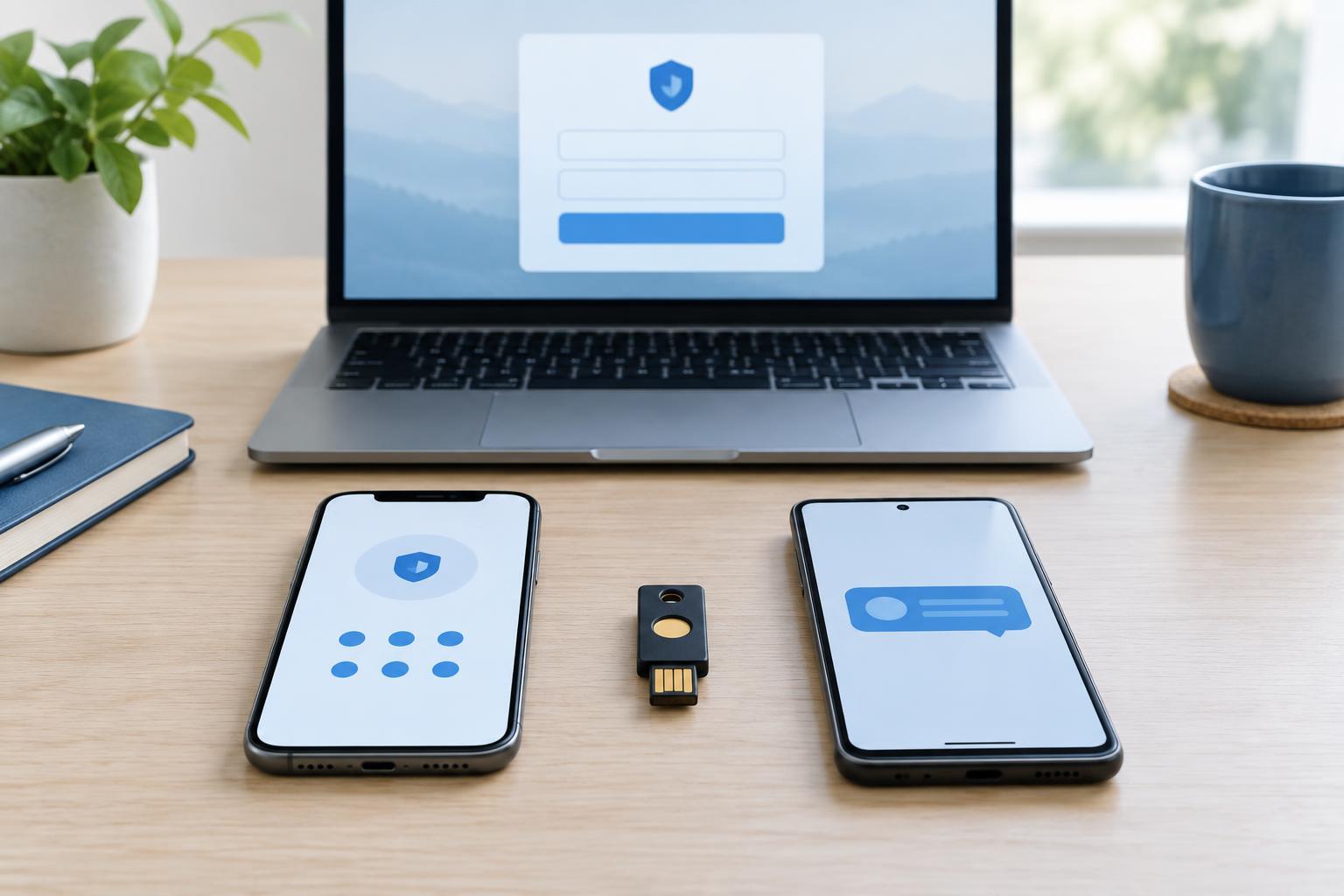
If the manager offers multi-factor authentication, enable it and keep its backup codes. This adds a step when a new device signs in, but it does not replace a strong master password. Also keep your devices updated and protected with a screen lock; an unlocked, compromised device can expose information even when the vault itself has strong protections.
Create a master password you can remember
Your master password unlocks the vault, so make it long, unique, and unrelated to passwords you have used elsewhere. A memorable passphrase made from several randomly chosen words can be easier to type than a short string of symbols. Avoid familiar sayings, personal details, and predictable substitutions such as replacing every letter “a” with “@.” Length and uniqueness matter more than making a password look complicated.
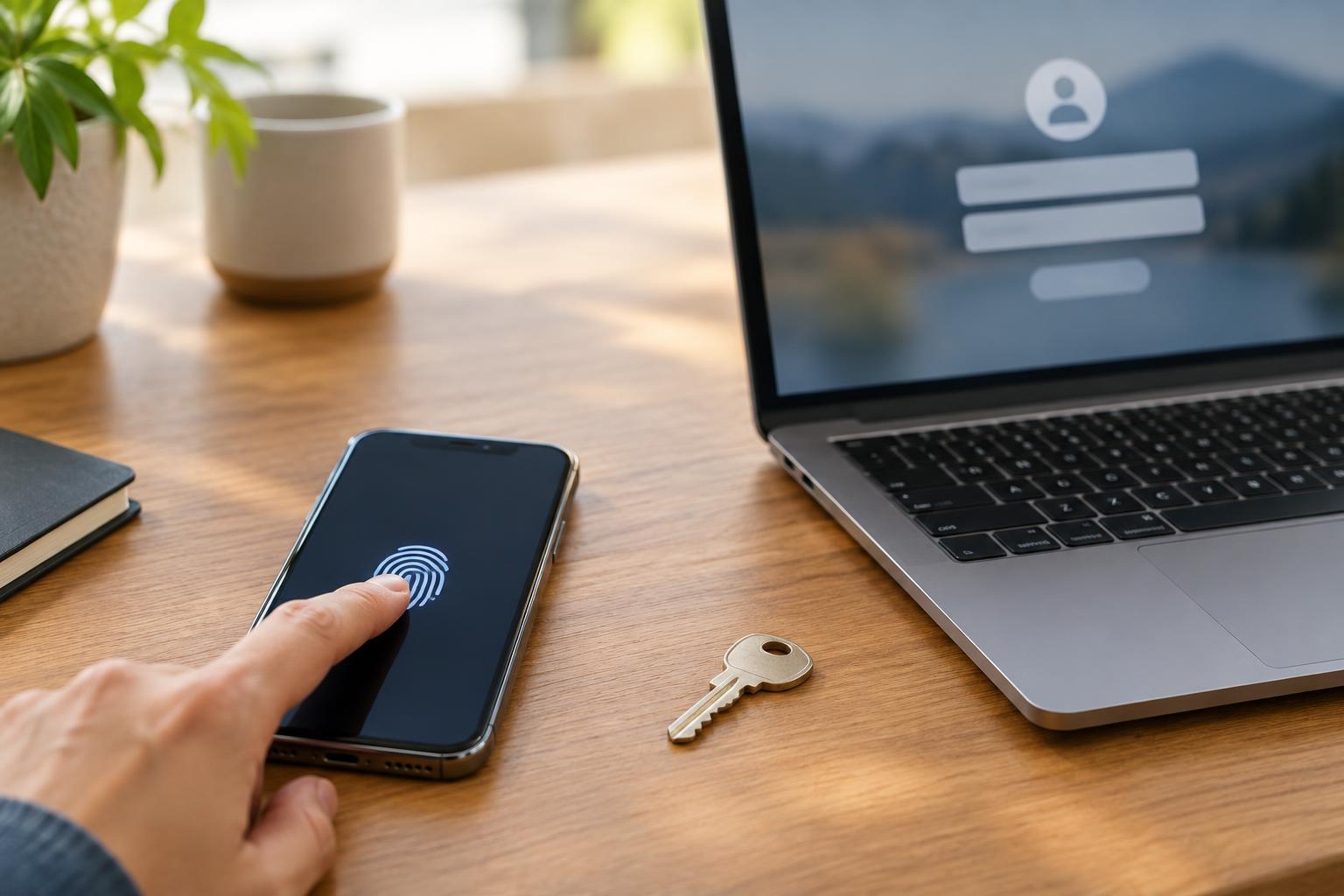
You will need to enter the master password without relying on the vault to retrieve it. Practice typing it a few times during setup. If you are worried about forgetting it, a written copy stored securely and separately from your devices may be safer than choosing a weak password. Do not put it in an unprotected note, email draft, or shared document. A fingerprint or face unlock option can make daily access convenient, but learn when the app will still ask for the master password.
Use autofill, but check where you are signing in
After saving an account, visit its sign-in page and test the manager’s autofill. Many managers match saved entries to website addresses, which can help you notice when a login page is not the one you expected. Before approving a fill, check the address in your browser and the account selected by the manager. Be especially cautious when you reach a sign-in page through an unexpected message or search result.
Avoid treating autofill as proof that a site is legitimate. Matching behavior differs among products, and a credential may have been saved under an overly broad or incorrect address. If the manager does not offer to fill a familiar account, stop and inspect the page rather than immediately pasting the password. On shared devices, sign out when finished and avoid leaving your vault unlocked for the next person.
Move accounts over gradually
Start with important accounts such as your primary email, the account used to sign in to your devices, and any account that holds many other credentials. Save each login in the manager, then change any reused password to a newly generated one. Confirm you can sign in with the new password before deleting an old saved copy. Work through less-used accounts over time rather than trying to replace everything in one session.
As you go, give entries recognizable names and remove duplicates only after checking which login still works. Keep account recovery details current, including the email address or phone number used for resets. A password manager reduces the burden of strong, unique passwords, but it is not a set-and-forget fix: occasional checks of your recovery options, devices, and saved entries help keep it useful.