Why password reuse matters
A password protects only the account where you use it—unless you use it elsewhere too. If someone obtains a password from one service, they may try the same email address and password on other services. A breach of a little-used shopping account could then put your email or cloud storage at risk, even if those services were not breached.
Small variations do not reliably solve the problem. Changing “GardenGate” to “GardenGate2” or adding a website’s name creates a pattern that may be easy to guess once one password is known. The safer goal is a different, unpredictable password for every account. That way, an exposed password has a much smaller chance of unlocking anything else.
Let a password manager create and remember passwords
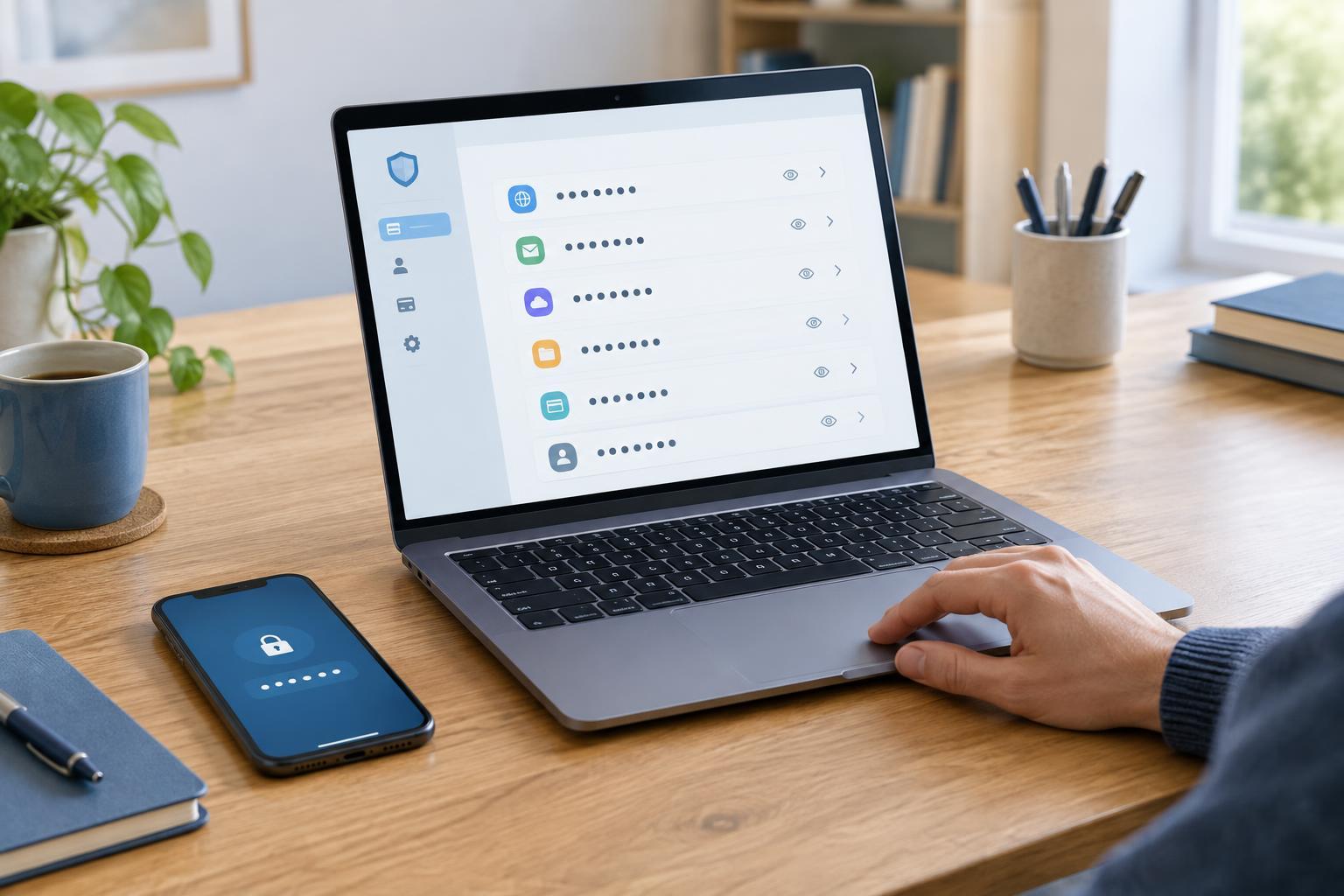
A password manager can generate long, random passwords and store them in an encrypted vault. Instead of memorizing a separate password for every account, you remember one strong master password and use the manager to fill in the others. Many managers work across computers and phones, making unique passwords practical for everyday use.
When you create an account or change a password, use the manager’s generator if one is available. Accept a long generated password unless a site has restrictive rules; there is usually no benefit to making it memorable. Save the entry immediately, then check that it contains the correct website address or app name and username. If the manager offers to flag reused passwords, treat those alerts as a to-do list rather than a reason to panic.
Choose a manager you can use consistently, and learn how its vault can be recovered before relying on it. Secure the account with a strong master password and multifactor authentication when available. Do not store the master password in an unprotected note beside your device.
Make the one password you must remember strong
Your master password deserves special care because it protects your vault. A long passphrase made from several unrelated words can be easier to remember than a short string of symbols. Avoid famous quotations, song lyrics, personal details, and phrases you have used for another account. Length and unpredictability matter more than clever substitutions such as replacing an “a” with “@.”
You can write the master password down while you learn it, provided the paper is kept in a private, secure place rather than left on a desk or photographed on your phone. Follow the manager’s recovery instructions as well. Some services provide a recovery key that should be stored separately from the device you normally use. If you lose both access to the vault and its recovery method, resetting individual accounts may be your only option.
Replace reused passwords in a sensible order
You do not have to update every account in one sitting. Start with your primary email account: it often receives password-reset messages for other services. Next, prioritize your password manager, financial and payment accounts, cloud storage, work accounts, and any account holding sensitive personal information. Then work through shopping, entertainment, and less frequently used accounts.
For each account, sign in through its usual website or app, open its security settings, and change the password to a newly generated one. Save it in the manager before signing out. If you have used the old password on several sites, changing it on just one site is not enough; each account needs its own replacement. Delete accounts you no longer need when the service allows it, especially if they still contain personal information.
If an account has no password-change option you can find, check its help information rather than entering your credentials into a third-party page that promises to fix the issue. Unexpected messages urging an immediate password change may be phishing attempts. Navigate to the service yourself instead of following a link in the message.
Add a second layer and keep the habit
Multifactor authentication adds another check, such as an authenticator app or security key, when you sign in. Turn it on for important accounts where available, and store backup codes securely. It does not replace unique passwords: someone who gains a reused password may still cause trouble on accounts without that extra check or through a service’s recovery process.
When a site offers a passkey, it may provide another way to sign in without creating a conventional password. Availability and recovery options vary, so understand how you will access the account if you change devices. Whether you use passwords or passkeys, the lasting habit is the same: give each account its own credential, protect the tool that stores it, and review your most important accounts first.