What multifactor authentication adds
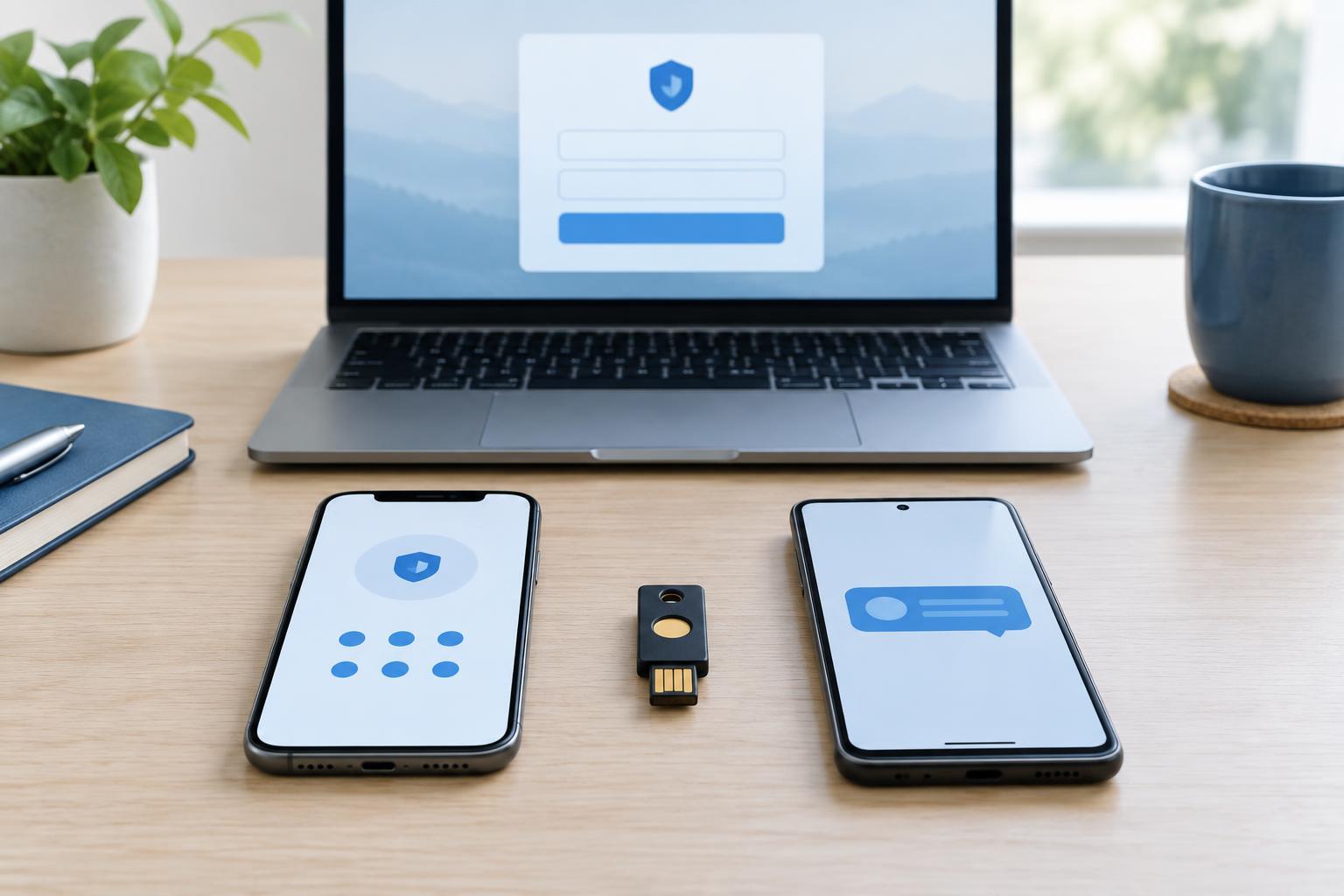
A password is something you know. Multifactor authentication, often shortened to MFA, asks for another form of proof before allowing a sign-in. Depending on the service, that proof might be a code from an app, a text message sent to your phone, or a security key you connect to a device. If someone learns your password, the additional step can make it harder for them to enter your account.
MFA is most useful when paired with a unique password for each account. It does not repair a reused or exposed password, and it does not make every sign-in attempt safe. An attacker may still try to trick you into entering a code on a fake website or into approving an unexpected prompt. Understanding what each method verifies helps you choose a practical setup.
Authenticator apps: useful codes without cell service
Many authenticator apps generate short, time-limited codes on your device. During setup, the service and app share a secret, commonly transferred through a QR code. The app then uses that secret to produce codes that the service can check. Once configured, a typical code-generating app does not need a cellular signal to display a code, which makes it useful when traveling or when text messages are unreliable.
The main limitation is that you can type a valid code into a convincing fake sign-in page. A code may expire quickly, but an attacker who receives it immediately could try to use it. Protect the device that holds your app, check the site or app where you enter codes, and never share a code in response to a call, message, or unsolicited request.
Plan for a lost or replaced phone before you need to recover an account. Some authenticator apps offer encrypted backup or device transfer; others require you to set up each account again. Check how your chosen app handles transfers, and keep the service’s recovery codes somewhere you can access without that phone.
Security keys: stronger protection against fake sites
A physical security key can confirm a sign-in through a USB port, NFC tap, or another supported connection. With modern website-based security key sign-ins, the key is tied to the legitimate site’s identity. That design helps prevent a fake site from capturing a reusable code and using it on the real one. A security key generally also requires you to be present, such as by touching it or entering a PIN.
Security keys are a strong choice for important accounts, especially email accounts that can be used to reset other passwords. Before buying one, check which sign-in standards your services support and whether the key works with your computers and phones. Some services let you register more than one key. Keeping a spare key in a separate, safe place reduces the risk of being locked out if your everyday key is lost.
A security key cannot prevent every kind of account compromise. For example, a weak account-recovery process or an already-signed-in device may provide another route into an account. Review the other sign-in and recovery methods your service allows so they do not undermine the protection you intended.
SMS codes: accessible, but with more dependencies
SMS codes are familiar and usually require no extra app or device beyond a phone number. For some accounts, SMS may be the only available second step. It is generally better to enable SMS-based MFA than to leave a password as the only sign-in check, but use a stronger supported method when you can.
A text message depends on your phone number, mobile service, and the security of your carrier account. Number transfers, lost access to a number, and intercepted or visible messages can create problems. Like app-generated codes, SMS codes can also be entered into a fake sign-in page. Avoid treating a received text as proof that a sign-in request is legitimate; if you did not initiate the attempt, do not provide the code.
A practical setup and recovery checklist
Start with accounts that could give someone access to other accounts or sensitive information: your primary email, password manager, cloud storage, and important work or household services. Use a unique password for each, then enable the strongest MFA option that the service and your devices support. Where available, consider a security key for high-value accounts, an authenticator app for broad everyday coverage, and SMS when it is the workable option.
During setup, save recovery codes and register a spare method if the service permits it. Store recovery codes separately from the device used for MFA, such as in a secure password manager or a protected offline location. Keep the codes private, and replace them if you think someone else has seen them. Periodically check that your registered devices, phone number, and recovery options still belong to you.
Finally, pay attention to the context of each sign-in. Open the service through a known bookmark or its official app rather than a link in an unexpected message. If an MFA request arrives when you are not signing in, reject it and check your account through a trusted route. MFA works best as one layer in a routine that also includes careful sign-in habits and a recovery plan.