Start with the devices that need the drive
A file system is the set of rules a device uses to organize files on a drive. It affects whether a computer can read or write the drive, as well as features such as file permissions and recovery after an interrupted write. The best choice is usually determined less by the drive itself than by where you plan to plug it in.
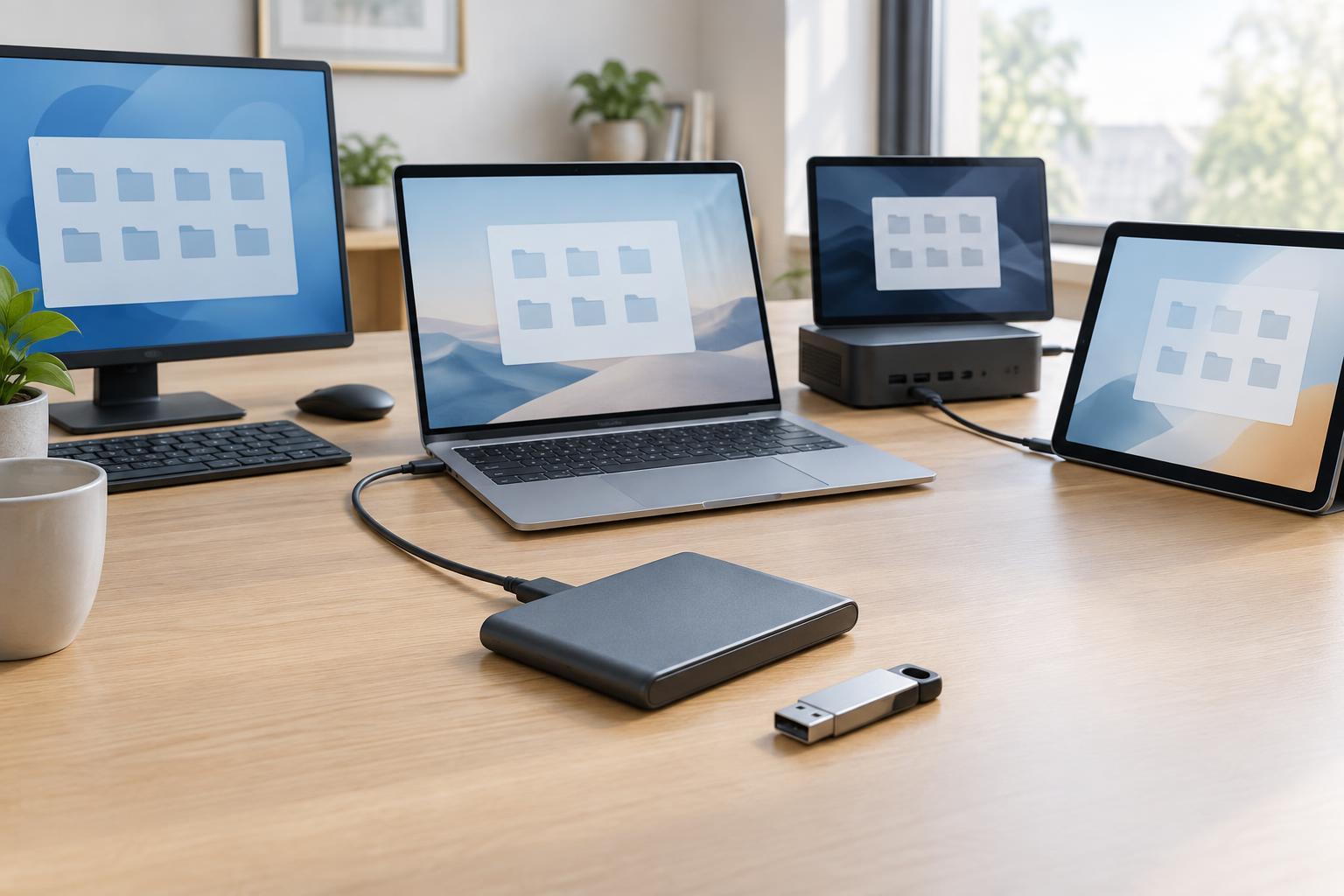
List every device that must use the drive: Windows PCs, Macs, Linux computers, or perhaps a TV, camera, or router. Then distinguish between occasional access and full read-and-write access. A format that works well for an internal system drive may be inconvenient for a portable drive passed among several operating systems. Device support can also vary by model and software version, so check the requirements of any noncomputer device before formatting.
NTFS and exFAT: two choices for different kinds of sharing
NTFS is the standard file system for Windows system drives and a sensible choice for a drive used mainly with Windows. It supports features such as file permissions and journaling, which helps the file system keep track of changes if a write is interrupted. Windows can read and write NTFS natively. Other systems may be able to read it, but write support is not equally straightforward: macOS, for example, does not normally provide NTFS write access without additional software.
exFAT is often the simpler option for a portable drive that needs to move between Windows and macOS. Both systems support reading and writing it, and it can accommodate files too large for older FAT32 limits. It is also used by some cameras and other devices, although you should verify support for the particular device. exFAT does not offer the same permissions and journaling features as NTFS, so it is better viewed as a convenient exchange format than as a substitute for a computer’s main system drive.
For either format, compatibility does not make unplugging during a transfer safe. Eject a removable drive properly and keep another copy of important files. Journaling can help a file system recover its structure after an interruption, but it cannot guarantee that the file being written will be intact.
APFS and ext4: strong fits for their home operating systems
APFS is Apple’s file system for modern macOS drives. It supports features such as snapshots and encryption, depending on how the drive and system are configured. If an external drive will stay with Macs, APFS is often a practical choice, particularly when you want it to work with macOS features that require that format. Windows does not natively provide ordinary APFS access, making it a poor default for a drive you regularly share with Windows PCs.
ext4 is a common Linux file system with journaling and standard Linux ownership and permission support. It is a straightforward choice for many Linux internal drives and Linux-only external storage. Windows and macOS do not natively treat ext4 as a general-purpose read-and-write format. If people on those systems need files from an ext4 drive, copying them through a network share or a separately formatted exchange drive may be easier than adding file-system software to each computer.
Neither APFS nor ext4 should be chosen solely because it sounds more advanced. Their useful features matter most when the operating system and workflow can actually use them. Conversely, a drive that is difficult to open on the next computer is not convenient storage, however well its format suits the first one.
Match the format to the job
For a Windows computer’s main drive, use the file system Windows expects—normally NTFS. For a Mac’s main drive, follow macOS’s setup process, which uses APFS for supported installations. For a Linux system drive, ext4 is a common, well-supported option, though a particular installation may call for something else. These choices let each operating system use its native storage features without relying on cross-platform workarounds.
For an external drive used only with one operating system, its native file system is generally a good starting point: NTFS for Windows, APFS for a Mac, or ext4 for Linux. For routine file exchange between Windows and macOS, consider exFAT. If Linux is part of that exchange, confirm that the Linux devices have working exFAT support. For a drive connected to a TV, console, camera, or router, follow that device’s supported-format list; desktop compatibility alone is not enough.
Check these details before you format
Formatting replaces the drive’s existing file-system structure and can make stored files inaccessible. Copy anything you need elsewhere first, verify that the copy opens, and double-check that you selected the intended drive. If the drive has partitions, consider whether you are formatting one partition or changing the layout of the whole device.
Also decide how the drive will be backed up and protected. A file system is not a backup, and encryption is not automatic merely because a format supports it. If you need encryption or operating-system backup features, check their specific format requirements before setting up the drive. Choosing the right file system solves a compatibility problem; keeping a separate, tested copy solves the more important problem of losing the data.