What you see is not always the physical drive
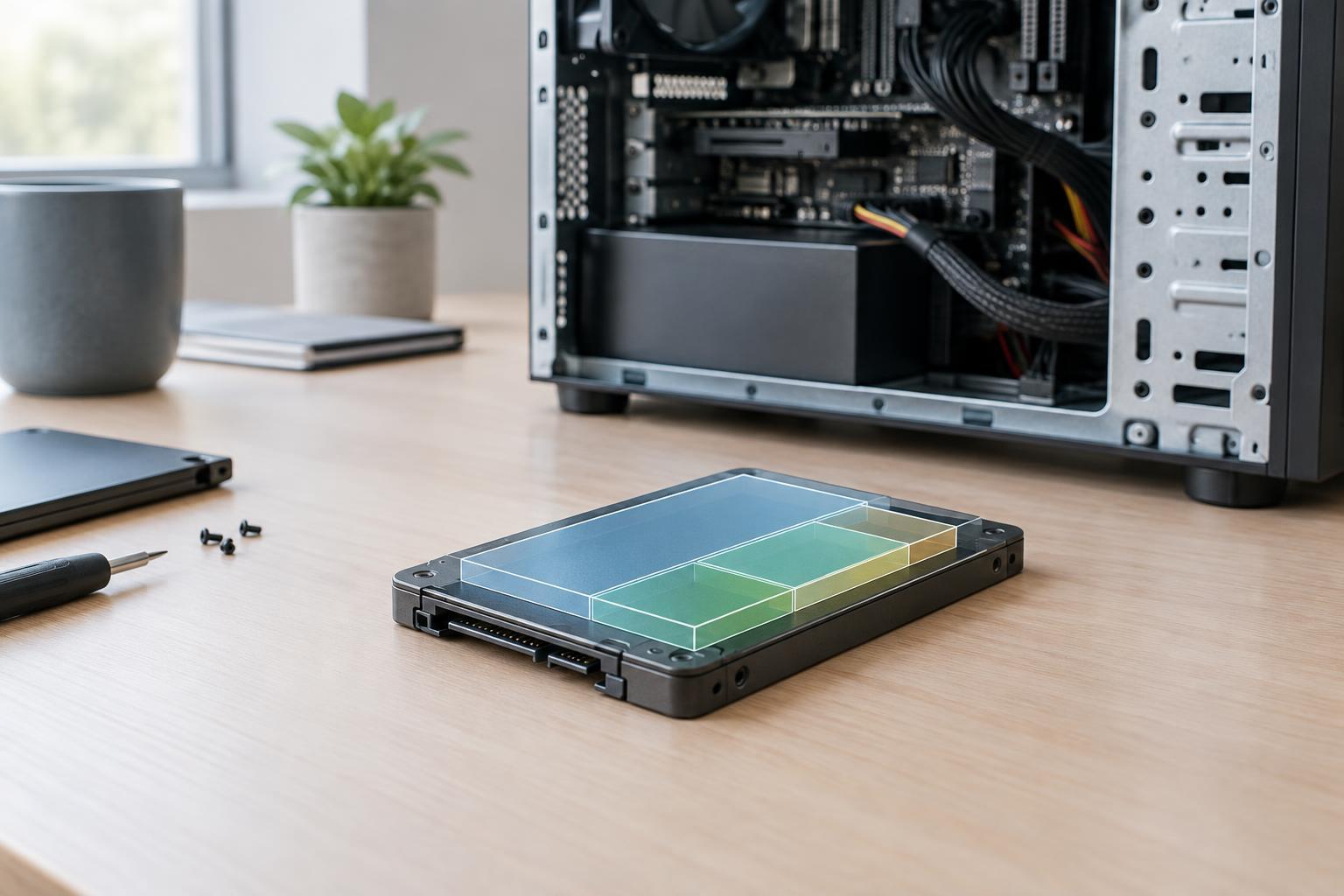
A physical drive is the storage device itself, such as an internal SSD or an external hard drive. A partition is a defined region of storage on a drive. A volume is the usable storage space that an operating system presents to you, often with a drive letter or a name. In a simple setup, one partition contains one volume, so the terms are often used interchangeably. More advanced storage arrangements can build a volume from multiple disks or manage space without a one-to-one match.
Before you can store ordinary files on a volume, it typically needs a file system. The file system organizes files and folders and keeps track of available space. This is why a disk utility may show several layers: the physical device, its partitions, and the formatted volumes you can open. A new computer may also have small partitions reserved for starting the operating system or for recovery. They serve a purpose even though they do not appear alongside your everyday folders.
When separate partitions are useful
One reason to split a drive is to keep an operating system and personal files in distinct spaces. That can make some maintenance tasks easier to plan: for example, you can identify which space holds your documents before reinstalling an operating system. The separation does not remove the need to check exactly what an installer or reset tool will erase. It also does not protect files from the failure of the shared physical drive.
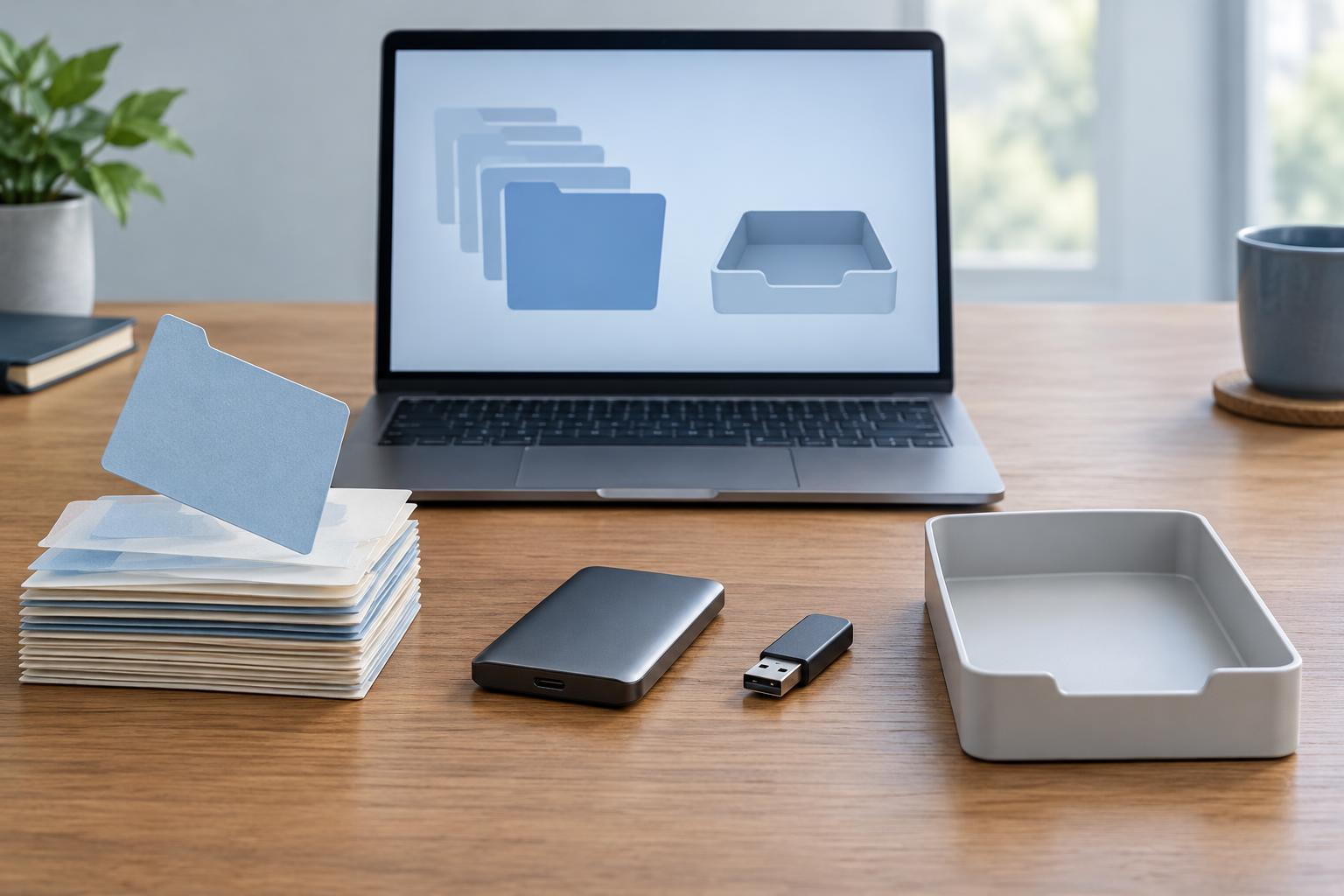
Separate partitions can also help when installing more than one operating system on the same computer. Each system may need its own file system or boot-related space. In other cases, an organization might allocate a dedicated volume to data that needs a particular file system or a clear storage limit. These are functional reasons to divide capacity. If you only want to keep photos apart from work documents, folders on one volume are usually simpler.
What splitting a drive will not do
Partitions do not create extra capacity. If a 1 TB drive is divided into two main spaces, those spaces still share the drive’s total available storage. A fixed division can even be inconvenient: one volume may fill up while another has plenty of room. Resizing may be possible, but the options depend on the layout, file systems, available free space, and operating system.
A second partition is not a backup. A failing drive, physical damage, or a mistake affecting the whole device can put every partition at risk. Keep copies of important files on separate storage, and consider an additional copy in another location. Nor should you expect a partition by itself to make an SSD faster. Performance depends on factors such as the drive, workload, and free space; dividing the same device into named areas is primarily an organizational choice.
Plan the layout before making changes
Start with the task you want the split to solve. If you need another operating system, check its installation and file-system requirements before allocating space. If you want separate data storage, estimate how much room your applications and files will need over time. Leave comfortable headroom rather than dividing a drive so tightly that routine updates or growing files become a problem.
Look at the existing layout in your operating system’s disk-management tool. Identify the drive by its capacity and other available details, not just its displayed name. Note any boot, recovery, or manufacturer-provided partitions and avoid deleting them simply because they look unused. Disk layout methods such as GPT and MBR also affect how a device is organized; for most people, the safest approach is to understand the current setup before changing it, rather than converting formats without a specific need.
Change storage carefully—or keep it simple
Before resizing, deleting, or formatting anything, make a separate backup of files you cannot replace and confirm that you can access it. Read each disk tool’s description of the pending operation: creating an empty partition is different from formatting an existing one, which can erase its contents. If encryption is enabled, check how your operating system expects you to handle it during a storage change. Keep the computer powered during the operation and allow time for it to finish.
For many everyday computers, one main volume plus the system’s required partitions is a sound choice. Folders provide flexible organization without reserving a fixed amount of space for each type of file. Add partitions when they meet a concrete requirement, not because a divided drive looks tidier. The best layout is one you can understand, maintain, and back up.