Two specifications, two different benefits
Resolution describes how many pixels a display can show. A 1920 × 1080 monitor has 1,920 pixels across and 1,080 pixels down; a 2560 × 1440 or 3840 × 2160 display can show more detail. Higher resolution can make text edges, images, and interface elements look clearer. It can also provide more usable workspace, although that depends on how much you enlarge text and controls.
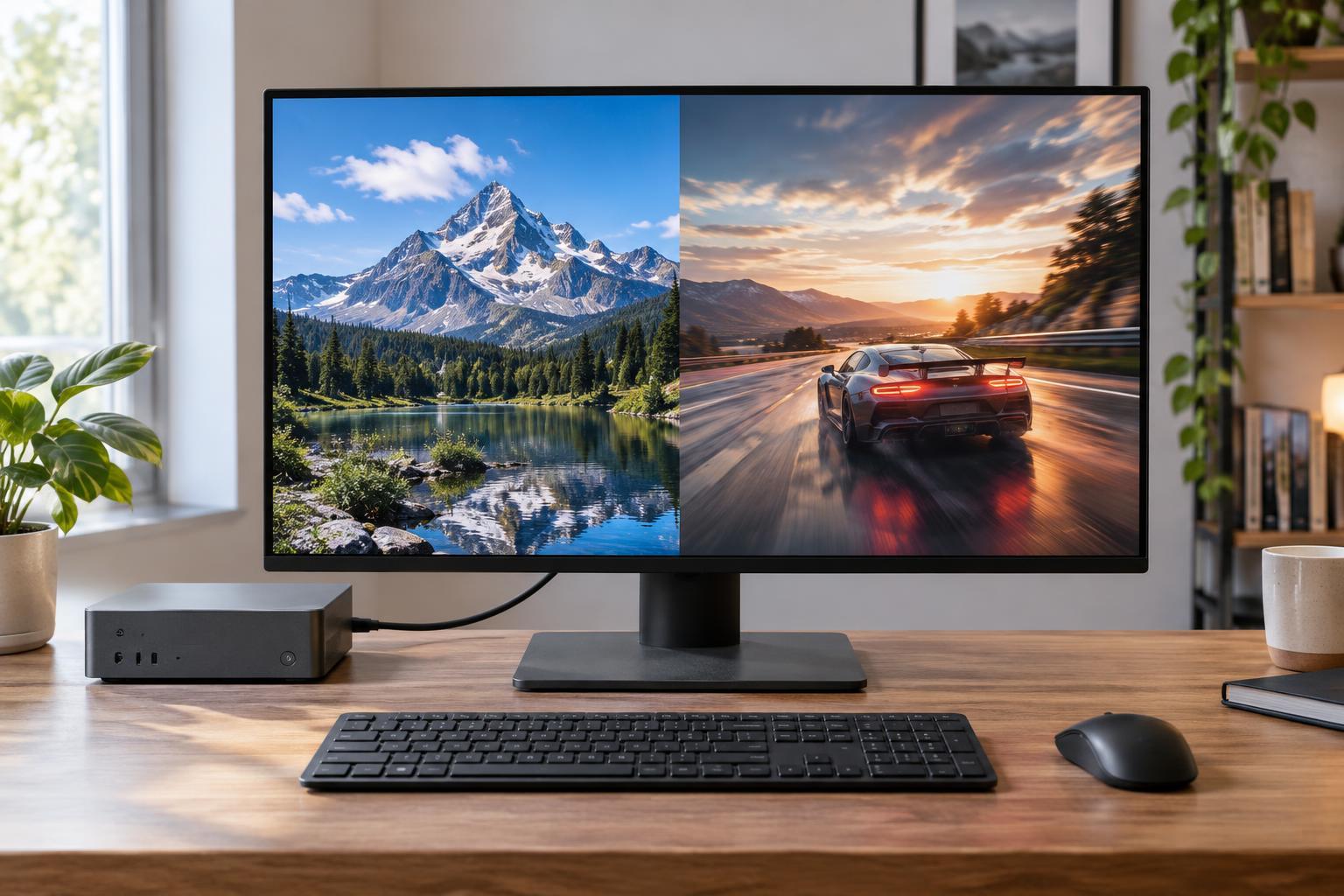
Refresh rate describes how often the screen can update its image, measured in hertz (Hz). A 60 Hz display can show up to 60 distinct updates each second, while a 120 Hz display can show up to 120. Higher refresh rates can make pointer movement, scrolling, and games look smoother. Resolution primarily affects detail; refresh rate primarily affects motion. Neither specification tells the whole story about a monitor’s image quality.
Match resolution to screen size and viewing distance
More pixels are most useful when you can see the difference at your normal viewing distance. On two monitors of the same size, the one with higher resolution packs pixels more closely together and will generally make fine details look sharper. A larger monitor with the same resolution spreads those pixels over a greater area, so text and edges may look less crisp when viewed from the same distance.
Your operating system’s display scaling setting matters as much as the pixel count. Without scaling, text and buttons on a high-resolution screen can become uncomfortably small. Scaling enlarges those elements while often preserving the smoother edges that the extra pixels provide. It may reduce the amount of workspace you gain, so do not assume that a higher-resolution monitor will always fit more windows at a readable size.
Before choosing, think about how far you sit from the screen and what you need to read. A compact desk setup used for documents may benefit more from comfortable text size than from maximum pixel count. Photo editing, detailed diagrams, and side-by-side windows can make additional resolution more valuable. If possible, view a display at your usual distance with its scaling set to a level you would actually use.
Decide how much refresh rate you need
For email, spreadsheets, and video calls, 60 Hz is workable for many people. A higher refresh rate can still make everyday scrolling and window movement feel smoother, but it does not add detail to a static page. Fast-paced games and other motion-heavy tasks are where the difference may be most noticeable.
A monitor cannot display more unique game frames than it receives. If a computer produces 70 frames per second in a game, a 144 Hz monitor will not turn that into 144 frames per second. Raising game resolution often increases the work required of the graphics processor, which may lower frame rate. For gaming, the useful choice is a balance between sharpness, the frame rates your computer can sustain, and the motion quality you prefer.
Some monitors support variable refresh rate, which lets the display adjust its timing to better match changing frame output from a compatible computer or console. This can help reduce visible tearing or uneven motion. Check compatibility and supported refresh ranges rather than assuming the feature will work through every connection.
Check the entire display connection
A monitor’s advertised resolution and refresh rate are not a promise that every device can use both at once. The computer’s graphics hardware, its output port, the monitor’s input port, the cable, and any dock or adapter all need to support the combination you want. A dock that is convenient for office work, for example, may limit the display modes available through it.
Look at the monitor’s specifications for the modes supported on each input, then check the capabilities of the device you plan to connect. After setup, open your operating system’s display settings to confirm both resolution and refresh rate. A monitor can be running at its native resolution while still using a lower refresh rate than it supports. If the desired option is missing, examine the connection path before assuming the monitor is faulty.
Make the trade-off for your setup
Start with the tasks you do most. For reading and detailed creative work, prioritize a comfortable screen size, readable scaling, and adequate resolution. For fast gaming, consider refresh rate alongside the performance your computer can deliver. For mixed use, a moderate improvement in both may serve you better than maximizing one specification while compromising the other.
Finally, remember that resolution and refresh rate do not describe everything you will see. Contrast, color, brightness, viewing angles, and motion handling also affect the experience. Set a budget, verify the connection you will use, and compare monitors using content similar to your own. The right specification is the one you can use comfortably, not simply the largest number on the box.