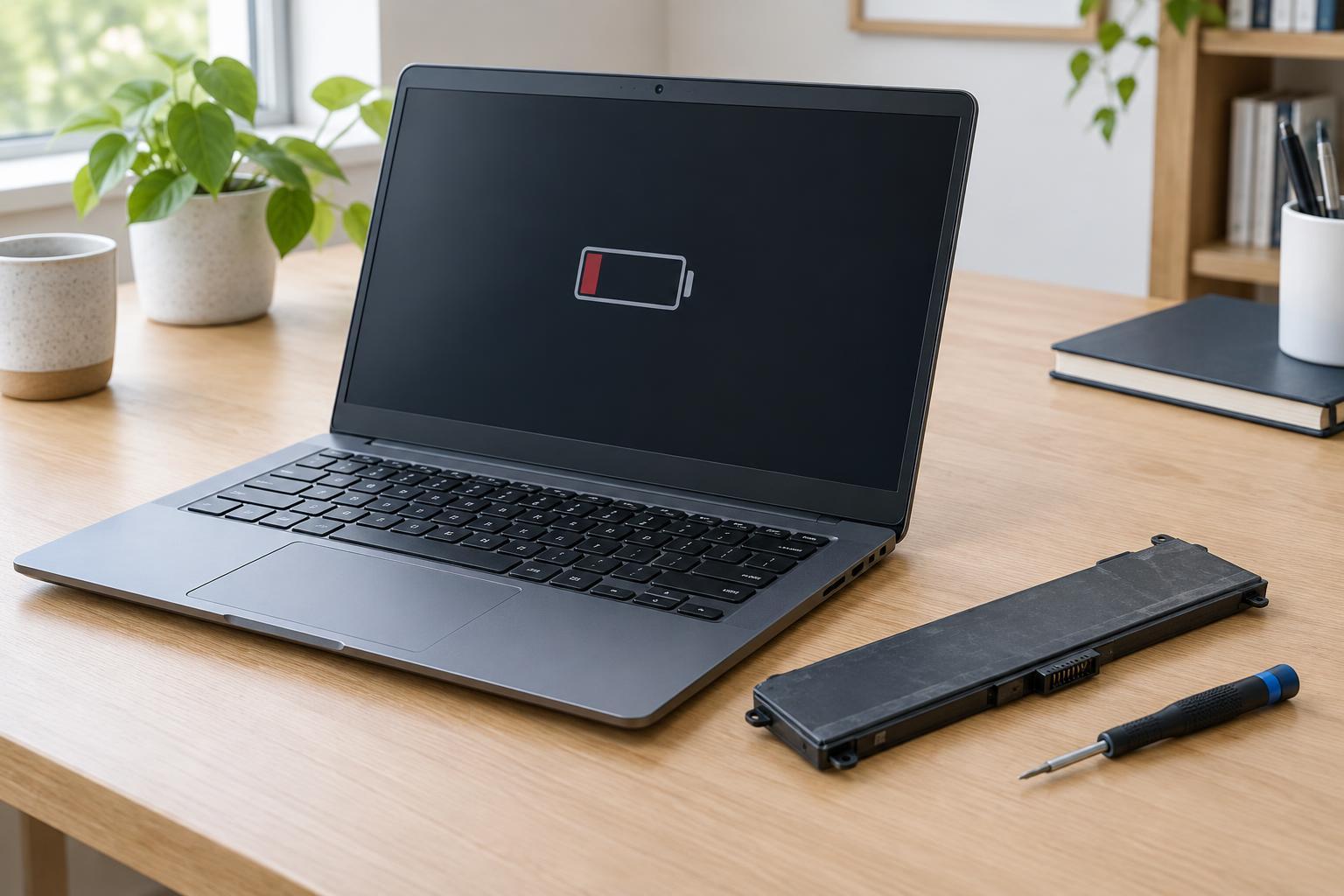
What battery wear looks like
Most laptops use rechargeable lithium-ion batteries. As a battery ages and goes through charge cycles, it generally holds less energy than it did when new. The most familiar sign is shorter runtime: a laptop that once lasted through your usual tasks may now need a charger much sooner. Aging can also show up as an unexpected shutdown while the charge indicator still shows power, or a charge percentage that drops sharply during normal use.
These signs are worth investigating, but they do not always mean the battery needs replacing. A brighter screen, demanding software, background updates, or a change in your workload can all increase power use. If the decline seemed sudden, compare runtime while doing a familiar, light task and check whether an unfamiliar app is using substantial power. A pattern across several ordinary work sessions is more informative than one unusually busy day.
Check what the laptop can tell you
Start with the battery information built into your operating system or supplied by the laptop maker. Depending on the device, you may find a battery health status, a charge-cycle count, or a comparison between the battery’s current full-charge capacity and its original design capacity. A much lower full-charge capacity supports what you may already notice in daily use: the battery cannot store as much energy as it once did. These readings are estimates, so consider them alongside actual runtime and behavior.
Before drawing a conclusion, check the simple parts of the charging setup. Make sure the charger is suitable for the laptop, the cable and connector are seated properly, and the charging port is free of obvious damage. If charging works only when a cable is held at a particular angle, the cable or port may be the problem. Charging limits set in laptop utilities can also make a healthy battery stop charging below 100 percent by design.
Know which signs need prompt attention
A battery that is merely aging is different from one that may be physically damaged. Stop using the laptop and unplug it if you notice a bulging case, a lifted keyboard or trackpad, a chemical smell, smoke, leaking, or unusual heat coming from the battery area. Do not press a swollen area flat, puncture the battery, or continue charging it to see whether the problem goes away. Move the device away from flammable materials if you can do so safely, and seek help from the manufacturer or a qualified repair provider.
Even without visible swelling, repeated shutdowns under light use or a laptop that will not charge despite a known-working, compatible power supply deserves attention. Those symptoms can involve the battery, charging circuit, or another component. If the laptop is essential for work, back up important files while it remains usable rather than waiting for the cause to become clear.
Decide whether replacement makes sense
Replacement is most useful when battery wear is affecting how you use the laptop. If you routinely need to stay near an outlet, experience unexplained shutdowns, and see a battery health reading consistent with reduced capacity, a new battery may restore useful unplugged time. If the laptop otherwise meets your needs, replacing the battery may be more practical than replacing the whole computer. A weak battery alone does not necessarily make a laptop unsafe, but swelling or other physical warning signs should not be treated as routine wear.
Check the laptop’s exact model before ordering a part. Batteries that look similar can differ in connectors, dimensions, and electrical specifications. Use a replacement identified as compatible by the manufacturer or a reputable repair provider. Some laptops have batteries designed for straightforward service; others require opening a tightly packed case and handling delicate connectors. If you are unsure, professional replacement is the safer choice. Keep the old battery out of household trash and use an appropriate battery recycling or collection program.
Get the most from the replacement
After replacement, observe whether the laptop charges normally and whether runtime improves under your usual workload. A new battery will not fix high power use caused by software, nor will it repair a faulty charging port. If the original symptoms persist, further troubleshooting may be needed.
For everyday care, avoid leaving the laptop in a hot car or blocking its ventilation during use. Heat can be hard on both batteries and other components. If your laptop offers a charge limit and you use it plugged in most of the time, that setting may help reduce time spent at a full charge; consult the device’s own guidance before changing it. The goal is not to follow a rigid charging ritual, but to watch for meaningful changes and address damage promptly.