Start with the path into your home
A home internet connection usually has two sides: the service provider’s connection into the building and the local network used by your phones, computers and other devices. The modem or fiber ONT sits at the provider-facing edge. The router manages traffic on your home network and sends internet-bound traffic toward that edge.
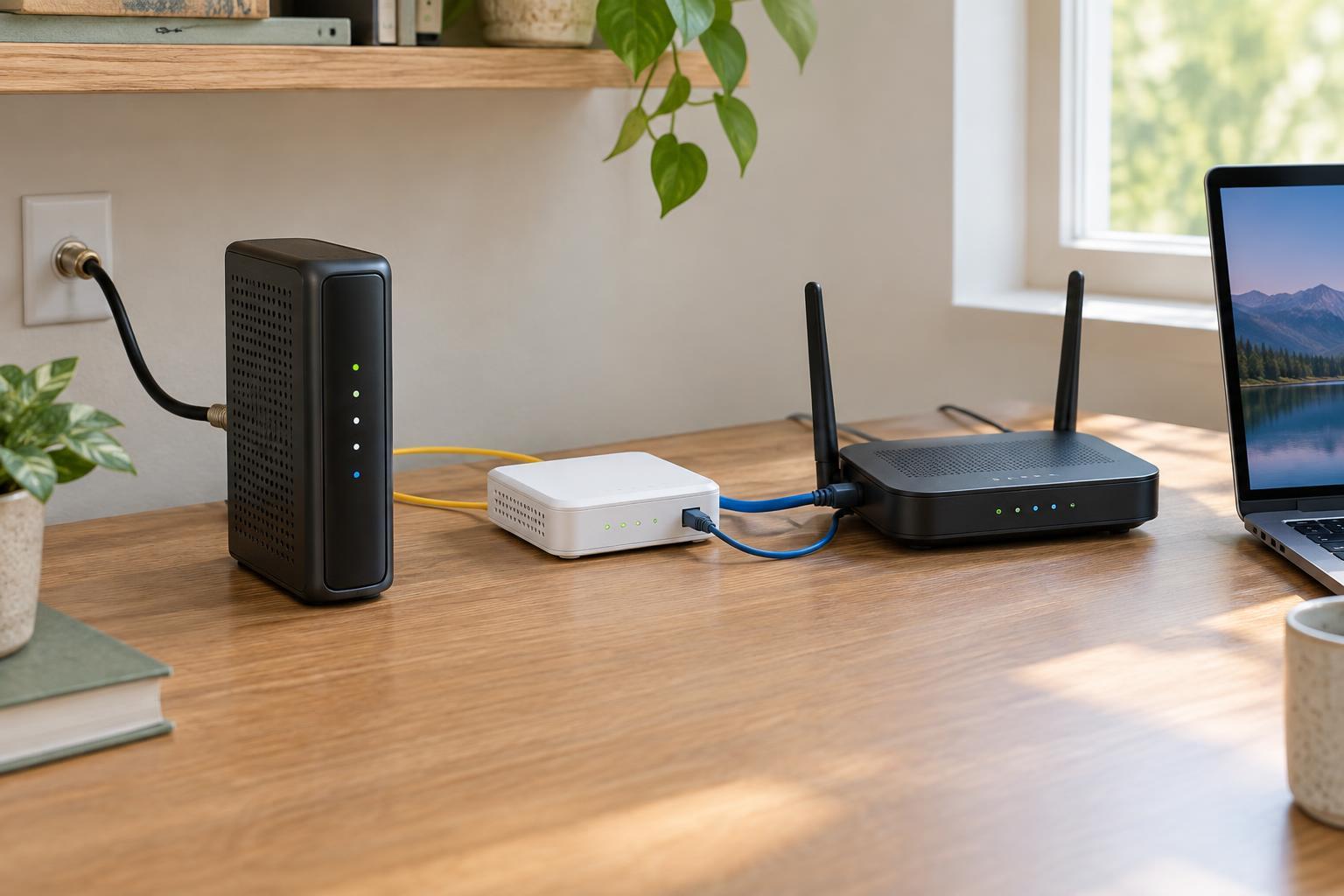
A typical cable setup follows this path: coaxial cable from outside, cable modem, router, then wired and Wi-Fi devices. A typical fiber setup uses fiber from outside, an optical network terminal (ONT), router, then devices. The boxes may be separate, or several functions may be built into one unit. Counting boxes alone will not tell you what each one does.
What a modem does
A modem connects to a particular type of provider line and presents a usable network connection to equipment in your home. A cable modem connects to a coaxial cable outlet. A DSL modem connects to a telephone line. Both handle the signaling needed for their respective services; a regular Ethernet port on a computer cannot replace them.
Many providers supply a gateway that combines a modem and router in one enclosure. It may also include Wi-Fi and several Ethernet ports. The word “modem” is sometimes used casually for this whole box, which can make troubleshooting confusing. If it has a coax or DSL input plus Wi-Fi settings and multiple LAN ports, it is likely doing more than modem duty.
A standalone modem generally does not create your household Wi-Fi network. Its Ethernet output normally connects to a router’s WAN or internet port. If you plan to replace it, check compatibility with your provider and service before buying equipment.
What a fiber ONT does
An ONT is the device that terminates a fiber-optic connection at the premises. It receives optical signals over fiber and provides a connection the rest of your equipment can use, commonly through an Ethernet port. In many homes, an Ethernet cable runs from the ONT to the router’s WAN port.
An ONT fills a provider-facing role similar to a modem’s, but it works with fiber rather than a coaxial or DSL line. Some fiber installations place the ONT outside or in a utility area; others use a small unit indoors. Providers may also supply a combined ONT and router, so there may be no separate router box to spot.
The ONT often needs power even though the incoming fiber does not look like an electrical cable. If you inspect the setup, avoid pulling or sharply bending the fiber, and do not look into a disconnected fiber connector. For changes to the fiber connection itself, contact the provider.
What a router does—and where Wi-Fi fits
The router connects your local network to the upstream connection supplied by a modem or ONT. It directs traffic between those networks and commonly assigns local IP addresses to your devices through DHCP. Most home routers also use network address translation, or NAT, so multiple devices can share the connection. Their firewall features help control unwanted incoming traffic.
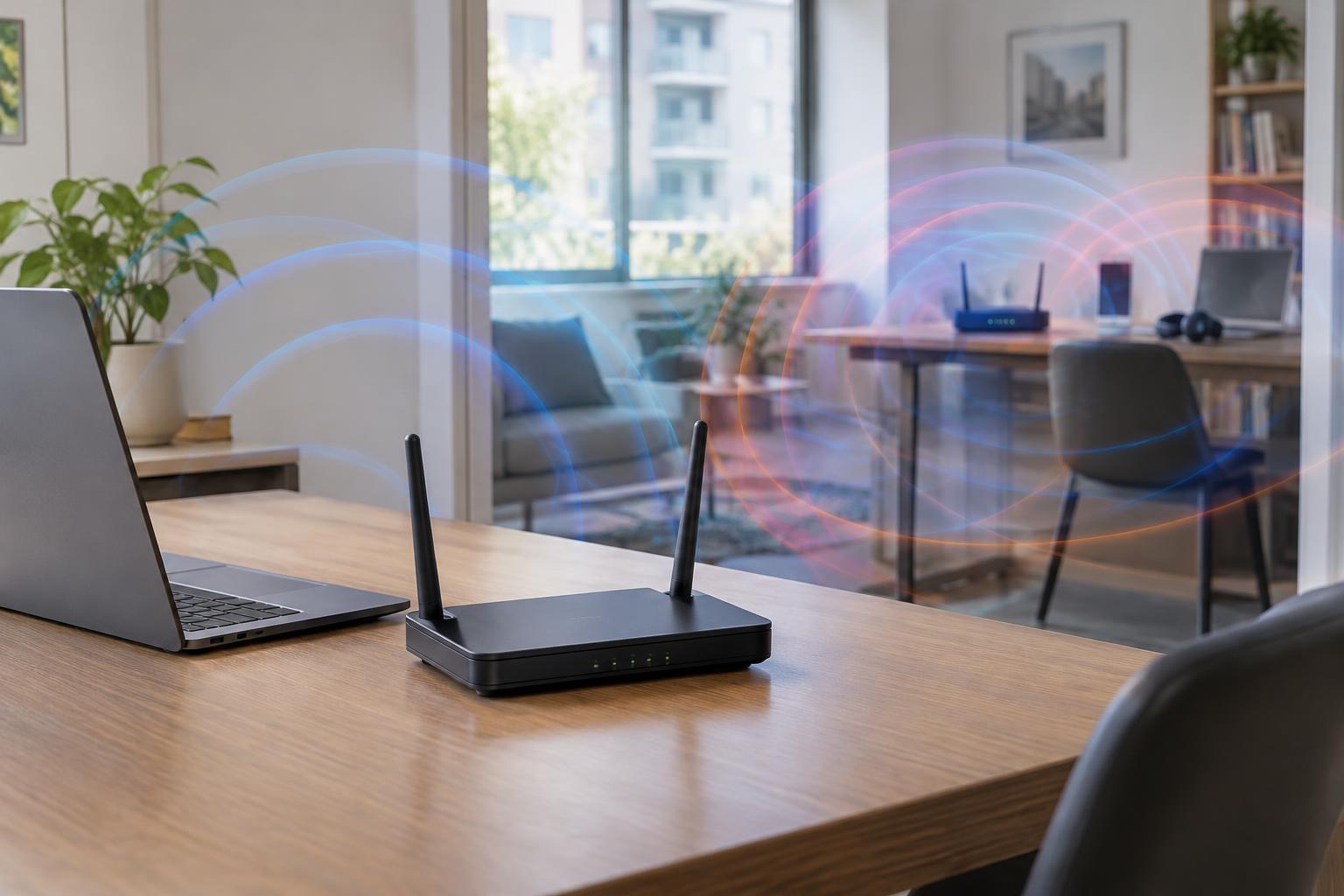
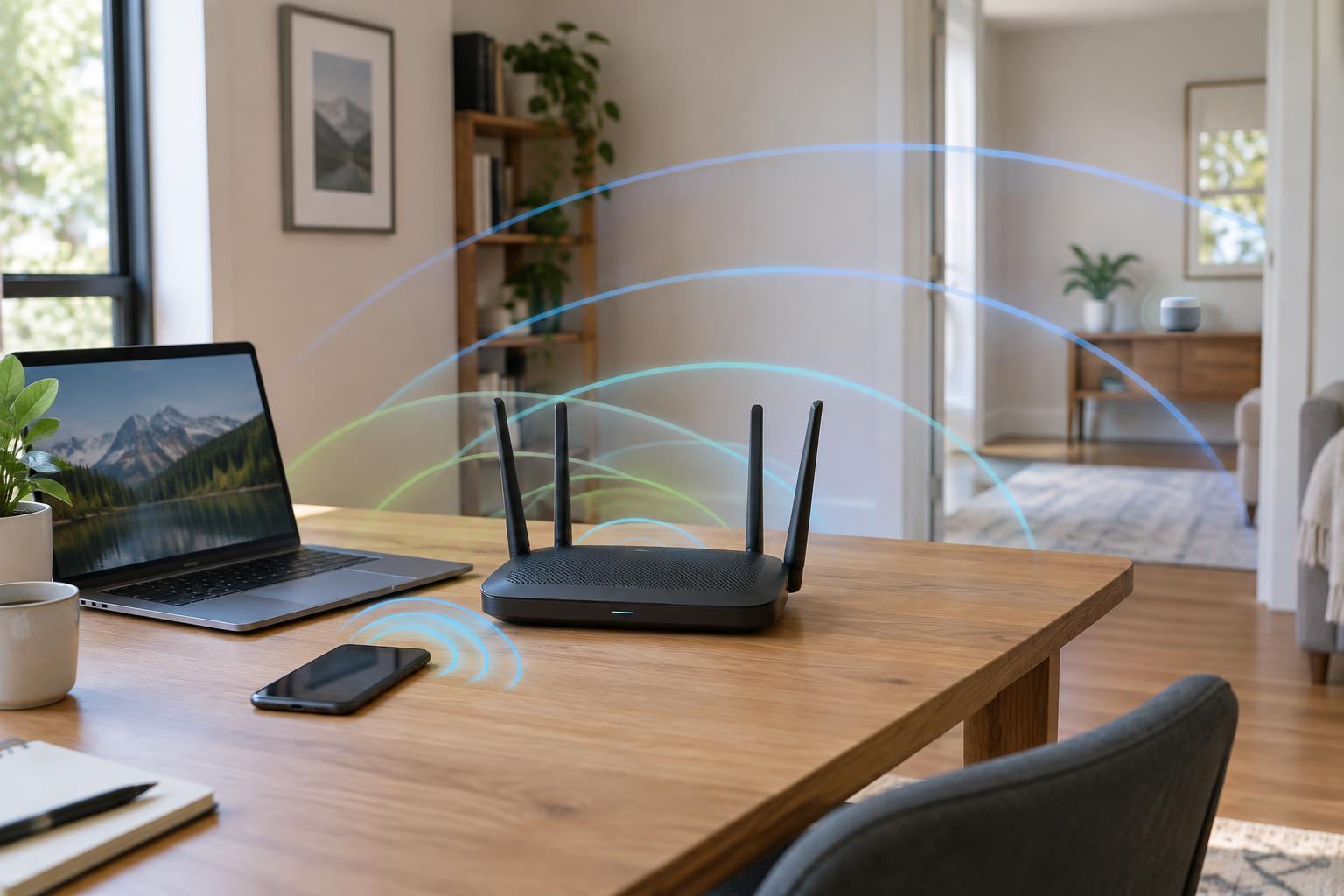
Wi-Fi is a separate function: a wireless access point lets nearby devices join the local network. Many home routers have an access point built in, along with a small Ethernet switch for wired devices. That is why the same box may be called a Wi-Fi router. A dedicated access point can provide Wi-Fi without taking over routing duties.
If your Wi-Fi signal is weak in one room, replacing the modem or ONT may not help. Access point placement or coverage may be the relevant issue. Conversely, a strong Wi-Fi connection does not prove the provider connection is working; your device may be connected to the router while the router has no internet access.
How to identify the problem box
Start with the connection type. A coax input suggests a cable modem or cable gateway; a telephone-line input suggests DSL equipment; a thin fiber lead suggests an ONT. Follow the Ethernet cable from that device: it often goes to the router’s WAN port. Labels and status lights can help, but their meanings vary by model, so use the device’s documentation when available.
If all devices lose internet access but can still connect to Wi-Fi, check whether the modem or ONT and router have power and whether their cables are secure. If only one device has trouble, begin with that device. If wired devices work but Wi-Fi devices do not, focus on the wireless part of the network. Record any status-light changes before restarting equipment; they may help you describe the problem to your provider.
When a provider gateway and a second router both perform routing, you may end up with two layers of NAT. That can complicate some games, remote-access tools or port-forwarding setups. Depending on the equipment, bridge mode or access-point mode may simplify the arrangement, but confirm what each setting changes before enabling it.