What the three bands actually change
The numbers 2.4 GHz, 5 GHz and 6 GHz describe the radio bands a Wi-Fi network can use. They do not, by themselves, tell you how fast a connection will be. Your device, router, distance, walls, interference and internet service can all limit performance. Wi-Fi generations such as Wi-Fi 6 and Wi-Fi 7 describe sets of technical capabilities; the frequency band describes where the radio signal operates.
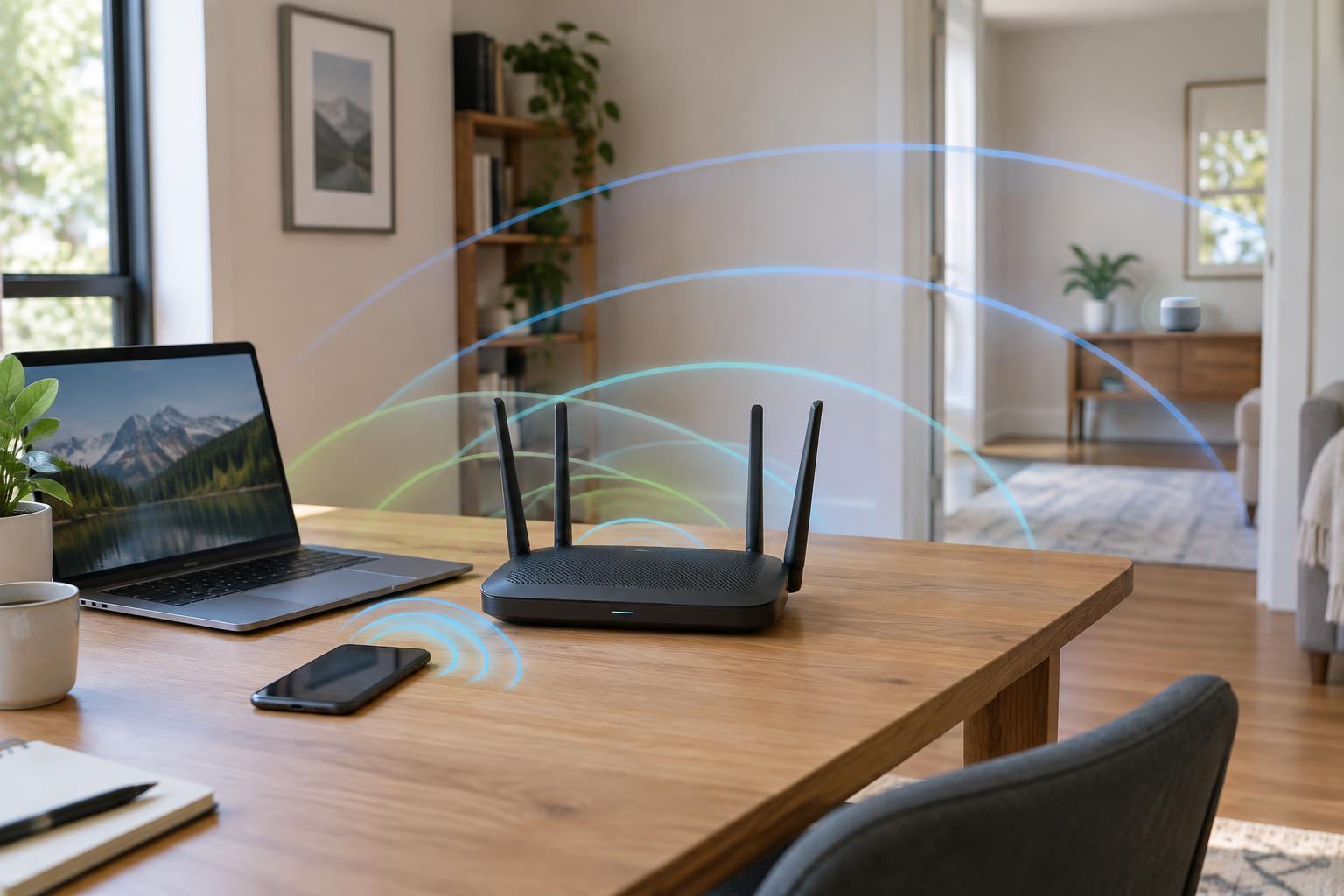
A useful starting point is that 2.4 GHz generally reaches farther and handles obstacles better, while 5 GHz often provides a better balance of speed and range. The 6 GHz band offers more room for wide channels and can work especially well near a compatible access point, but its signal tends to be less forgiving of distance and walls. These are tendencies, not promises: a well-placed 5 GHz access point can outperform a poorly placed 6 GHz one.
2.4 GHz: reach and compatibility
Choose 2.4 GHz when a device is far from the router, separated by several walls, or built for modest data needs. Many smart plugs, sensors, printers and older devices support only this band. That makes it valuable even in a home with a newer multi-band router.
Its trade-off is congestion. Nearby Wi-Fi networks, Bluetooth devices and some household equipment can compete for space in or around the band. It also has less room for non-overlapping Wi-Fi channels than the higher bands, so a strong signal does not always mean a fast, reliable connection. For a camera or video call, try 5 GHz if it remains stable at that location; reserve 2.4 GHz for devices that need its reach or cannot use another band.
5 GHz: a practical everyday default
For laptops, phones, streaming devices and game consoles within reasonable range of an access point, 5 GHz is often a sensible first choice. It typically offers more usable channel options and supports wider channels than 2.4 GHz. That can help with large downloads and local transfers, provided the router and device both support the relevant features.
The cost is shorter effective range, particularly through dense walls or floors. Some 5 GHz channels also operate under rules that require the router to detect radar and change channels when necessary. If a connection drops or slows in one room, first check signal quality and access-point placement rather than assuming the band itself is at fault. A nearer access point may help more than selecting the widest available channel.
6 GHz: more room, with newer equipment required
The 6 GHz band is available to compatible Wi-Fi 6E and Wi-Fi 7 equipment where local regulations permit it. Its main appeal is additional radio space: a router and device may be able to use a wide channel with less competition from older Wi-Fi devices. This can be useful for fast local file transfers or demanding applications close to an access point.
A device labeled only Wi-Fi 6 does not necessarily support 6 GHz; look for explicit 6 GHz or Wi-Fi 6E support in its specifications. A compatible router is required too. Availability, permitted channels and power limits vary by region, so follow the settings and documentation for equipment sold for your location. The shorter effective reach also means 6 GHz may not be the best choice on the other side of a house. Security requirements for 6 GHz networks can prevent older devices from joining, even if those devices work on your router’s 2.4 GHz or 5 GHz bands.
How to choose and troubleshoot at home
Start with the device’s capabilities and location. Use 2.4 GHz for devices that require it or need dependable reach; try 5 GHz for general-purpose devices; and try 6 GHz for compatible devices near an access point. If your router uses one network name for multiple bands, it may steer devices automatically. That is convenient, but you can use separate network names when you need to confirm which band a device has joined or set up a 2.4 GHz-only smart-home product.
Test performance where you actually use each device, not just beside the router. Note whether problems occur at particular times or after moving between rooms. Place an access point in an open, central position when possible, and avoid hiding it behind large metal objects. If coverage remains poor, an additional wired access point can be more effective than forcing every device onto the longer-range band. A mesh system can also extend coverage, though its performance depends in part on how its access points connect to one another.
Finally, remember that a faster Wi-Fi link cannot make a slow internet connection faster. For a useful diagnosis, distinguish between trouble reaching other devices on your local network and trouble reaching the internet. Choosing a band is one part of a reliable setup; placement, coverage and device compatibility matter just as much.