Describe the failure before changing anything
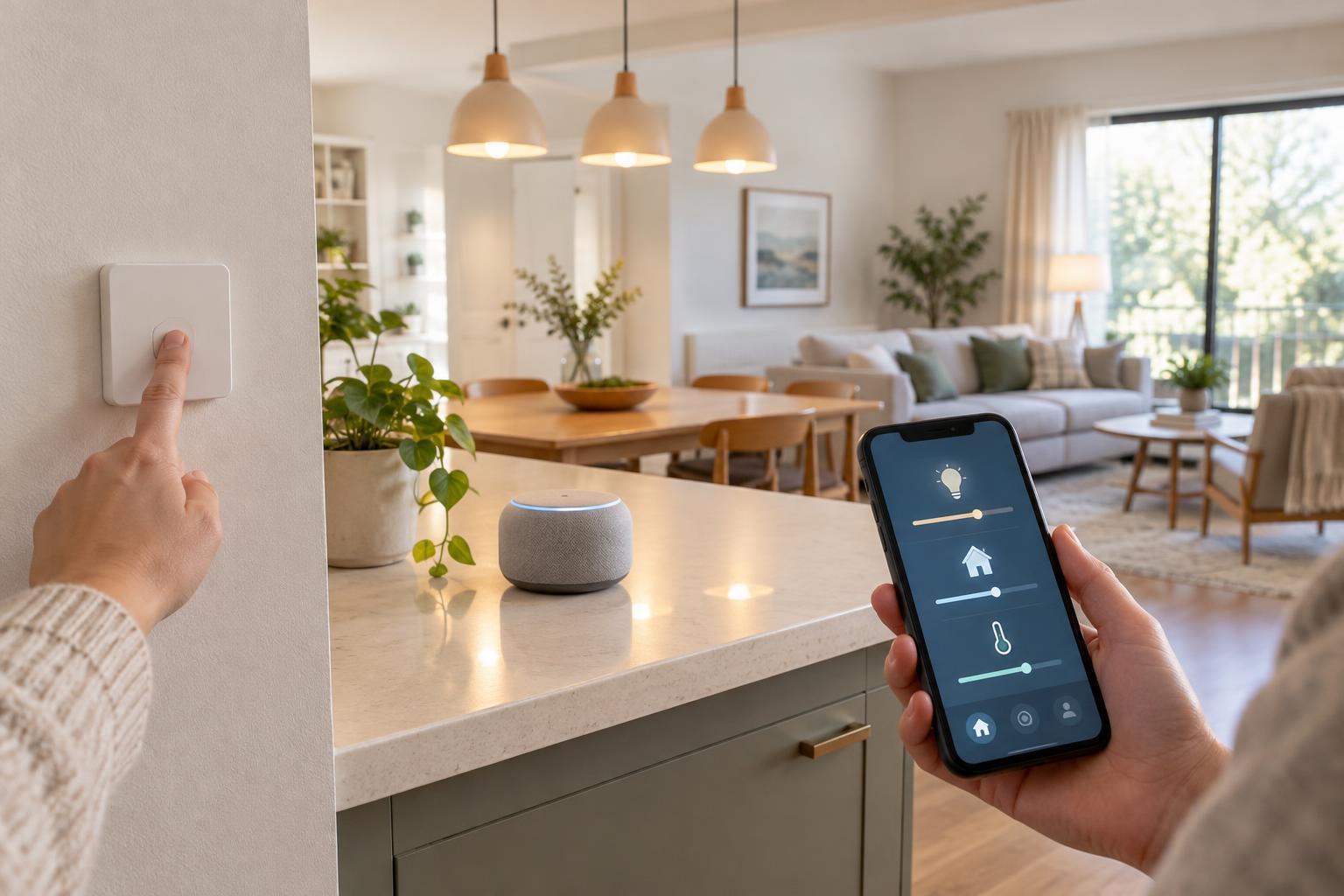
An automation is a chain: an event triggers it, any conditions decide whether it may proceed, and one or more actions tell devices what to do. Troubleshooting is easier when you identify which link appears to have failed. Did nothing happen, did only one device respond, or did the routine run at the wrong time? Write down the expected behavior and what actually happened, including the approximate time and the devices involved.
Start with a simple observation rather than editing the routine immediately. If your platform offers an activity history, check whether it recorded the trigger, skipped the automation because of a condition, or reported a failed action. An absent history entry may point toward the trigger or its source device. A recorded run with no visible result shifts attention to the action and target device. Logs do not always explain everything, but they can narrow the search.
Check the trigger and its source
Confirm that the automation is enabled and that its trigger matches the event you expect. For a schedule, inspect the configured time, days, time zone, and any sunrise or sunset offset. For a motion, contact, or temperature sensor, check its recent readings in the app. A sensor that has not updated may have a depleted battery, a lost connection, or a placement issue. If the app shows fresh readings but the automation does not start, review the trigger’s exact threshold or event type.
Presence and location triggers need extra attention because they depend on phone settings as well as the automation platform. Check that the correct household member is selected, the phone has the necessary location permission, and battery-saving settings are not preventing background updates. A phone crossing a location boundary may also be less precise than pressing a button or receiving a sensor event. Test with a clearly repeatable trigger when possible.
Inspect conditions and timing
A condition can make a healthy automation appear broken. Read every condition as a question that must be answered at the moment the trigger fires. If a hallway light should turn on after motion only when it is dark, verify which sensor or time rule defines “dark.” If several conditions are combined, check whether the platform requires all of them or just one. A device state that has not updated can also make a condition evaluate differently from what you expect.
Timing can create less obvious surprises. A delay may hold an action until after you have stopped watching, while a short cooldown may block repeated triggers. Two routines may compete: one turns a light on and another turns it off moments later. Look for other automations that control the same device, and note the order of events in the activity history. To isolate the problem, temporarily remove one nonessential condition or delay, test, and then restore it before testing the next.
Test each action and device separately
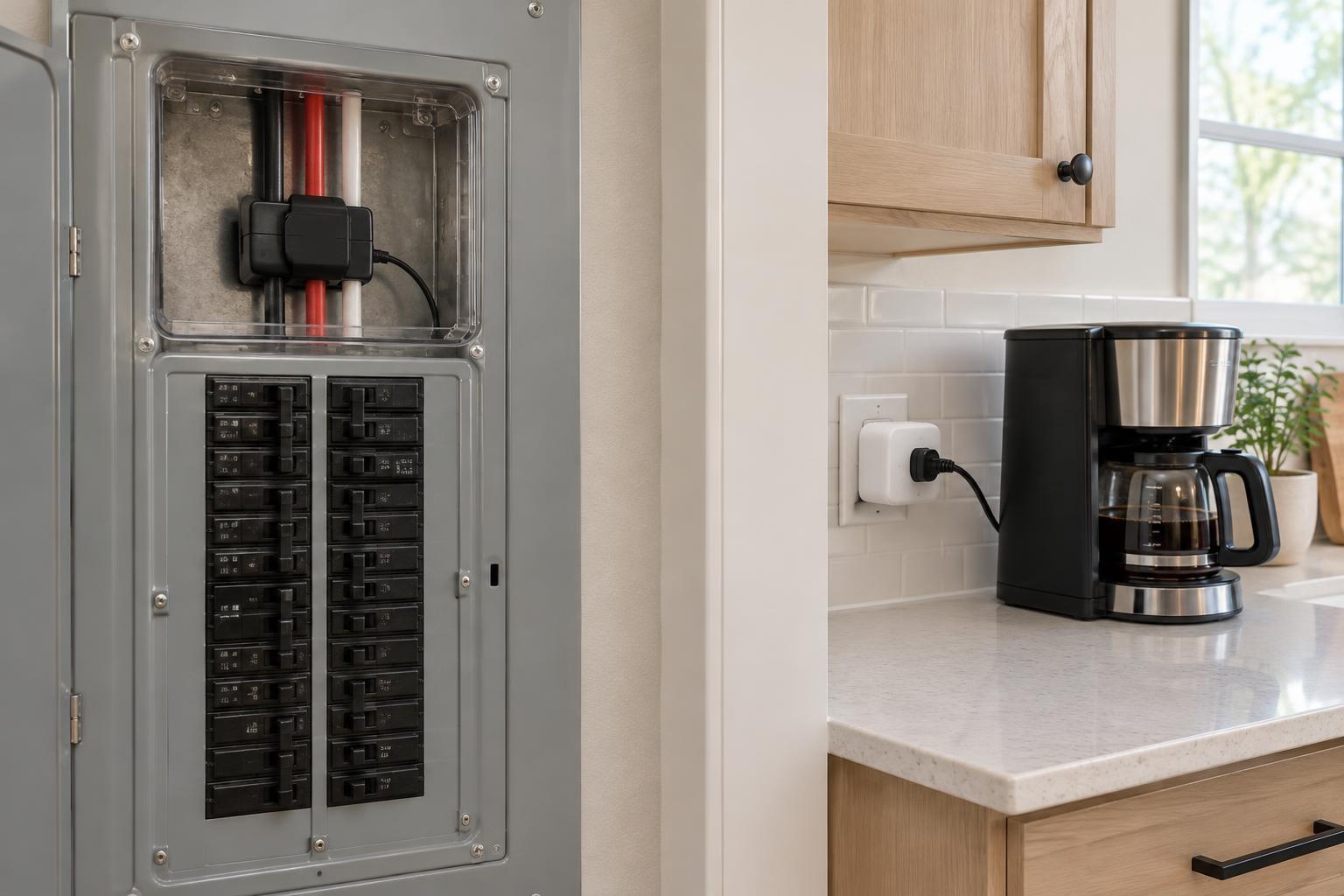
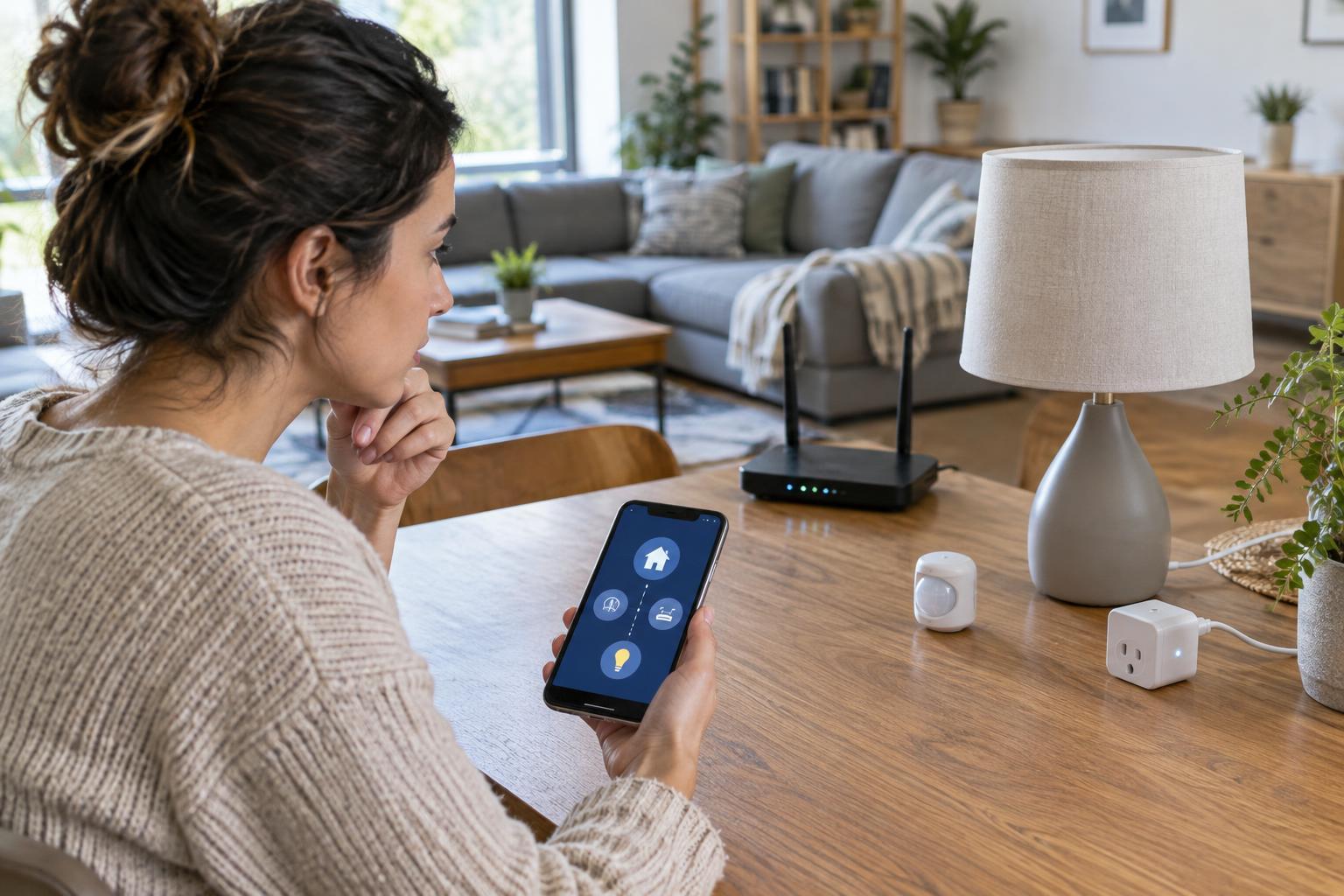
Use the device’s app or controller to perform the desired action manually. If a plug will not switch on manually, changing the automation will not fix its underlying connection or power problem. Check that the device is powered, appears online, and is assigned to the room or account the routine uses. For connected devices, inspect the relevant Wi-Fi, hub, or mesh connection. A device may remain visible in an app even when it cannot reliably receive commands.
If manual control works, inspect the action inside the automation. Make sure it targets the intended device and requests the intended state, brightness, mode, or duration. Some actions depend on a device already being in a particular mode. Test a single, simple action before rebuilding a sequence of several steps. When only one step in a sequence fails, focus on that step rather than replacing the entire routine.
Make one change, retest, and plan for failures
Change one setting at a time and test using the same trigger and conditions whenever practical. This makes it easier to tell which change helped. After a successful test, try the routine again under its normal conditions; a manual “run now” command may bypass the trigger or conditions and therefore proves only that some actions can execute. If the issue is intermittent, keep brief notes about when it occurs and whether the network, hub, sensor, or target device was available.
For automations involving door locks, heaters, water valves, or other consequential devices, verify the result directly rather than assuming a command succeeded. Keep a practical manual way to operate essential equipment, and avoid using an unreliable routine as the sole safety measure. Once the automation works, give it a descriptive name and keep its conditions as simple as the task allows. A routine that is easy to understand is also easier to repair the next time behavior changes.