Start with the parts you plan to power
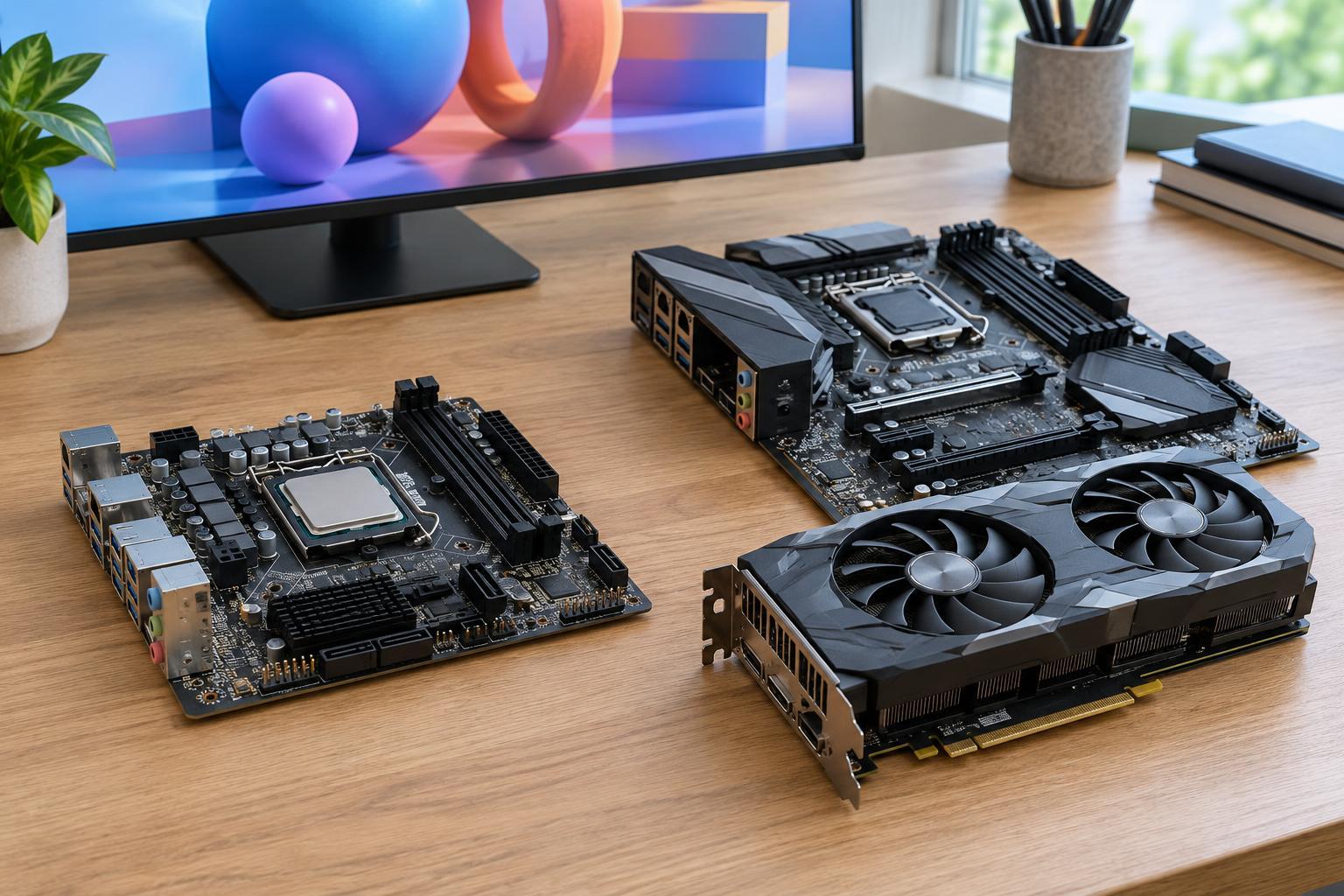
A PC power supply unit (PSU) converts wall power into the voltages used by the computer. Its wattage rating describes how much power it can deliver to components, not how much it constantly draws from the outlet. To choose one, make a parts list: CPU, graphics card, motherboard, memory, storage drives, fans, and any accessories powered inside the case. The CPU and graphics card usually account for the largest share in a desktop with a dedicated GPU.
Check the power figures and PSU guidance published for your specific CPU and graphics card. These figures are useful starting points, but they may describe different things: a CPU rating is not necessarily its maximum draw, while a graphics card maker’s recommended PSU wattage may already allow for the rest of a typical system. Treat those recommendations as a cross-check rather than adding every published number together without context.
Choose capacity with room for peaks
Estimate the power your complete system could need under a demanding workload, then leave room for brief peaks, aging, and reasonable upgrades. For example, if your parts list suggests roughly 450 watts under heavy use, a quality 650-watt unit may be a sensible candidate, provided it also meets the graphics card maker’s guidance. A more power-hungry future GPU could justify choosing a higher rating now. Headroom is useful; buying the highest-wattage unit available is not necessary for every build.
Look beyond the large wattage number on the box. Modern CPUs and GPUs primarily rely on the PSU’s 12-volt output, so check the unit’s label or specifications for its available 12-volt capacity. Look for a model from a reputable product line with clearly stated specifications and the electrical protections appropriate for a PC PSU. An efficiency rating describes how much input power is lost as heat at specified loads; it does not, by itself, prove build quality or add to the unit’s output capacity.
Match the motherboard and CPU plugs
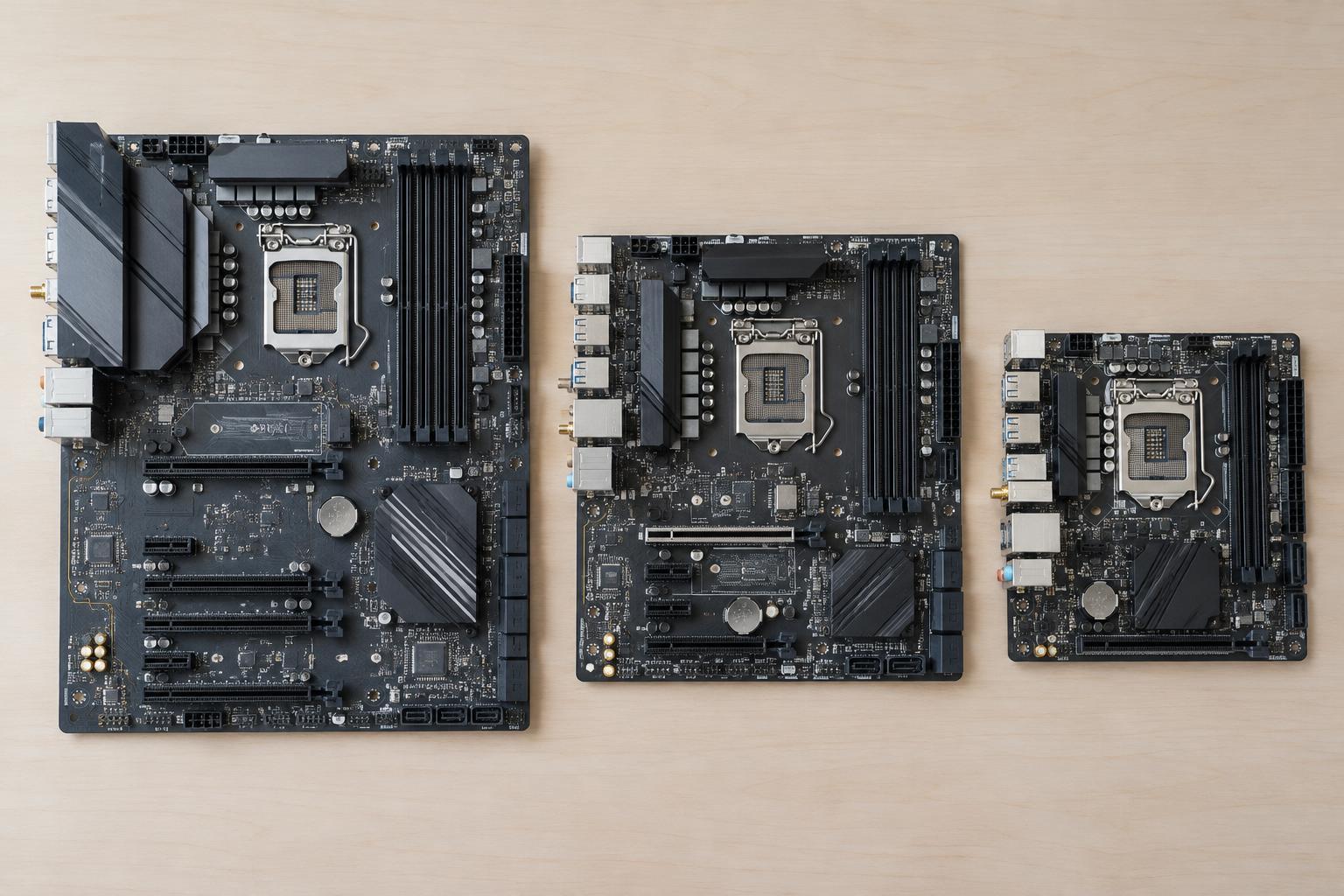
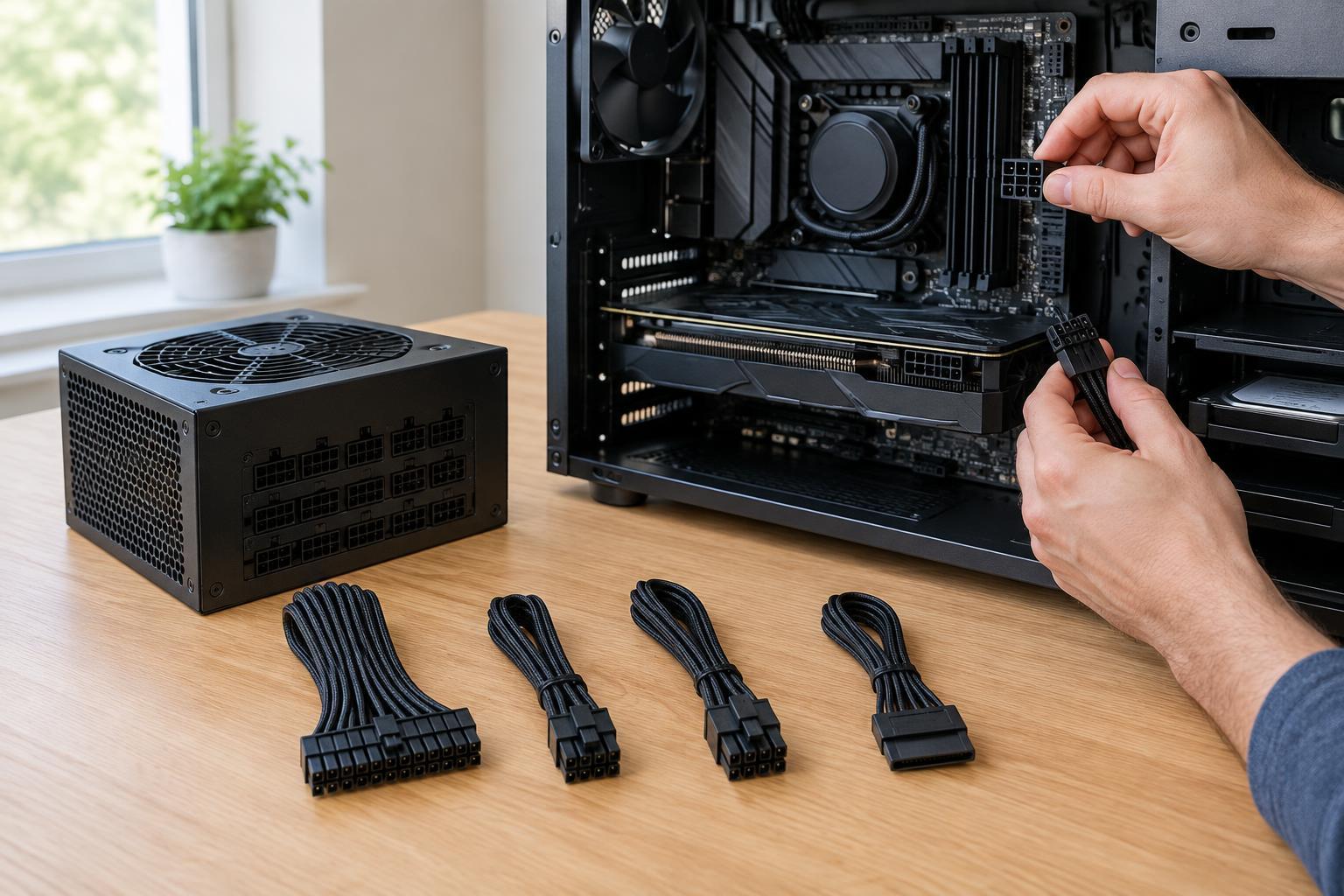
Most standard desktop motherboards use a 24-pin main power connector, often supplied as a 20+4-pin plug. They also need a separate CPU power connection near the processor socket, commonly an 8-pin connector supplied as a 4+4-pin plug. Some boards have an additional CPU power socket, especially models intended for higher-power processors. Read the motherboard manual to see which connections are required for your planned configuration.
Connector names matter because similar-looking plugs serve different purposes. A 4+4-pin CPU power plug is not interchangeable with a 6+2-pin PCIe graphics power plug. Do not force a connector that does not fit easily, and do not assume that an empty socket always needs filling. Before installation, compare the PSU’s listed connectors with the motherboard’s requirements and identify each cable by its labeling.
Check graphics card, drive, and cable requirements
A graphics card may draw all its power through its motherboard slot or require one or more auxiliary power plugs. Depending on the card, these may be 6-pin or 8-pin PCIe connectors, often provided as 6+2-pin plugs, or a newer 12V-2x6-style connector. Check the exact card model for both its connector requirements and any guidance on cable use. Verify that the PSU provides the needed connections without relying on an improvised chain of adapters.
SATA power connectors typically serve 2.5-inch drives, hard drives, and some accessories. Certain older devices use four-pin peripheral connectors instead. Count the devices you intend to install and consider where they will sit in the case: a PSU can have enough plugs on paper yet have an awkward cable layout. If a PSU has detachable modular cables, use only cables confirmed compatible with that exact PSU model or series. Cables from another unit can fit at the PSU end while being wired differently.
Confirm fit before installation
Finally, check the PSU’s physical format against your case. Many desktop cases accept ATX supplies, while compact cases may require SFX or another specified size. Compare the PSU’s dimensions with the case’s clearance limits, particularly if a drive cage or other hardware sits nearby. Also check that your chosen cables can reach their sockets without being stretched or sharply bent; this is especially important around bulky graphics cards and compact cases.
Make a final checklist before ordering: sufficient capacity, suitable 12-volt output, the required motherboard and CPU plugs, the exact graphics card connectors, enough drive connectors, and a case-compatible size. If you are replacing an existing PSU, plan to remove its modular cables along with the unit unless the replacement manufacturer explicitly confirms compatibility. This short check helps prevent a common problem: a PSU that has ample wattage but cannot safely connect to the PC it was bought to power.