Start with capacity, not speed
RAM holds the information your computer needs while programs are running. When there is too little of it, the system must move more data to and from storage, which can make switching between apps or working with large files feel sluggish. Extra RAM helps most when your current workload regularly fills the memory you have. It does not automatically make a lightly used computer faster.
For basic browsing, email, and documents, 8 GB can be workable, especially if you keep few apps and tabs open. For a new general-purpose computer, 16 GB offers more room for multitasking. Consider 32 GB if you routinely work with large photo files, complex creative projects, demanding games alongside other apps, or several virtual machines. Higher capacities can make sense for particularly large datasets or professional workloads, but the useful amount depends on the software and files involved.
Before upgrading, check your operating system’s memory or performance view while doing your normal work. Look at both installed memory and usage during a busy session. If usage stays near the limit and the computer slows when you change tasks, more capacity may help. If plenty remains free, investigate other possible bottlenecks before buying RAM.
Match the memory type to the computer
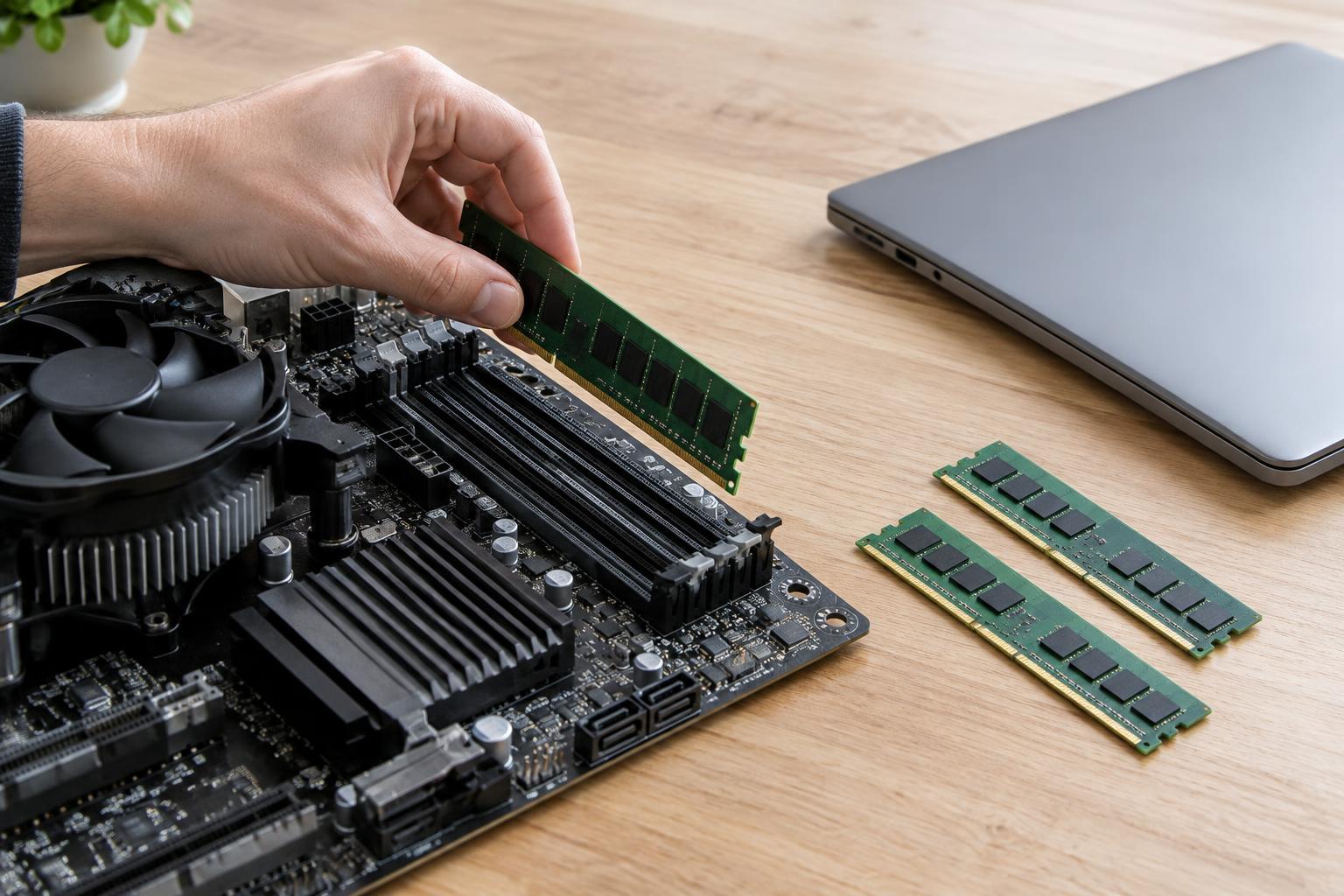
RAM is not interchangeable across all computers. Desktop systems commonly use full-size DIMMs, while upgradeable laptops commonly use smaller SO-DIMMs. The DDR generation matters too: DDR4 and DDR5 modules use different electrical designs and are not substitutes for one another. A computer’s motherboard and processor determine which generation it can use.
Check the computer or motherboard documentation for the supported DDR generation, form factor, maximum total capacity, and capacity per slot. If you have a laptop, confirm that its memory can be upgraded at all. Some models have memory soldered to the board; others combine soldered memory with an available slot. A product listing that says a laptop has a certain amount of RAM does not, by itself, tell you whether you can replace or add any.
Most consumer computers use unbuffered, non-ECC memory. Some workstations and servers support ECC memory, registered memory, or both, but these require specific platform support. Do not assume that a module will work simply because it fits a slot. When documentation is unclear, use the exact computer or motherboard model to verify its specifications before ordering.
Consider slots and module arrangement
Find out how many memory slots your computer has, how many are occupied, and what each installed module contains. A machine with two occupied slots may require replacing both modules to increase capacity. One with an empty slot may offer a simpler upgrade, provided the new module is compatible. Your operating system’s hardware information can help, but checking the model documentation or physically inspecting accessible slots can resolve uncertainty.
Matched modules are usually the simplest choice for a two-slot upgrade. Using the slot arrangement recommended by the motherboard manufacturer can enable dual-channel operation, which gives the processor more memory bandwidth. The real-world benefit varies by task and may be more noticeable for a system using integrated graphics. Mixed capacities or speeds may work on some systems, but behavior depends on the platform; the computer may run all modules at a common supported speed.
Plan for the capacity you expect to need, not just the cheapest immediate addition. For example, if a two-slot system already has two small modules, replacing them with a matched pair may be more straightforward than trying to combine old and new memory. Keep the existing modules until you have installed and tested the replacements.
Treat speed as a compatibility detail
Memory products list data rates and, often, timing figures. Faster specifications can improve performance in some workloads, but capacity is usually the more important first decision if you are running out of RAM. A module rated for a high speed may run at a lower speed when the processor, motherboard, or other installed modules impose a limit.
Some advertised speeds require enabling a memory profile, such as XMP or EXPO, in the computer’s firmware settings. Support and stability are not guaranteed for every combination of hardware. If you prefer a straightforward upgrade, choose memory whose specifications align with the system’s documented support rather than paying solely for the highest number on the package.
Make a short checklist before buying
Record the exact computer or motherboard model, processor, current RAM capacity, slot count, and upgrade limit. Confirm the DDR generation and whether you need DIMMs or SO-DIMMs. Then choose a total capacity based on your actual workload and decide whether you are adding modules or replacing those already installed.
Finally, check the manufacturer’s installation guidance, including which slots to populate first. After installation, confirm that the system recognizes the expected capacity and use a memory test if you encounter crashes or other instability. A well-matched, adequately sized kit is a better purchase than a faster or larger kit your computer cannot use.