Start with the reason for upgrading
Before shopping, decide whether you need more space, a faster system drive, or both. If your desktop already starts from an SSD and you mainly need room for files, adding a second drive may be simpler than replacing the first. If it starts from a hard drive, moving the operating system to an SSD can improve tasks that spend time reading and writing data, such as starting applications. It will not solve every cause of a slow computer.
Check how much space is used on your current drive, then allow room for future files and updates. Also decide whether you want to keep the old drive connected. That choice affects the number of available connectors you need and whether you will copy files, clone a drive, or install the operating system afresh. Make a separate backup of important files before changing the storage setup; a clone is not a substitute for a backup.
Identify the connections inside your desktop
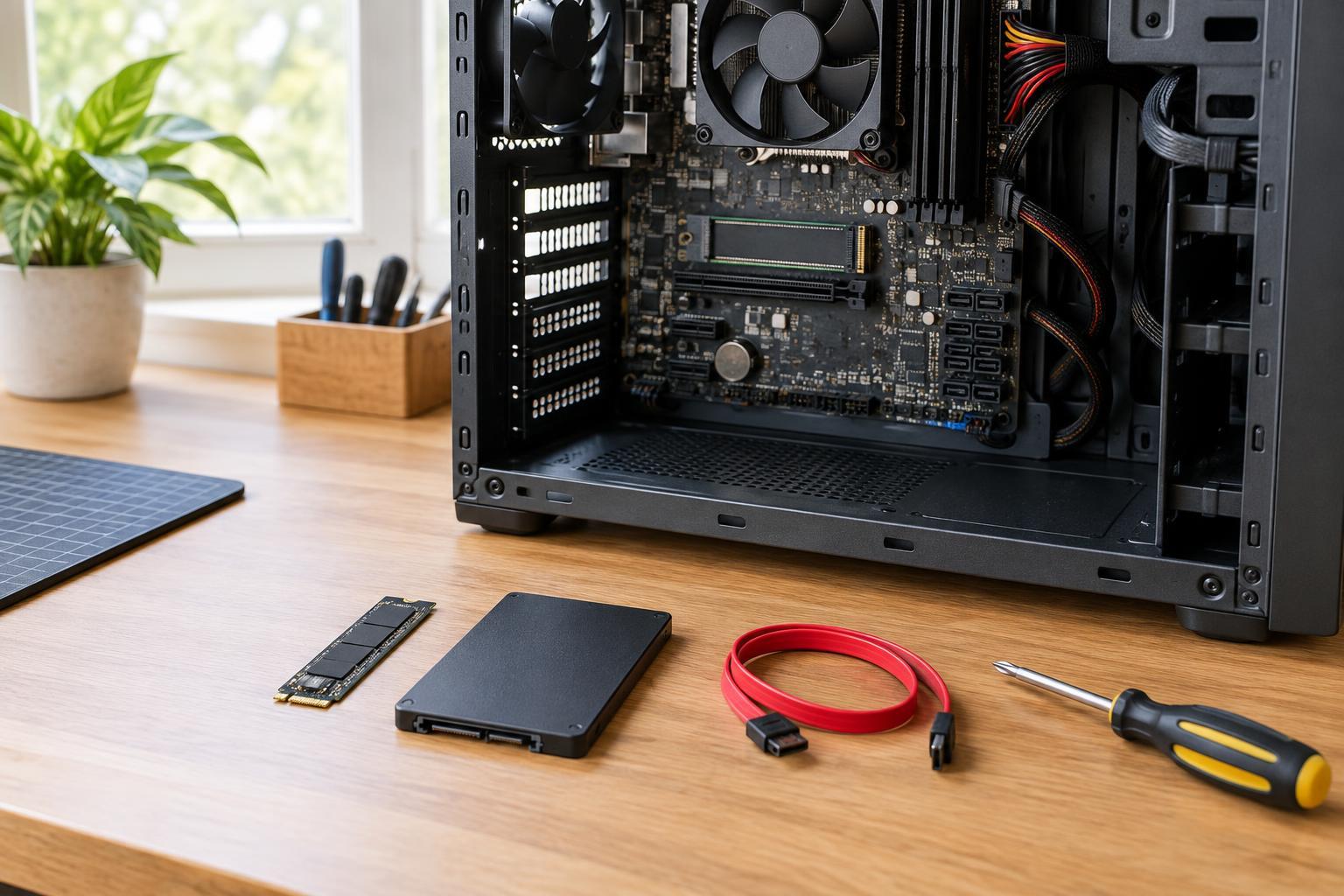
Desktop SSDs commonly come as 2.5-inch SATA drives or slim M.2 cards. A 2.5-inch SATA SSD needs a SATA data connection on the motherboard and a SATA power plug from the power supply. It also needs a suitable mounting position, although some cases offer dedicated SSD mounts rather than traditional drive bays. Check that you have a data cable, since a new drive may not include one.
An M.2 slot is physically different and mounts the drive directly to the motherboard. M.2 describes the shape and connector, not necessarily how the drive communicates: some M.2 drives use SATA, while others use NVMe over PCIe. A slot may support one type, both types, or a particular range of card lengths. Look up the exact motherboard or desktop model in its documentation before buying. On some boards, using a particular M.2 slot also disables certain SATA ports, which matters if you plan to keep existing drives connected.
Choose a drive that matches the job
NVMe SSDs can offer substantially higher transfer speeds than SATA SSDs, but the difference may be less noticeable when browsing, opening small documents, or doing other light work. A compatible SATA SSD remains a useful upgrade from a hard drive. Rather than choosing by a headline speed alone, compare capacity, price, warranty terms, and whether the drive fits the connection you actually have.
If you intend to use an NVMe drive as the startup drive, check that the computer’s firmware supports booting from that slot and drive type. An older desktop may be able to use an NVMe SSD for extra storage without being able to start its operating system from it. A PCIe adapter card can sometimes add a place for an NVMe drive, but it does not automatically provide boot support. For a prebuilt desktop, also check for physical clearance near the slot and any manufacturer-specific installation guidance.
Plan the installation before opening the case
Save your work, shut the computer down, disconnect its power cable, and follow the manufacturer’s case-opening instructions. Avoid touching exposed contacts on the drive or components. For a SATA drive, locate both its mounting position and a usable pair of power and data connections before fastening anything. For an M.2 drive, confirm the correct slot and mounting position; the card should seat without force and be secured with the appropriate screw or tool-free latch.
Think through how your files will reach the new drive. If you are adding storage, you can usually leave the existing system drive alone and prepare the new drive after installation. If you are replacing the startup drive, decide between cloning the old drive and performing a fresh operating-system installation. Cloning may preserve your setup, but the destination must have enough capacity for the data being copied. A fresh installation takes more setup work and requires a way to reinstall your applications. Keep your backup available either way.
Confirm that the upgrade worked
After installation, check whether the drive appears in the computer’s firmware or operating system. A new secondary drive may need to be initialized, partitioned, and formatted before it appears as a place to save files. Be careful to identify the new drive by its capacity and model before making changes: formatting the wrong drive can erase data. If a replacement drive does not start the operating system, recheck the boot selection and your installation or cloning steps before assuming the hardware is defective.
If the drive is missing entirely, turn the computer off and recheck its seating, cables, slot compatibility, and any shared-port restrictions in the motherboard documentation. Once it is working, confirm that files open from the expected drive and that your backup remains accessible. The best upgrade is not simply the fastest SSD on the shelf; it is one your desktop can use reliably and that gives you the space you need.