First, find out what is actually failing
Before changing settings, compare the problem device with another device on the same home network. If both fail, the router or internet service may be the issue. If only one fails, concentrate on that device and its connection. If possible, check both a website and an app: a single failing service does not necessarily mean the whole internet connection is down.
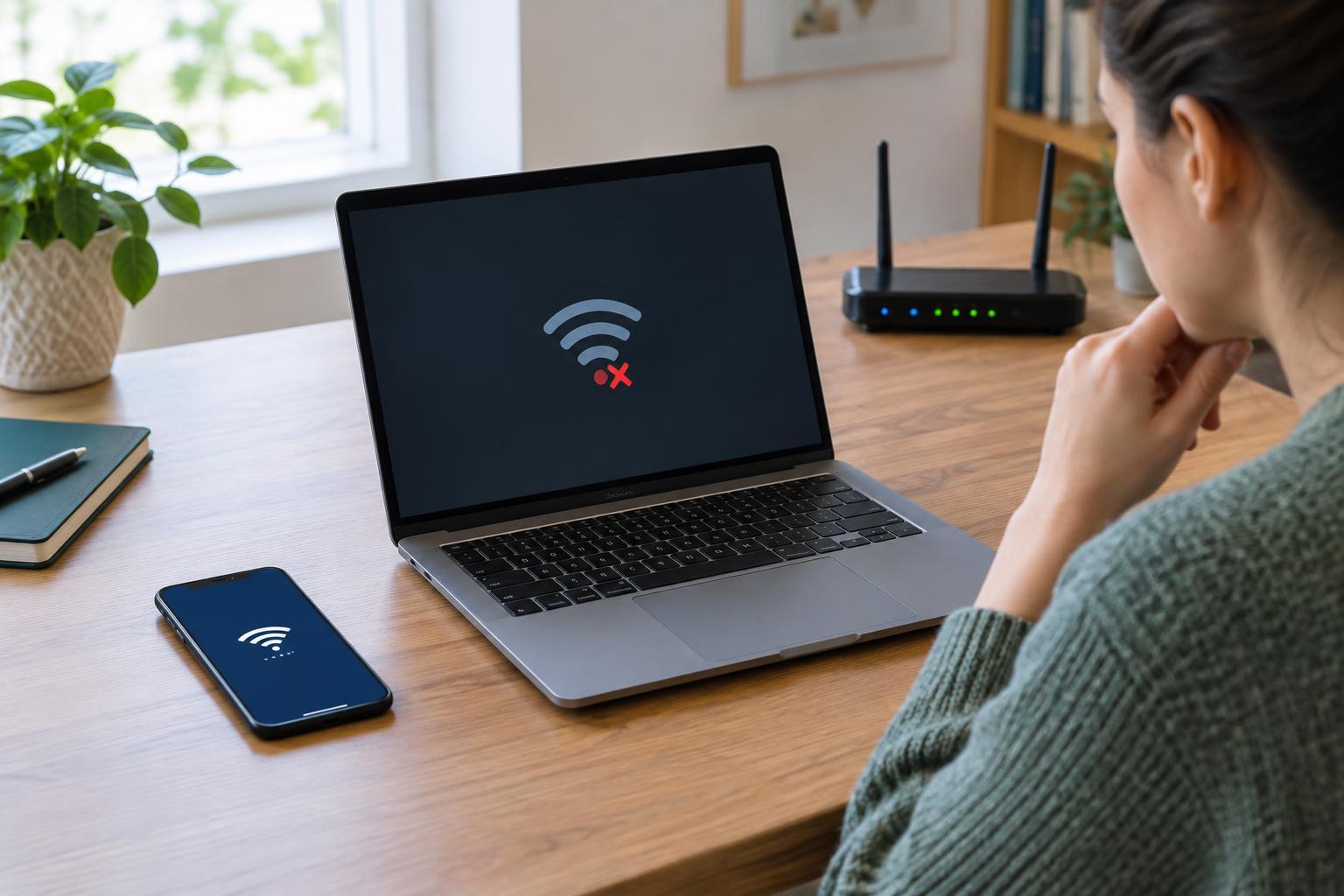
Look closely at the connection status. A device that cannot see or join your Wi-Fi needs different checks from one that says it is connected but has no internet access. If a phone switches to mobile data automatically, temporarily turn mobile data off while testing Wi-Fi; otherwise, a successful page load may hide the problem. On a wired computer, check whether the Ethernet connection is detected at all.
Check the simple connection points
Confirm that airplane mode is off and that Wi-Fi or Ethernet is enabled. For Wi-Fi, make sure the device is trying to join the correct network, especially if several nearby networks have similar names. Move closer to the router for a test. A weak signal can allow a device to show as connected while pages load unreliably. If you use a cable, firmly reconnect both ends and, if available, try another cable or router port.
Restart the affected device, then test again. You can also disconnect it from Wi-Fi and reconnect. If it repeatedly rejects a password you know is correct, forgetting the saved network and joining it again may clear an outdated setting. Have the password ready first: forgetting the network removes its saved credentials. If another device is working normally, avoid resetting the entire router at this stage; that can interrupt everyone without addressing the cause.
If it connects to Wi-Fi but cannot reach the internet
Try opening more than one website. If the device is on a guest network, hotel network, or another network with a sign-in page, it may need you to accept terms before normal access works. A browser may show that page when you visit a regular website. At home, check whether the device has been paused by parental controls or placed on a guest network with different access rules.
A device usually receives an IP address and other network settings automatically from the router. If those settings were entered manually, an old address, gateway, or DNS setting may prevent access. Unless your network needs custom values, check that IP and DNS settings are set to automatic. If you rely on a specific DNS service, record its current setting before changing it. An address beginning with 169.254 on many devices can indicate that the device did not receive a usable address from the router; reconnecting or restarting the device may help.
VPNs, proxies, security apps, and device-management settings can also affect traffic. If you control those settings, briefly disconnect a VPN or proxy and retest, then restore it if it is required. On a work- or school-managed device, ask the administrator before changing managed settings. Check that the device’s date and time are reasonably accurate, since a badly incorrect clock can cause some secure websites and apps to fail.
Separate a device problem from a network problem
If practical, connect the affected device to a different trusted network, such as a phone hotspot. If it works there, the device can get online, and its interaction with the home network deserves closer attention. If it fails on multiple networks, look more closely at the device, its settings, and its apps. This test is a clue, not a final diagnosis: different networks may use different Wi-Fi bands, security settings, or access rules.
If the device joins your network but only one app fails, check whether that app works on another device and whether a browser works on the affected one. Restart the app, review its permissions, and look for an available update through the device’s usual update process. Avoid changing router settings to fix a problem limited to one app unless you have evidence that the network is blocking it.
Make targeted changes and know when to stop
Change one thing at a time and test after each step. This makes it easier to tell what helped and to undo a change that did not. If basic checks fail, a device’s network settings reset may be an option, but read its description first: it can remove saved Wi-Fi networks and other connection settings. A factory reset is far more disruptive and should not be an early troubleshooting step.
For persistent trouble, write down the device model, the exact error message, whether Wi-Fi connects, and which networks and apps you tested. Those details can help a device manufacturer, network administrator, or support technician narrow the cause. The goal is to identify the failing link before replacing hardware or reconfiguring a network that works for everyone else.