Start by describing the slowdown
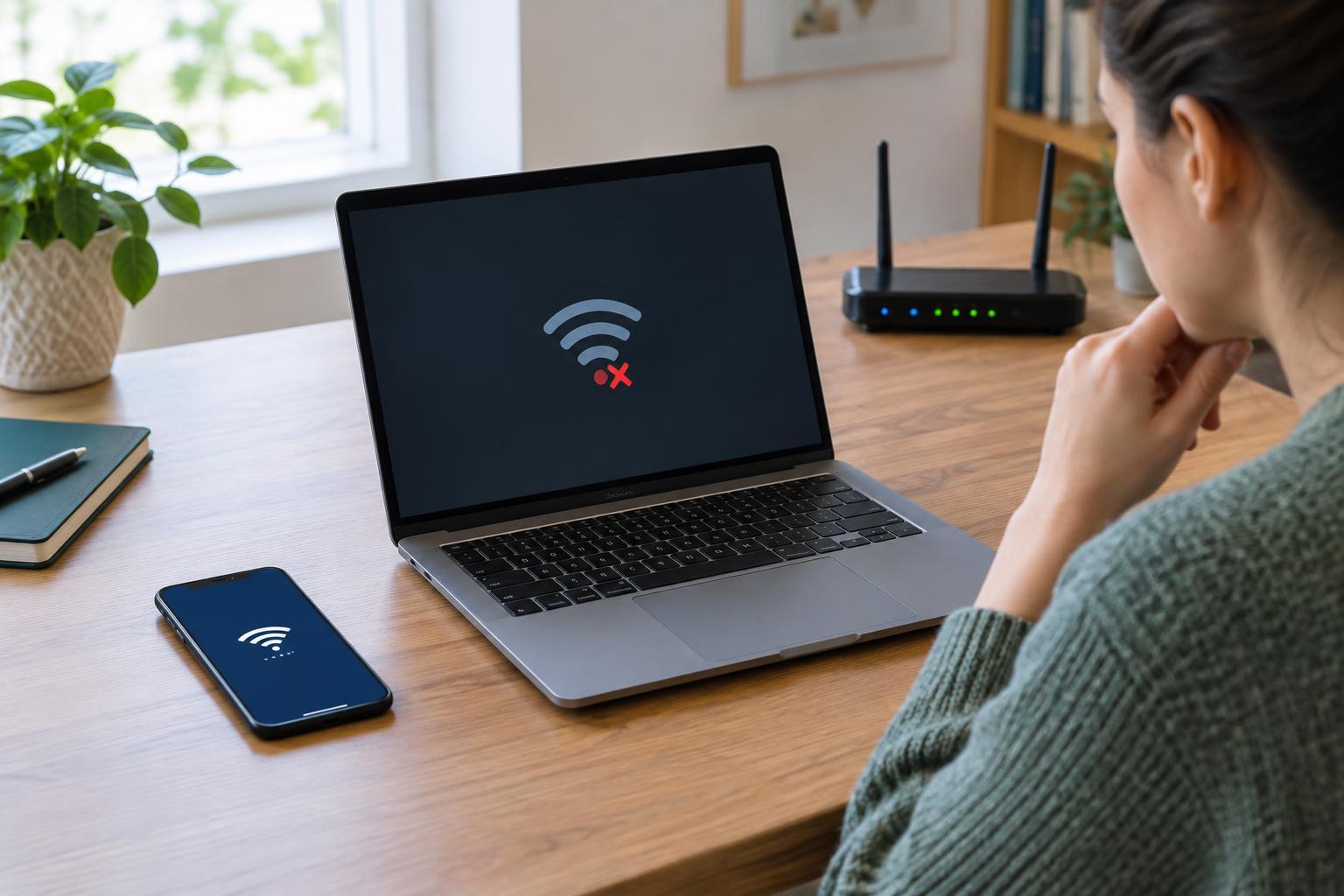
“Slow Wi-Fi” can describe several different problems. A video may buffer, a web page may take time to begin loading, or a file transfer between two devices at home may crawl. Those symptoms do not necessarily share a cause. Before changing settings, note what is slow, which devices are affected, where they are located and whether the problem happens all the time or only occasionally.
Try the same task on a second device, then try a different task on the original device. If one laptop struggles while nearby devices work normally, investigate that laptop first. If every device slows down in the same room but works near the router, coverage is a stronger suspect. If one website is slow while others load normally, the home network may not be the limiting factor.
Write down the results as you go. A short record of location, device, time and task is more useful than a vague impression that the connection is “sometimes bad.” It also makes it easier to tell whether a later change actually helped.
Separate the internet connection from the wireless link
Wi-Fi connects a device to your home network; your internet service connects that network to outside services. To compare them, run the same internet speed test on a Wi-Fi device near the router and, if possible, on a computer connected to the router by Ethernet. Test more than once, avoiding large downloads or backups during the comparison. Speed-test results can vary, so look for a consistent pattern rather than treating one number as a verdict.
If the wired connection performs well but nearby Wi-Fi is consistently much slower, focus on the wireless side. If both are slow, check whether multiple devices are using the connection heavily, then inspect the modem and router for connection warnings. You can also compare the wired result with the speed you normally expect from your service, allowing for some variation. If the problem persists, those test results give your internet provider a clearer starting point.
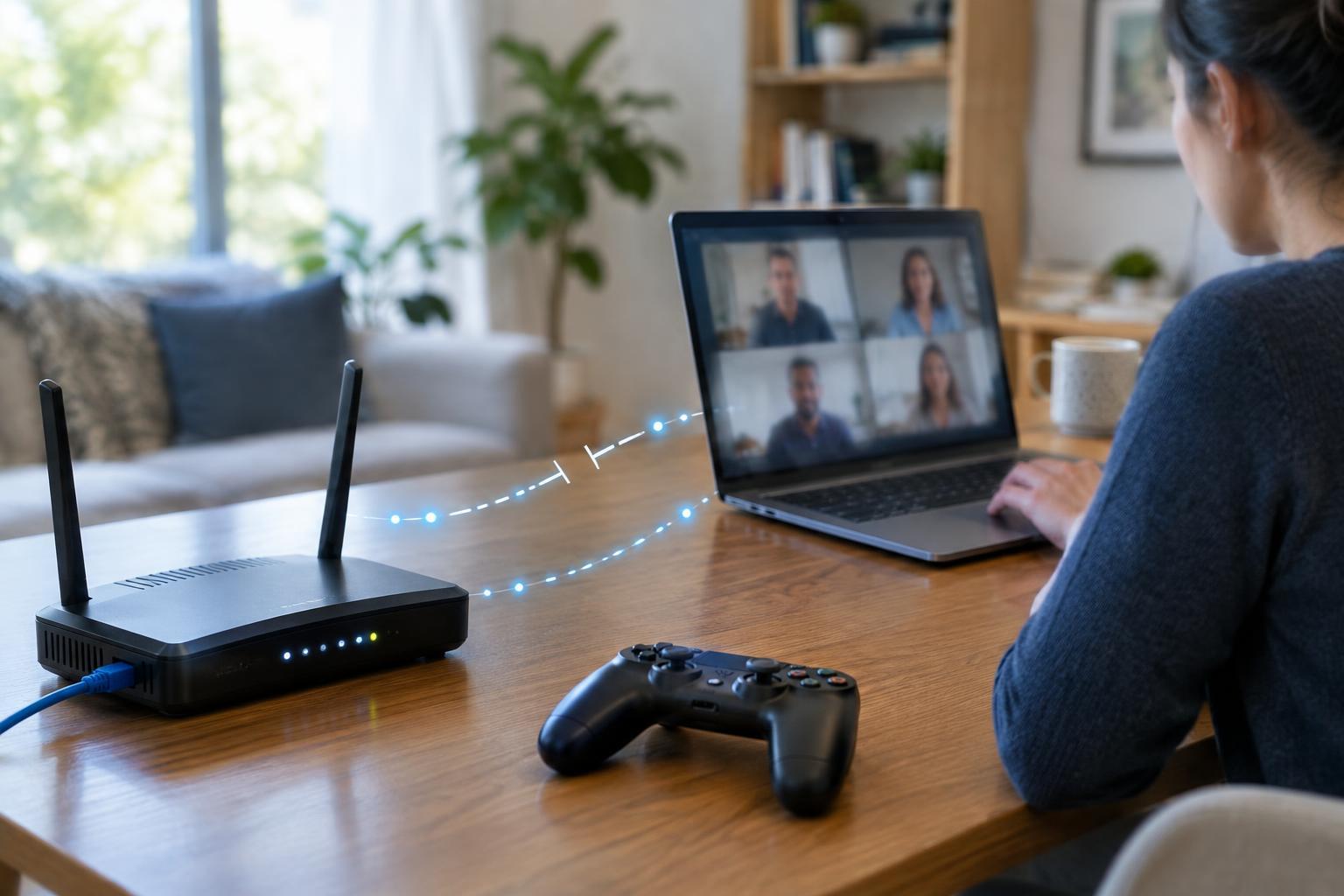
A fast speed test does not rule out every problem. Delays that come and go, interrupted calls and unstable games may be easier to spot with a sustained call or repeated tests than with a single download-speed measurement.
Check coverage before changing advanced settings
Compare performance close to the router with performance in the problem area, using the same device and task. If the connection becomes unreliable as you move away, distance, walls or other obstacles may be weakening the signal. A router placed low behind furniture or inside a cabinet may serve rooms less effectively than one in a more open, central position. Moving it a modest distance can be a useful test before buying equipment.
If your router offers separate 2.4 GHz and 5 GHz network names, testing each can reveal a trade-off: 5 GHz often offers more capacity nearby, while 2.4 GHz may reach farther in some homes. If the names are combined, your device or router may choose the band automatically. Do not assume that the band with the stronger-looking signal is always faster; compare how your usual tasks actually perform.
For a mesh system or extender, check whether the problem area improves when the satellite is moved closer to the main router. A satellite with a weak connection back to the router cannot create a strong path to the internet simply by sitting beside your device.
Look for contention and device-specific limits
Wireless devices share airtime. A large download, cloud backup or high-resolution stream can affect other activity, especially when the connection is already limited. Pause those tasks briefly and repeat your test. If performance improves, the next step may be scheduling heavy transfers for quieter times or connecting frequently used stationary devices by Ethernet.
If the issue follows one device from room to room, check its basics: restart it, install available system and wireless-adapter updates, and test with a browser or app that is known to work on another device. Also check whether a VPN, background sync or security software changes the result when used. Avoid disabling protections as a permanent fix; the aim is to identify what affects the connection.
Nearby networks and household electronics can also interfere with Wi-Fi. Rather than changing several router options at once, test one adjustment at a time and keep a note of the original setting. Automatic channel selection is a reasonable starting point for many homes, though a crowded environment may require more careful testing.
Make one change, then verify it
Once your comparisons point to a likely cause, change only what addresses that cause. Move the router to test coverage, pause heavy traffic to test contention, or troubleshoot a single device if others are unaffected. Repeat the same task in the same location afterward. This controlled approach helps you avoid buying a new router to solve a problem that was actually caused by a busy computer or a slow internet connection.
If the evidence remains mixed, return to the simplest comparison: one device near the router on Wi-Fi, one wired device if available, and the original problem task. Keep the results, including when failures occur. You may not identify every fault at home, but you can narrow the question from “Why is my Wi-Fi slow?” to a specific link, location or device that needs further attention.