Choose the right way to share
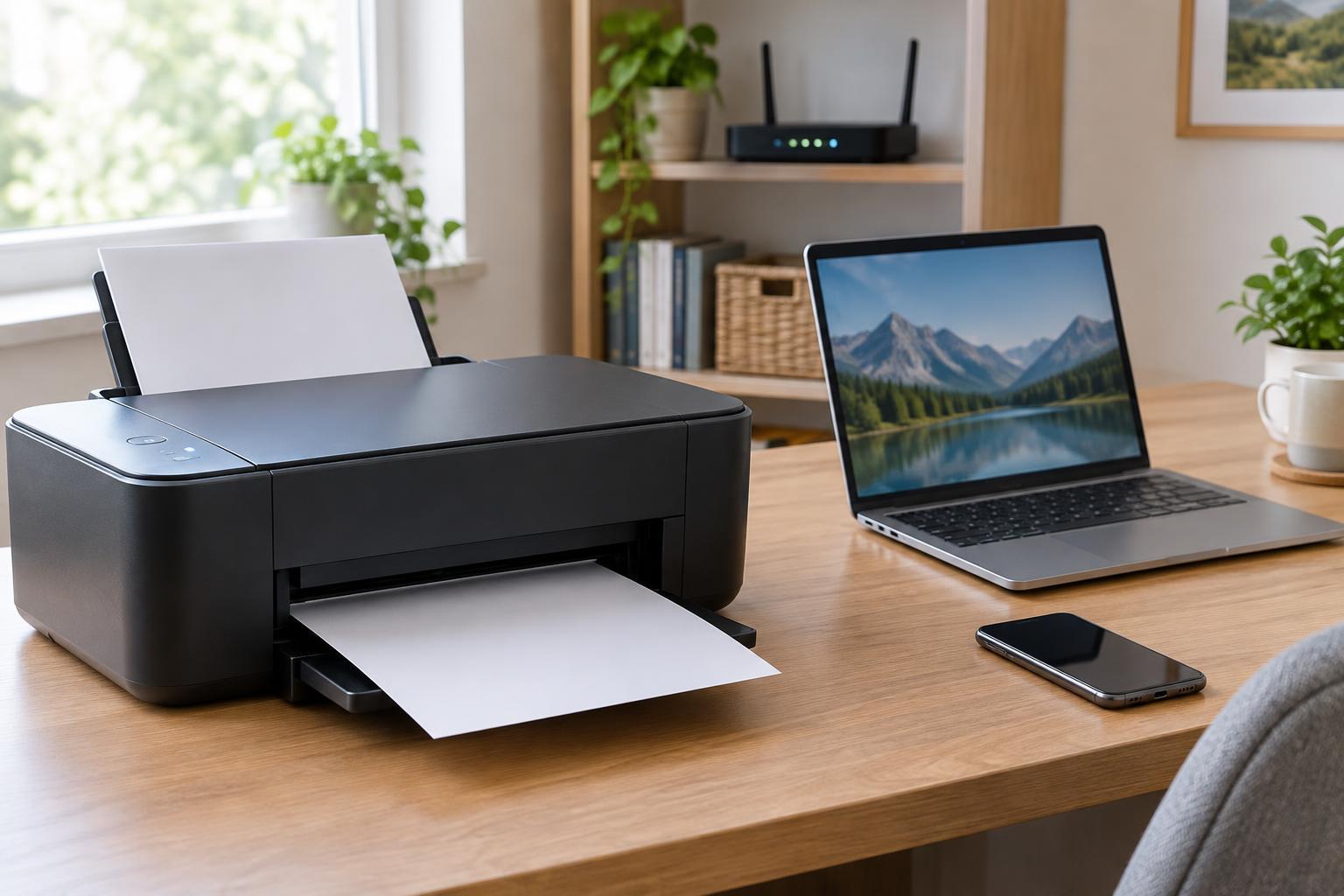
The simplest arrangement is a printer that connects directly to your home network by Wi-Fi or Ethernet. Each computer or phone sends jobs to the printer over that network, so no particular computer has to stay on. Ethernet can be a useful choice if the printer is near the router; Wi-Fi gives you more flexibility about where to put it.
If the printer only has a USB connection, you may be able to plug it into a computer and turn on printer sharing there. Other devices then send jobs through that computer. The trade-off is that the computer must be powered on, connected to the network, and able to communicate with the printer whenever someone wants to print. A USB port on a router is another possibility, but only if the router explicitly supports printer sharing; a USB port alone does not guarantee it.
Connect a network-capable printer
Start with the printer’s setup screen or its manufacturer’s setup instructions. For Wi-Fi, select your home network and enter its password. For Ethernet, connect the printer to a router or network switch that serves your home network. Print a network status page or check the printer’s screen to confirm that it has received a local IP address.
Connect the devices that will print to the same home network. A guest Wi-Fi network may block access to devices on the main network, even when both networks use the same router. Similarly, a separately configured network segment may prevent printer discovery. If a device cannot see the printer, check which network it joined before changing printer settings.
You can usually let the router assign the printer an address automatically. If the printer repeatedly disappears after network changes, consider reserving its IP address in the router’s settings. This keeps its local address consistent without requiring you to configure a fixed address on the printer itself.
Add the printer on each device
On Windows, open Settings, go to Bluetooth & devices, then Printers & scanners, and choose Add device. On a Mac, open System Settings, select Printers & Scanners, and add a printer. Menu names can vary by operating-system version. If the printer appears, select it and complete any prompts. Print a test page before moving on to the next device.
If automatic discovery does not work, look for an option to add a printer by its IP address or network address. Use the address shown on the printer or its network status page. Install a compatible driver if the operating system requests one; some printers work with built-in printing support, while others need software specific to the model. For a phone or tablet, check whether the printer supports the printing method offered by that device, such as AirPrint or a compatible Android printing service.
You generally need to add the printer separately on each device that will use it. Giving it a recognizable name, such as its model and location, makes it easier for household members to choose the right printer.
Share a USB printer through a computer
Connect the USB printer to the computer that will act as the host, install it there, and confirm that it can print locally. Then enable printer sharing in the host’s operating-system settings and share that particular printer. On Windows, printer sharing is managed through the printer’s settings and the network’s sharing settings. On a Mac, look for Printer Sharing in the Sharing settings.
On other computers, search for the shared printer using the host computer’s name, or use the operating system’s option to add a shared printer. You may need an account permitted to access the host or a suitable printer driver on the other computer. Keep the host awake while printing: if it sleeps, shuts down, or disconnects from the network, the shared printer becomes unavailable.
Keep access reliable and limited
If printing fails, first check that the printer is on, has paper, and shows no error. Confirm that the sending device and printer are on networks that can reach each other. Clear a stuck print job, then try a test page from another device. If only one device fails, its printer entry or driver is a likely place to investigate. If every device fails, check the printer’s connection and local IP address before restarting the printer or router.
Treat the printer as another device on your network. Change any default administrator password it allows you to change, and apply firmware updates when available. Keep printer sharing limited to your trusted home network; do not open a router port to the printer just to make local printing work. If you no longer use remote or cloud-printing features, review whether they can be turned off. These steps help keep a convenient shared printer from becoming an unnecessarily exposed device.