Start with the path into your home
A home network is the group of devices that can communicate through your networking equipment. It might include laptops, phones, printers, game consoles, TVs and smart-home devices. Some communication stays inside your home, such as sending a document to a network printer. Other traffic travels beyond your home network to an online service.
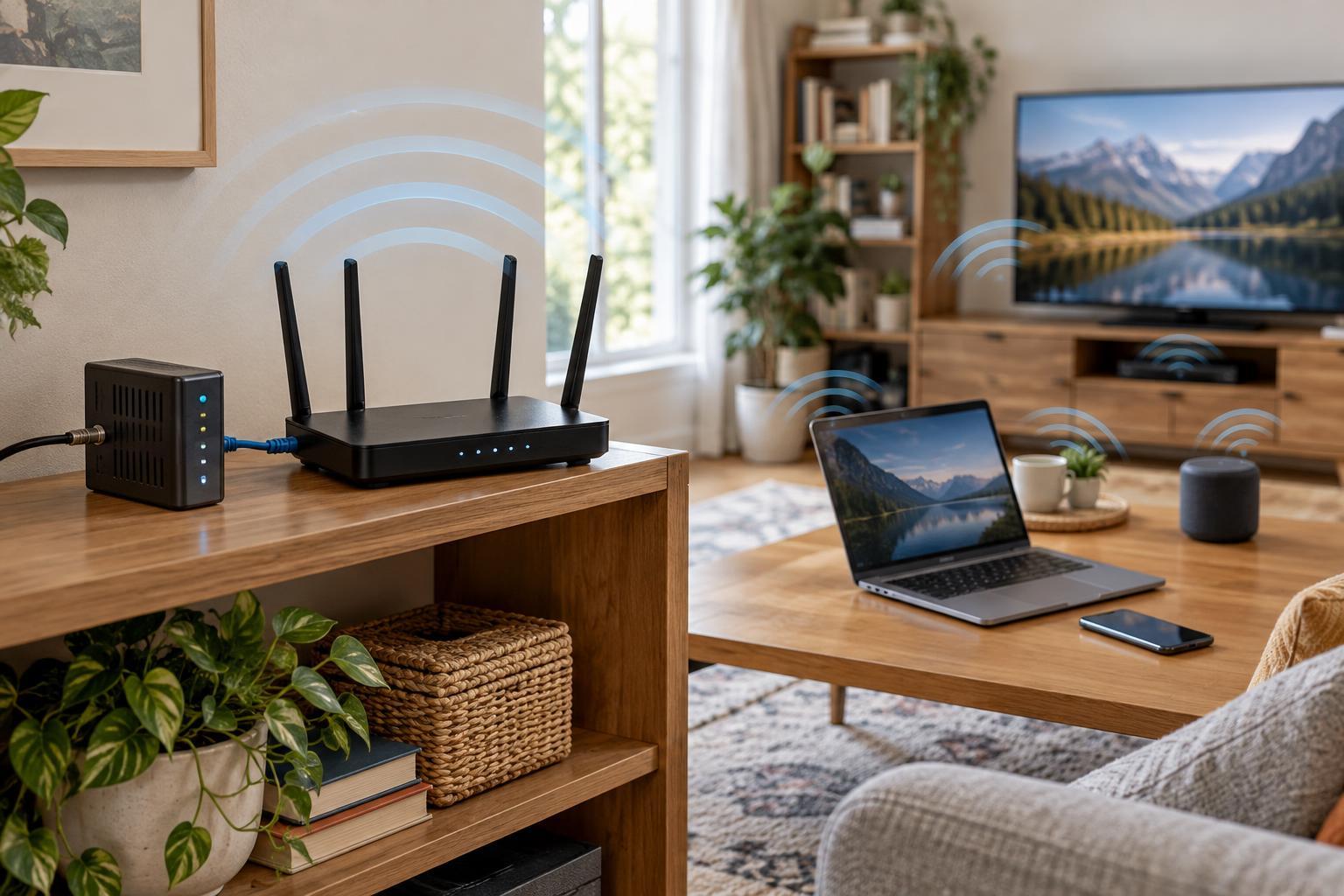
Your internet service enters through equipment suited to the type of connection you have. That might be a cable modem or a fiber optical network terminal (ONT). A router then connects your home network to that outside connection. Many households use one provider-supplied box that combines several functions, so you may not see a separate modem, router or Wi-Fi access point.
It helps to distinguish the local network from the internet. Your router sits between them: on one side are your household devices, and on the other is your provider’s connection. Devices can sometimes communicate locally even when the internet connection is down, although services that depend on remote servers will not work normally.
How devices join the local network
Devices usually connect to a router by Ethernet cable or Wi-Fi. Ethernet provides a physical link through a network port and is useful for stationary devices such as desktop computers and TVs. Wi-Fi uses radio signals, giving phones and laptops the freedom to move around. Both methods can put devices on the same local network; Wi-Fi is not a separate internet service.
A Wi-Fi access point is the part of the setup that broadcasts a wireless network. In a typical home, it is built into the router. If coverage is poor, an additional access point or a mesh system may extend the wireless network into other rooms. A network switch serves a different purpose: it adds wired ports so more Ethernet devices can connect.
The Wi-Fi network name, or SSID, is what you select when joining wirelessly. Your device then uses the network password to authenticate. Joining Wi-Fi confirms a connection to the access point, but it does not by itself prove that the router has a working internet connection.
What happens when you open a website
Once a device joins, it needs an IP address so other equipment knows where to send data. On most home networks, the router automatically assigns local IP addresses using a service called DHCP. The router also tells devices which network gateway to use for traffic headed outside the home.
When you type a website name, your device typically asks a DNS service to translate that name into an IP address. It can then send a request toward that address. If the destination is outside your local network, the request goes to the router, through your internet connection, and onward to the destination. Replies travel back along the connection to your device.
Home routers commonly use network address translation, or NAT, to let multiple devices share one public-facing internet connection. Each device still has its own local address. You do not need to configure NAT for ordinary browsing, but understanding the distinction helps explain why a device’s local IP address is not usually reachable directly from the wider internet.
Make the network reliable and easier to manage
Place the main Wi-Fi equipment where its signal can reach the areas you use, rather than hiding it behind dense furniture or in an out-of-the-way corner. Walls, distance and nearby radio activity can affect wireless performance. If a device has a convenient Ethernet port, a cable can provide a dependable connection while leaving Wi-Fi for mobile devices.
Use a strong, unique password for Wi-Fi and change the router’s administrator password if it still uses a default. Keep router software updated when updates are available. A guest network, if your router offers one, can give visitors internet access without placing their devices on your main network. Check its settings rather than assuming it always blocks every type of local access.
Keep a simple record of your router model, Wi-Fi network name and which devices connect to it, but store passwords securely rather than on a visible note. Familiarity with your setup makes it easier to recognize an unknown device or explain a problem when asking for support.
Troubleshoot one link at a time
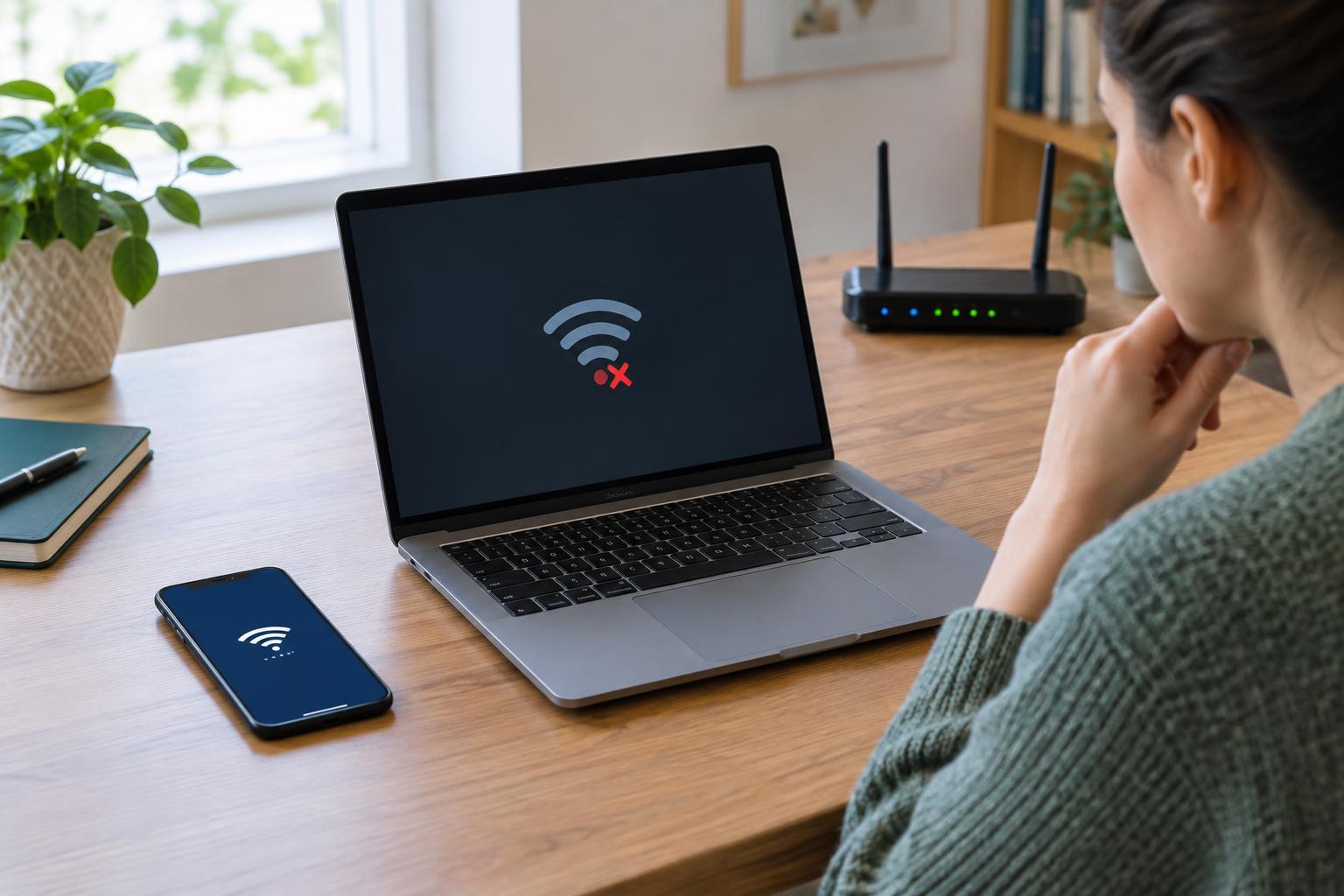
When something stops working, first ask whether the problem affects one device or every device. If only one laptop is offline, check its Wi-Fi connection, password and network settings. If everything is offline, check whether the router and the equipment connecting you to your provider have power and show their usual connection indicators.
Next, separate local access from internet access. Can a device connect to Wi-Fi? Can it reach another device on the local network, if you have one set up for that purpose? A working Wi-Fi connection with no internet on any device points you toward the router, the equipment supplying the outside connection or the provider connection. If websites fail by name but other online connections work, DNS may be worth checking.
Restarting equipment can clear a temporary fault, but note any warning lights or error messages first. If a problem keeps returning, that information is more useful than repeatedly restarting everything. Thinking in terms of links—device, Wi-Fi or Ethernet, router, then internet connection—turns a vague outage into a manageable set of checks.