What drive encryption does and does not protect
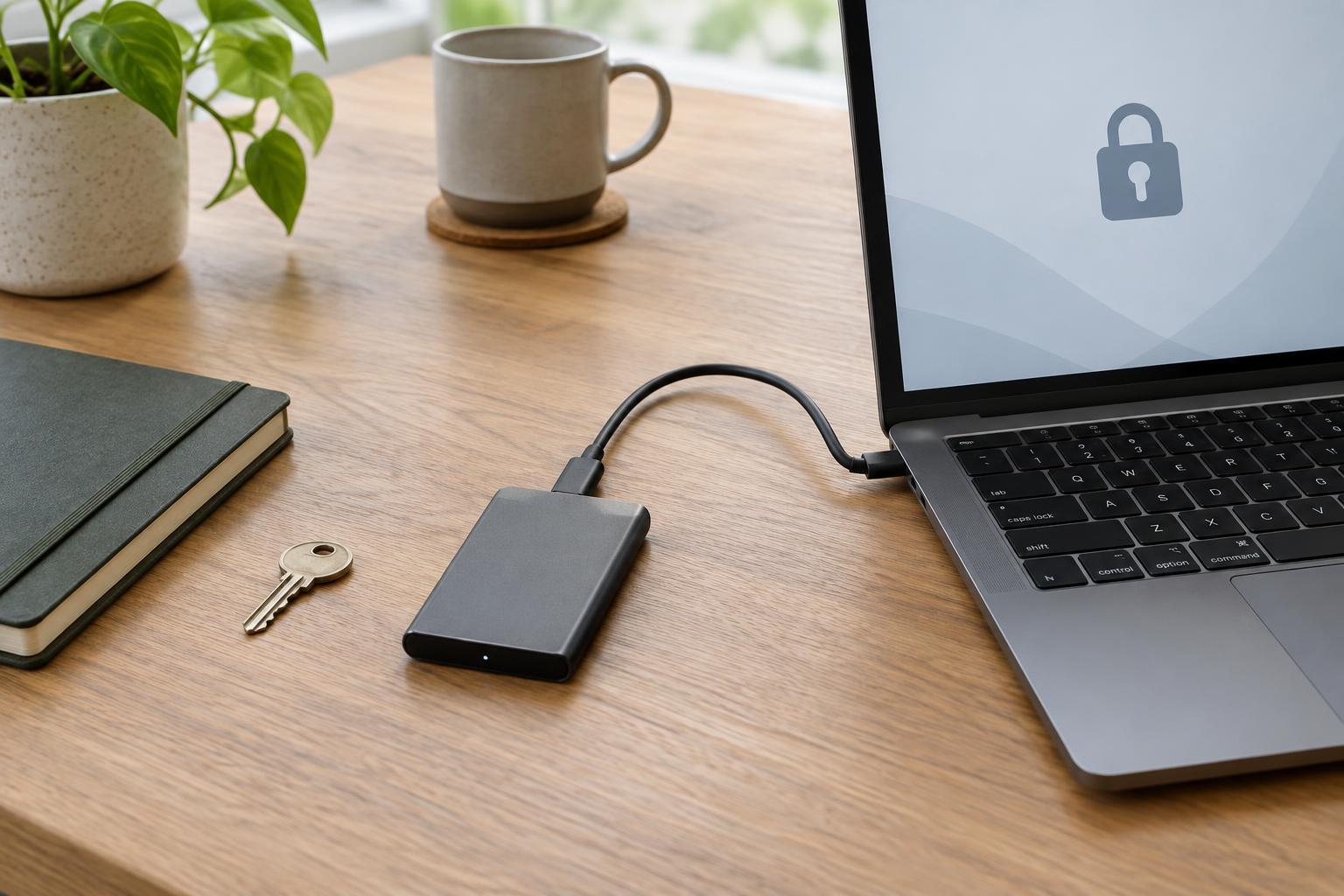
An external drive can hold tax documents, family photos, work files, and other information you would not want a stranger to read. Encryption makes the contents unreadable without the credentials needed to unlock them. If you lose a properly encrypted drive while it is locked, someone who finds it should not be able to browse its files simply by plugging it into another computer.
Encryption is not a substitute for a backup. It does not recover a file you delete, repair a failing drive, or undo accidental changes. It also offers limited protection while the drive is unlocked on a computer: software or another person with access to that computer may be able to read the files. Think of encryption as protection against unauthorized access to a locked drive, not as complete protection for everything stored on it.
Choose a method that fits where you use the drive
Before turning on encryption, list the devices that need to open the drive. A built-in encryption feature may be convenient when the drive stays within one operating system. If you regularly move it between different systems, check whether each device can unlock and write to the encrypted drive. File-system compatibility matters too: a computer might recognize the encryption method but still be unable to write to the underlying file system.
You may also have a choice between encrypting the entire drive and putting selected files in an encrypted container. Whole-drive encryption is simpler when everything on the drive should be private. A container can help when only part of the drive needs protection, but you must remember to put sensitive files inside it. Whichever approach you choose, favor a maintained tool you understand and can still access from the computers you expect to use.
Prepare before you encrypt
Start by making a separate backup of anything already on the drive. Some encryption setup processes can preserve existing files, while others require erasing or reformatting the drive. Even when a tool offers an in-place conversion, an interruption or mistake could put the only copy of your data at risk. Check that the backup opens before you proceed, and leave the drive connected until setup reports that it is complete.
Plan your unlock credentials at the same time. Use a strong, unique password or passphrase that you can reliably enter. If the tool provides a recovery key, save it somewhere separate from the drive, such as a trusted password manager or another secure location you control. Do not leave the only recovery information in a file on the drive it unlocks. Losing both the password and recovery key may make the contents inaccessible.
Test the everyday workflow
After encryption finishes, copy a few noncritical files to the drive and open them. Then safely eject the drive, reconnect it, and confirm that it requires unlocking before the files appear. Test it on each computer you intend to use, including whether you can edit files and save changes—not just view them. This small trial can reveal compatibility problems before the drive becomes part of your routine.
Pay attention to how the drive behaves when a computer sleeps, restarts, or changes users. Depending on the setup, an unlocked drive may remain accessible until it is ejected or disconnected. Safely eject it when you are done, especially on a shared computer. If you need to use the drive on a computer you do not control, consider whether the convenience is worth exposing your unlock credentials and files to that device.
Keep access and protection in balance
Review the setup whenever you change computers or operating systems. Confirm that you still have the software needed to unlock the drive and that your recovery information remains available. If you share the drive with someone, agree on who maintains the password, recovery key, and backup; otherwise, one person may change the setup without the other knowing.
Finally, keep at least one independent backup of important files. An encrypted drive can protect privacy if it goes missing, while a backup helps when the drive fails or a password problem prevents access. The most useful arrangement is one you have tested: you can unlock the drive when needed, find the files you expect, and restore them from another copy if the drive is no longer usable.