Decide who actually needs access
Before creating a link, identify the people who need the file and what they need to do with it. A colleague reviewing a draft may need to comment, while someone receiving a final document may only need to view it. Start with the narrowest access that meets the purpose; you can usually broaden it later if needed.
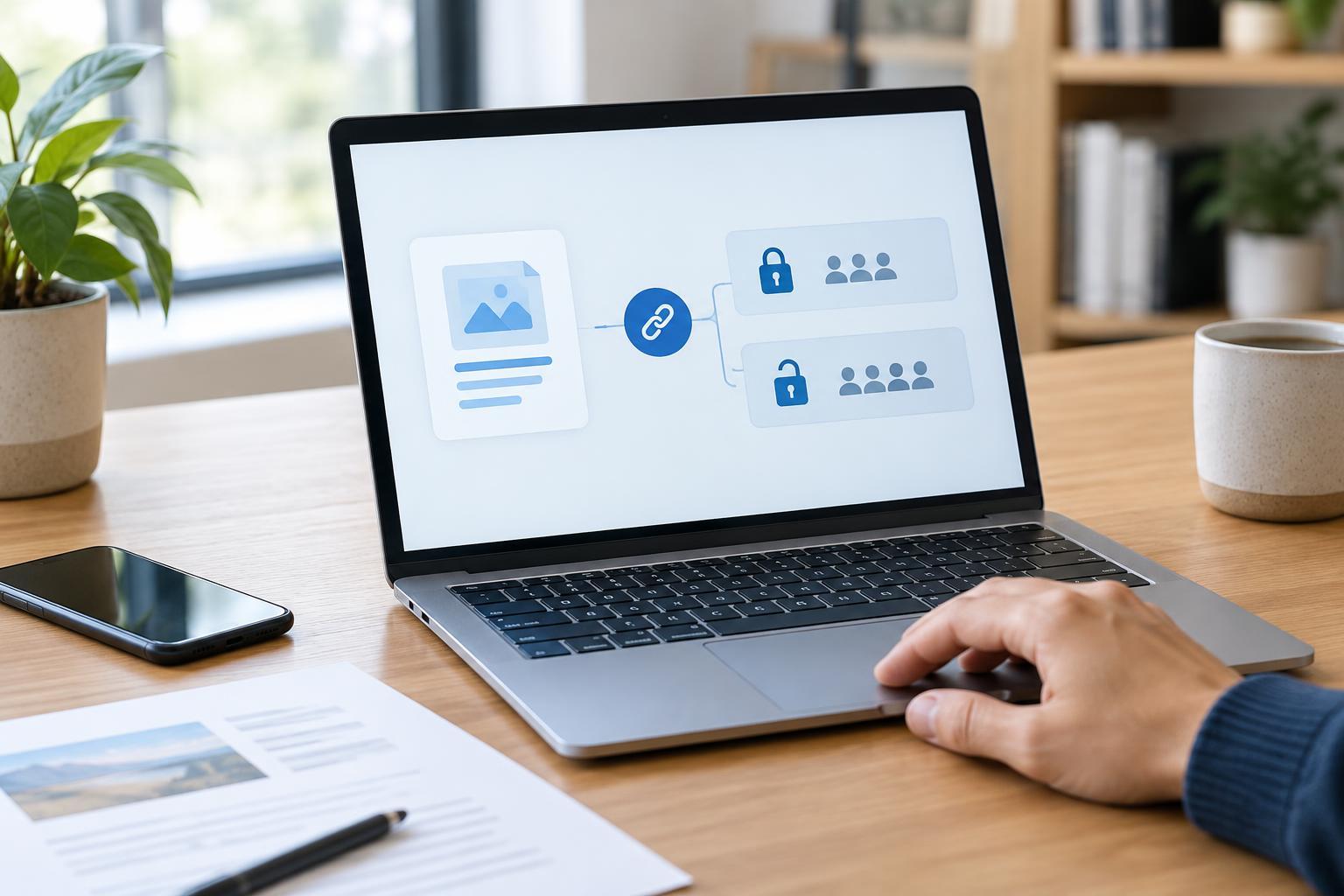
Cloud services commonly offer a choice between access for specific people and access for anyone with the link. A specific-person setting is generally the safer choice for private material because the recipient may need to sign in with an approved account. An anyone-with-the-link setting is convenient, but the link can reach unintended people if it is forwarded, pasted into a group chat, or included in a message sent to the wrong address. Treat that kind of link as shareable, even if you expect recipients to keep it to themselves.
Match permissions to the task
Look at the permission displayed before you copy or send a link. Viewing, commenting, and editing are different levels of access. Editing may allow a recipient to change or delete content, depending on the service and file type. If you only want feedback, a comment permission may be enough. If you are distributing a finished file, choose view access where available.
Check whether the permission applies only to the file you intend to share. A link to a folder can expose other items already inside it and may give recipients access to files added later. When you need to share a single document, create a link to that document rather than to its parent folder. If you are collaborating on several files, consider a separate folder containing only the items meant for that group.
Some services offer expiration dates, download restrictions, or controls that prevent recipients from resharing. These can reduce casual exposure, but they are not a guarantee that information will stay private. Someone who can see sensitive content may be able to copy it, capture an image of it, or describe it elsewhere.
Check the file and the link before sending
Open the file and confirm that you are sharing the right version. Look for comments, hidden sheets, tracked changes, names, or other information you did not intend to pass along. A document prepared for internal discussion may need a clean copy before it goes to a wider audience. If a file contains several kinds of information, remove what the recipient does not need rather than relying only on link permissions.
Next, review the sharing dialog: confirm the selected audience, permission level, and any expiration setting. Send the link through the communication channel you normally use with the recipient, and double-check the address or conversation before posting. If the service has a preview of what recipients can access, use it. Testing in a private browser window may show whether a link is publicly accessible, but it will not necessarily show what a named recipient sees after signing in.
For especially sensitive material, consider whether a cloud link is appropriate at all. Your organization may have an approved way to transfer or collaborate on such files. If you are unsure which method is expected, pause and ask the person responsible for that information before sharing it.
Remove access when the work is done
Sharing settings deserve a second look after the recipient has finished. If the service allows it, remove individual collaborators who no longer need access, disable an open link, or change a shared file back to private. Review links to reusable folders as well: they are easy to forget because their contents change over time.
Revoking access prevents future use of the link through that service, but it cannot reliably recall a file that someone has already downloaded or copied. This is why it helps to limit access before sharing, not just clean up afterward. If you discover that a link went to the wrong person, disable or narrow its access promptly, then follow any relevant workplace process for reporting an accidental disclosure.
A simple habit makes safer sharing easier: choose the audience, choose the minimum permission, inspect the file, verify the link, and remove access when it is no longer needed. Those few checks can prevent a convenient collaboration tool from becoming an unintended invitation.