Start with the work your computer actually does
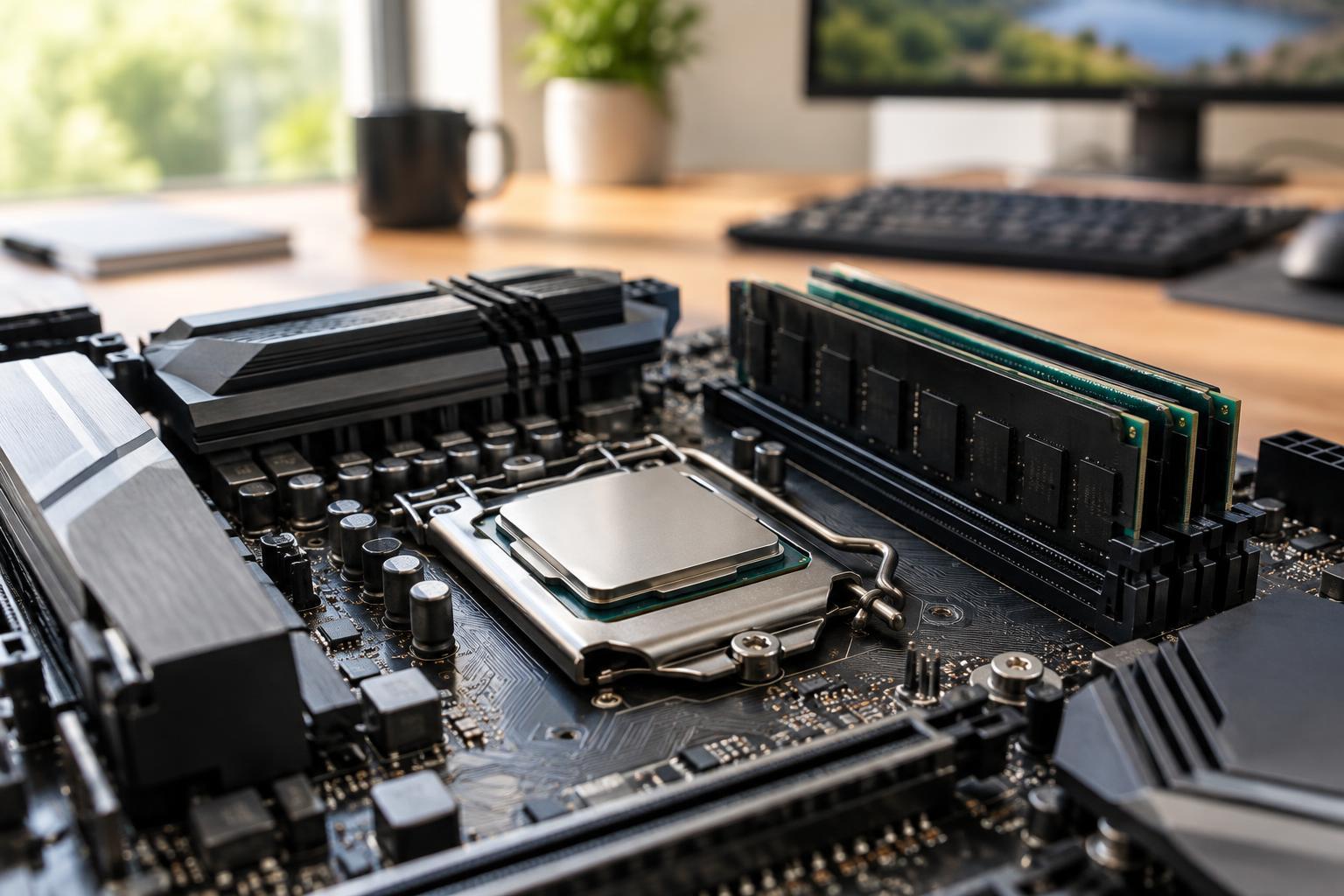
The central processing unit, or CPU, carries out instructions for your operating system and applications. When you open a document, load a web page, or edit a photo, the CPU handles many of the steps involved. Its specifications can help you compare computers, but no single number describes how responsive a computer will feel.
Some tasks benefit most from one fast-running part of the CPU. Others can split their work into pieces and run those pieces at the same time. Everyday use is usually a mix: a video call might run alongside a browser, while an application opening may briefly demand quick processing from one core. This is why core count, clock speed, and cache are best understood together, in the context of what you plan to do.
Cores help with work that can happen in parallel
A CPU core is a processing unit capable of working through instructions. A processor with multiple cores can make progress on multiple tasks at once, provided the operating system and software can distribute the work. Extra cores can be useful when you have several demanding applications open or when a program is designed to divide a job, such as exporting video or compiling code.
More cores do not automatically make every action faster. If a particular step must finish before the next one begins, adding cores may offer little help with that step. For browsing, documents, streaming, and light photo work, a moderate number of capable cores may feel better than a much higher core count paired with slower individual cores or limited memory. Some processors also support multiple threads per core, which can improve how fully a core is used; those threads are not the same as additional physical cores.
Clock speed describes pace, not total capability
Clock speed, usually listed in gigahertz, describes how many clock cycles a CPU runs per second. Within the same processor family, a higher speed can often improve performance on work that depends heavily on one core. Across different processor designs, however, the comparison is less direct. One CPU may accomplish more useful work per cycle than another, so the model with the higher clock speed is not necessarily faster.
You may also see base and boost clock speeds. A base speed is one reference point for sustained operation, while a boost speed describes how fast a processor may run under suitable conditions. Actual speed can change with the workload, temperature, and power available. A thin laptop, for example, may not hold its highest boost speed through a long export if its cooling or power limits are reached. For short actions, a brief speed increase can still help the computer feel responsive.
Cache keeps frequently needed data close
Cache is a small amount of fast memory built into the CPU. It stores data and instructions the processor may need again, reducing trips to the computer’s main memory. CPUs commonly use several cache levels: a small, very fast level close to each core and larger levels that may be shared. Cache can help when a program repeatedly works with data that fits, or partly fits, in that nearby space.
A larger cache is not a guarantee of better performance. Its benefit depends on how a program accesses data and on the rest of the CPU design. Cache figures are also difficult to compare in isolation because processors arrange and share their caches differently. Treat cache size as a useful detail rather than a simple score.
Use specifications to narrow the choice, then look at the whole system
When choosing a computer, begin with your most demanding routine task. For many simultaneous applications or software that can spread work across cores, pay attention to core count. For actions that depend on quick completion of a single step, the strength of each core matters. Consider clock speed and cache as clues, particularly when comparing closely related processors, rather than as promises of a particular experience.
The CPU is only part of the result. Too little RAM can force a computer to move data in and out of storage more often, and slow storage can make opening files and applications feel sluggish. Cooling and power limits affect how long a processor can maintain its performance. If you are comparing complete computers, look for tests that reflect the tasks you expect to perform, and check memory, storage, and cooling alongside the CPU specifications.