Know what your router connects to
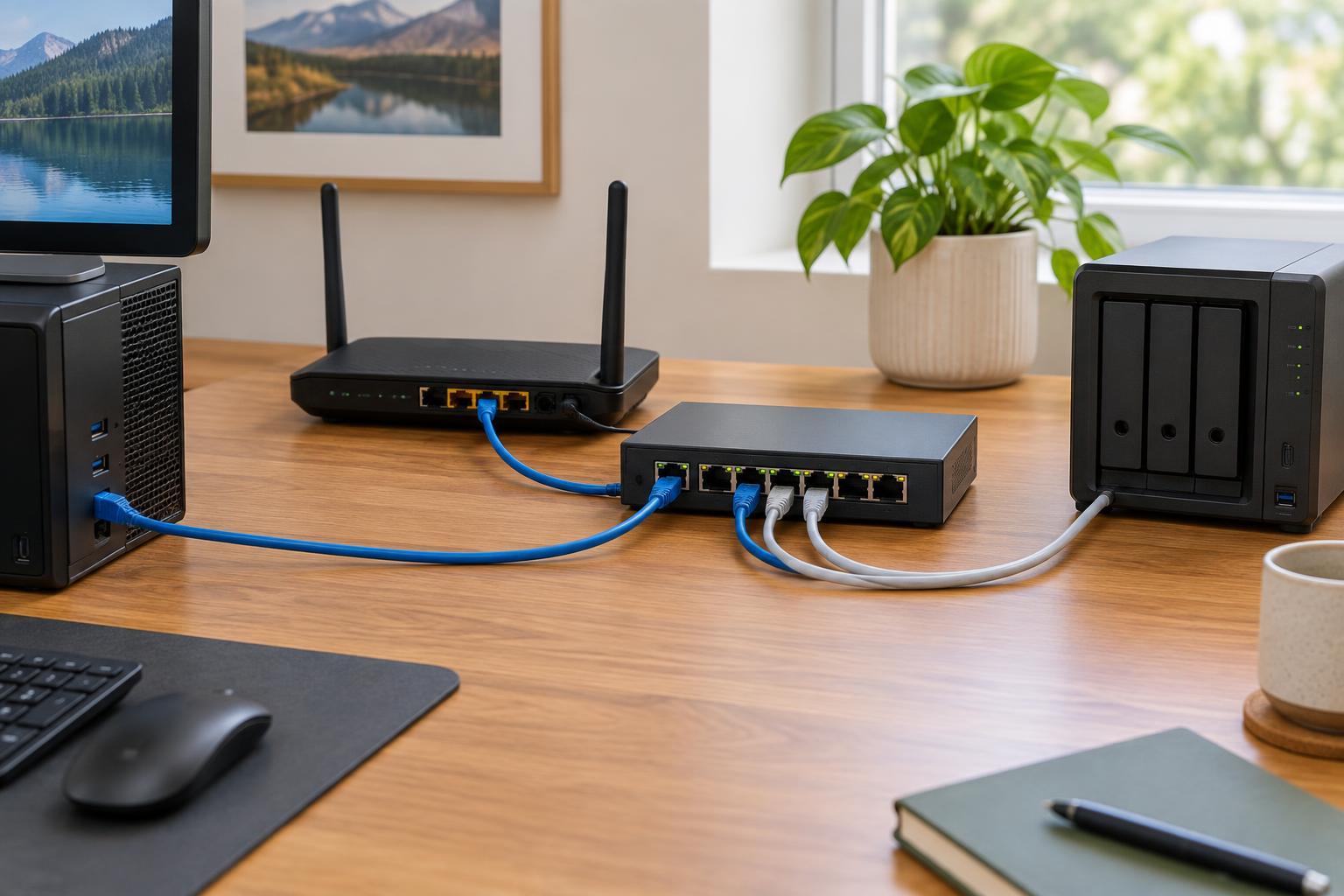
A router shares your internet connection among devices in your home. It also creates a local network so those devices can communicate. Before connecting the new router, identify the equipment supplied by your internet provider. A cable modem, fiber optical network terminal or other provider device usually hands off the connection through an Ethernet port. Some provider devices are gateways: they already contain a router and may broadcast Wi-Fi.
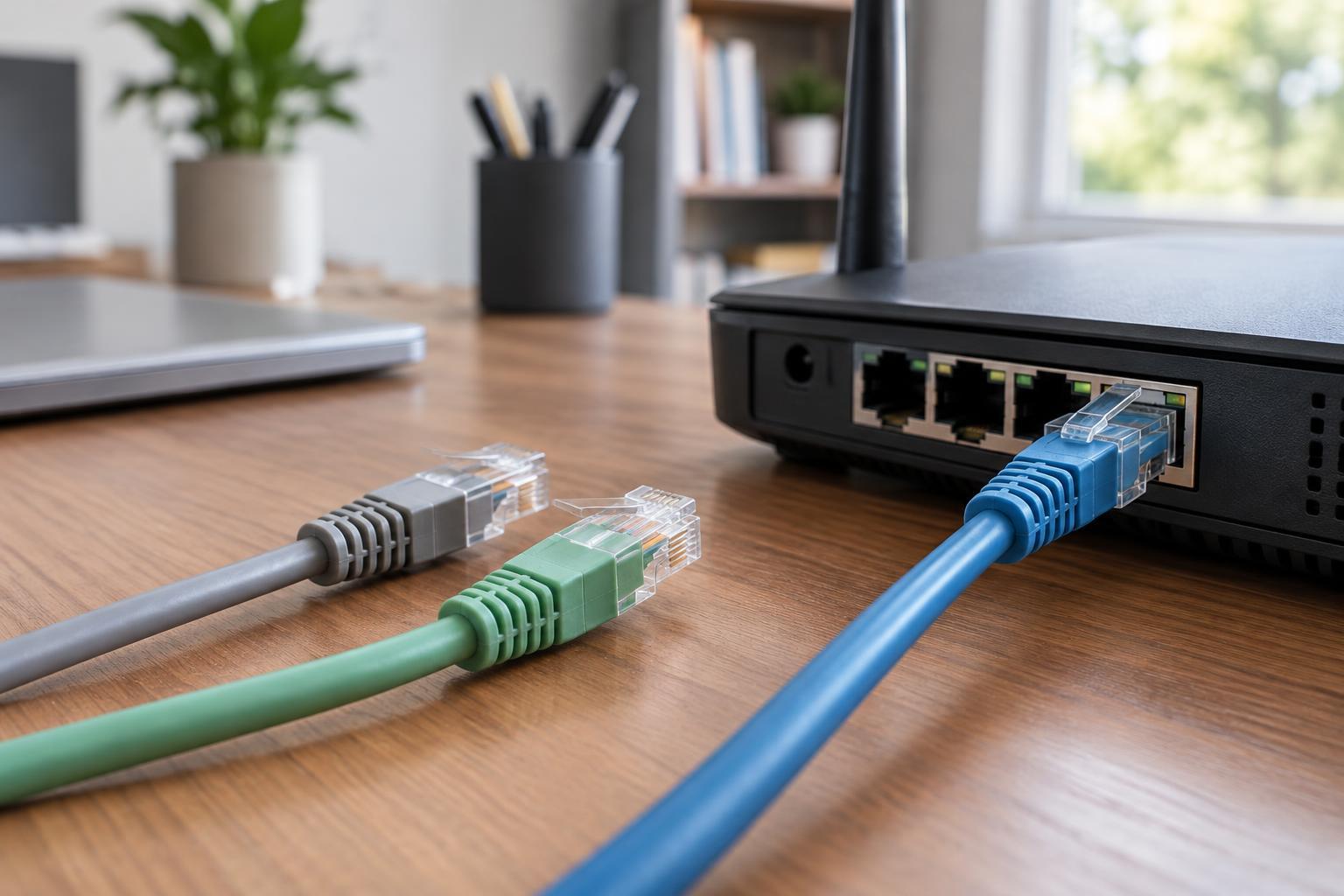
Connect an Ethernet cable from the provider device to the new router’s port labeled WAN or Internet. Plug in the router’s power supply and wait for its status lights to settle. If the connection does not come up, restart the provider device, let it finish starting, then restart the router. Follow your provider’s instructions if its service requires particular connection settings.
If your provider’s gateway is already routing, adding another router can create two layers of routing. Ordinary browsing may still work, but some games, remote-access tools and device discovery features can be harder to configure. Depending on the equipment, you may be able to put the gateway in bridge mode or use the new router in access point mode. Check the equipment instructions before changing either setting.
Complete the first-time setup
Connect a phone or computer using the router’s temporary Wi-Fi details or an Ethernet cable. Open the setup address or app listed on the router’s label or in its manual. These details vary by manufacturer, so use the information supplied with your device rather than guessing a common address. The setup process may ask you to confirm the internet connection type and create a password for the router’s administration interface.
Make the administrator password unique and keep it somewhere you can retrieve it. This password controls the router’s settings; it is separate from the password people use to join Wi-Fi. If the router supports automatic firmware updates, consider enabling them. Otherwise, check its update screen after setup and periodically thereafter. Updates can fix faults and security issues, though the router may briefly restart while installing them.
You can usually leave advanced settings such as DHCP, DNS and firewall rules at their defaults. DHCP automatically gives devices local network addresses, while the router’s default firewall settings are generally a sensible starting point. Change advanced options only when you have a specific need and understand what the change does.
Create a secure Wi-Fi network
Choose a recognizable network name, also called an SSID, without putting personal details such as your address in it. Set a long, unique Wi-Fi password. Select WPA3-Personal if your devices support it. If older devices cannot connect, WPA2-Personal with AES encryption is a widely supported alternative; some routers also offer a mixed WPA2/WPA3 mode. Avoid obsolete security modes if they appear in the settings.
If the router offers a guest network, use it for visitors instead of sharing your main Wi-Fi password. A guest network can also be useful for devices that only need internet access, although the separation it provides depends on the router’s settings. Check whether guests are blocked from reaching devices on your main network, and remember that a device on the guest network may not be able to find a printer or smart-home hub on the main one.
Consider turning off WPS, which allows quick connection through a button or PIN, if you do not need it. Leave remote administration disabled unless you have a clear reason to manage the router from outside your home. Neither setting is required for normal Wi-Fi use.
Place the router for useful coverage
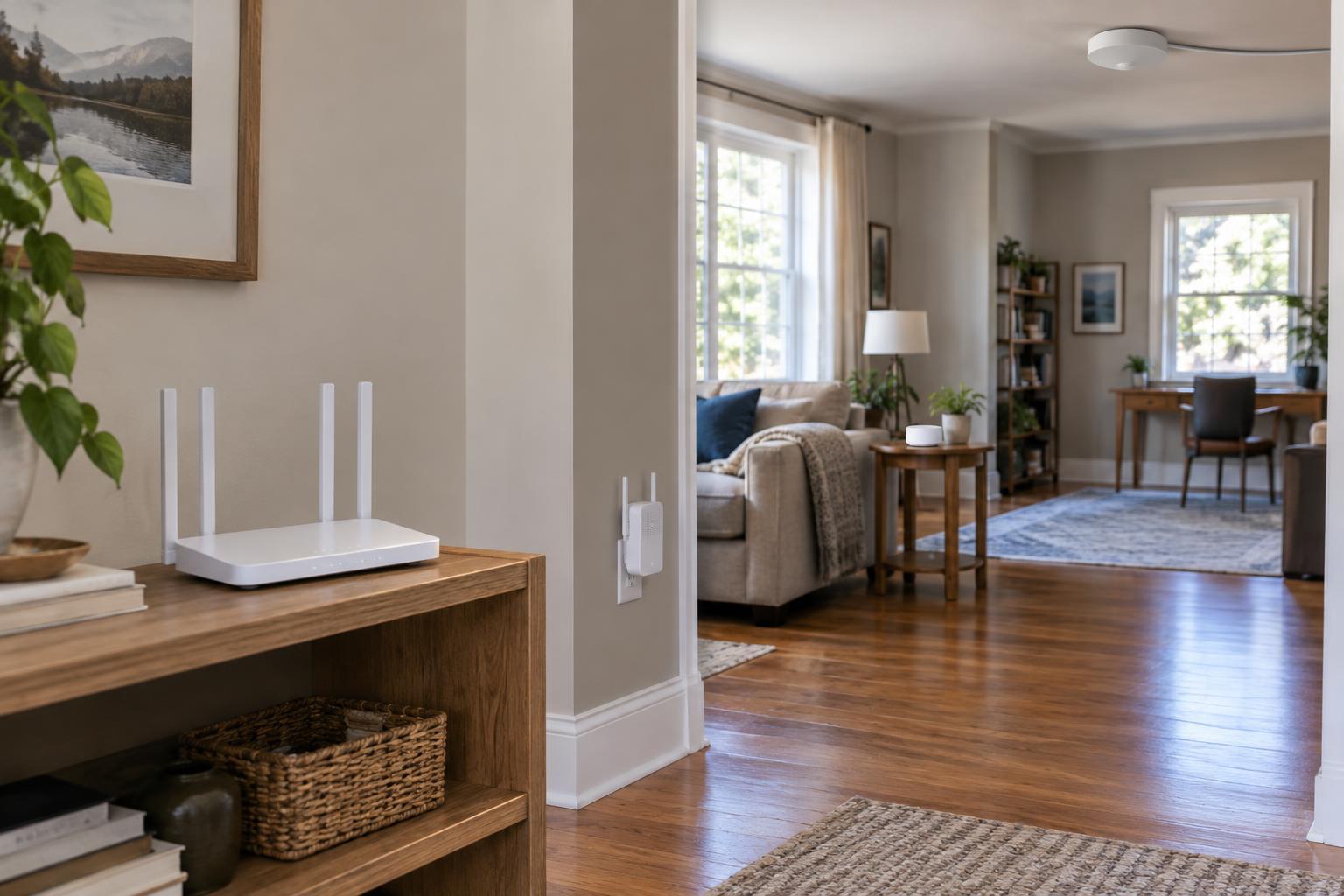
A router works best when its signal has a reasonably clear path to the places where you use Wi-Fi. If the cable connection allows it, place the router in an open, central location rather than inside a cabinet or behind a television. Keep it away from large metal objects and leave room around it for ventilation. A convenient placement is more valuable than trying to make every room receive an equally strong signal.
Many routers offer both 2.4 GHz and 5 GHz Wi-Fi, while some also offer 6 GHz. The 2.4 GHz band often reaches farther through a home but may be crowded; higher-frequency bands can work well at shorter distances. You do not necessarily need separate network names for each band. A router that combines them under one name can usually select a band for each device, though manual separation may help when setting up a device that supports only 2.4 GHz.
If one area has a persistent weak signal, first try moving the router a short distance or changing its orientation. For a larger home, a wired access point or mesh system may improve coverage. Buying faster internet service alone will not fix a weak Wi-Fi signal.
Test the connection and keep a record
After setup, connect a few devices and check that they can load websites. Walk through the areas where you normally use Wi-Fi and look for dropped connections, not just the number of signal bars. If possible, test one computer by Ethernet cable as well. When a wired connection works but Wi-Fi does not, focus on wireless settings or placement. When neither works, check the cable to the WAN port and the provider device’s status.
Save the router’s model number, administration address and the location of its password in a secure place. You may also want to note any settings you changed from their defaults. Some routers can export a configuration backup, which may save time after a reset, but store that file securely because it can contain sensitive settings.
Finally, make routine checks simple: confirm that updates are installing, remove guest access you no longer need and review the connected-device list if you notice an unfamiliar connection. A router rarely needs daily attention, but a few careful setup choices make later troubleshooting much easier.