Start with bytes
Storage capacity describes how much data a device can hold. The basic unit is a byte: a small amount of data commonly used to describe file sizes and storage space. Photos, documents, apps, and operating-system files all consume bytes. Larger units make those quantities easier to read, so a file might be measured in megabytes while a drive is sold in gigabytes or terabytes.
In the decimal system commonly used on drive packaging, one kilobyte (KB) is 1,000 bytes, one megabyte (MB) is 1,000,000 bytes, one gigabyte (GB) is 1,000,000,000 bytes, and one terabyte (TB) is 1,000,000,000,000 bytes. Each step is 1,000 times the previous one. These units describe quantities of bytes, not a promise that every byte will be available for your files after the drive is set up.
Why a terabyte can appear smaller
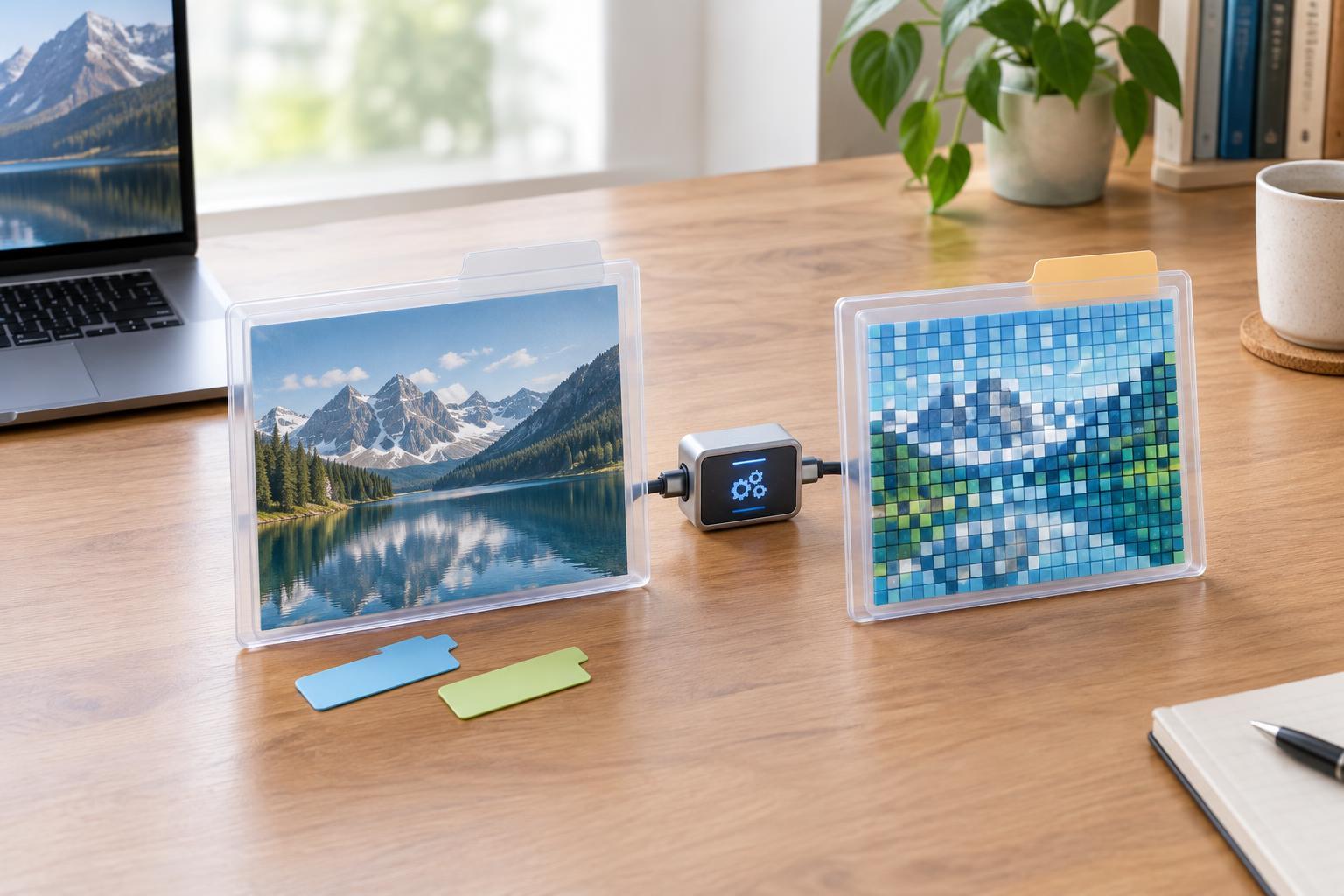
Computers also use binary units, which grow in steps of 1,024. A kibibyte (KiB) is 1,024 bytes, a mebibyte (MiB) is 1,024 KiB, a gibibyte (GiB) is 1,024 MiB, and a tebibyte (TiB) is 1,024 GiB. The names and abbreviations matter: GB and GiB are not interchangeable, even though both describe an amount of data.
A drive sold as 1 TB contains about 931 GiB when measured in binary units. Nothing has disappeared in that conversion; the same number of bytes is being expressed using a larger unit. Some operating systems display binary-sized values but label them GB or TB, while others use decimal units. As a result, two devices can report different-looking capacity figures for the same drive. Before assuming space is missing, check which units the display uses.
Formatting and partitions take space too
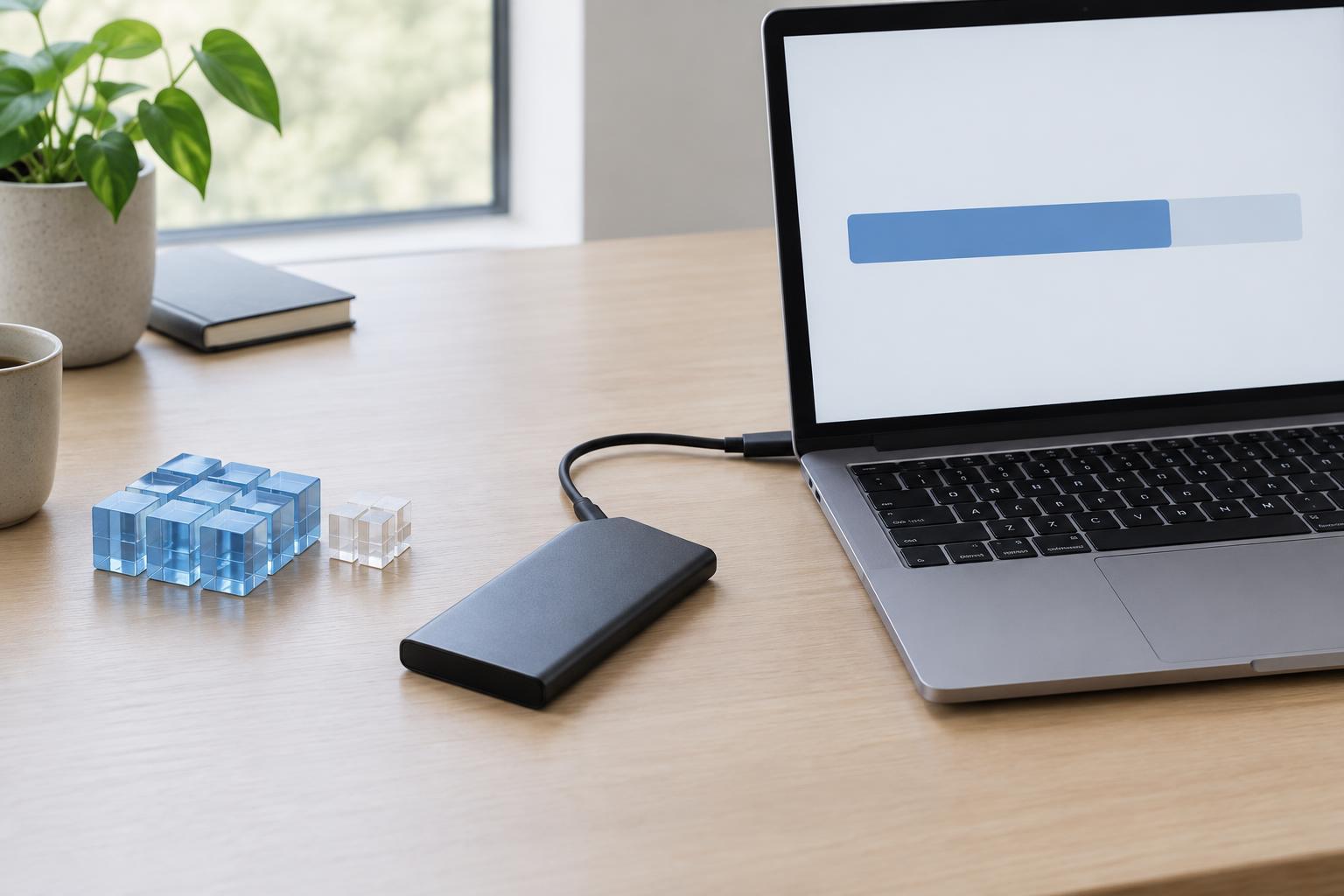
A new drive usually needs a file system before it can store ordinary files. Formatting creates structures that help the computer track file names, locations, free space, and other information. Those structures occupy some capacity. The amount varies with the file system, drive size, and formatting choices, so there is no single deduction that applies to every drive.
Partitions can further divide the available space. A computer’s internal drive may contain a main partition alongside smaller partitions used for startup or recovery. Those partitions may not appear as ordinary folders, but they still occupy part of the drive. On a working device, the operating system, installed applications, updates, and personal files then reduce free space. Capacity, usable space, and free space are related figures, not three names for the same figure.
How to read a storage display
When comparing a label with a computer’s report, first identify what each figure represents. The label usually states the drive’s total decimal capacity. A disk-management view may show the drive and its partitions, while a file browser may show only the capacity and free space of one partition. A storage-settings screen may also group occupied space by file type. If the numbers differ, check the unit and the scope of the display before looking for a fault.
For example, a 1 TB external drive can be expected to appear near 931 GiB in a binary-unit display before allowing for file-system overhead. If a display instead shows substantially less total capacity, inspect its partitions and confirm that you are viewing the whole drive rather than one volume. If total capacity looks reasonable but free space is low, existing files or installed software are the more likely place to investigate. Avoid deleting an unfamiliar partition just to gain space; it may serve a useful purpose.
Plan around free space, not the number on the box
When choosing storage, estimate the space your files and applications need, then leave room for growth. A drive used for backups may need to hold multiple versions of changed files, not just one copy of today’s data. A computer’s main drive also needs working space for downloads, updates, and temporary files. Leaving some capacity unused can make everyday storage management less stressful, even though the ideal margin depends on how you use the device.
The practical rule is simple: use the advertised GB or TB figure to compare drive sizes, but use your device’s reported free space to decide what will fit right now. Understanding the difference between decimal and binary units explains much of the apparent gap; formatting, partitions, and stored data explain the rest.