Start with the backup, not the drive
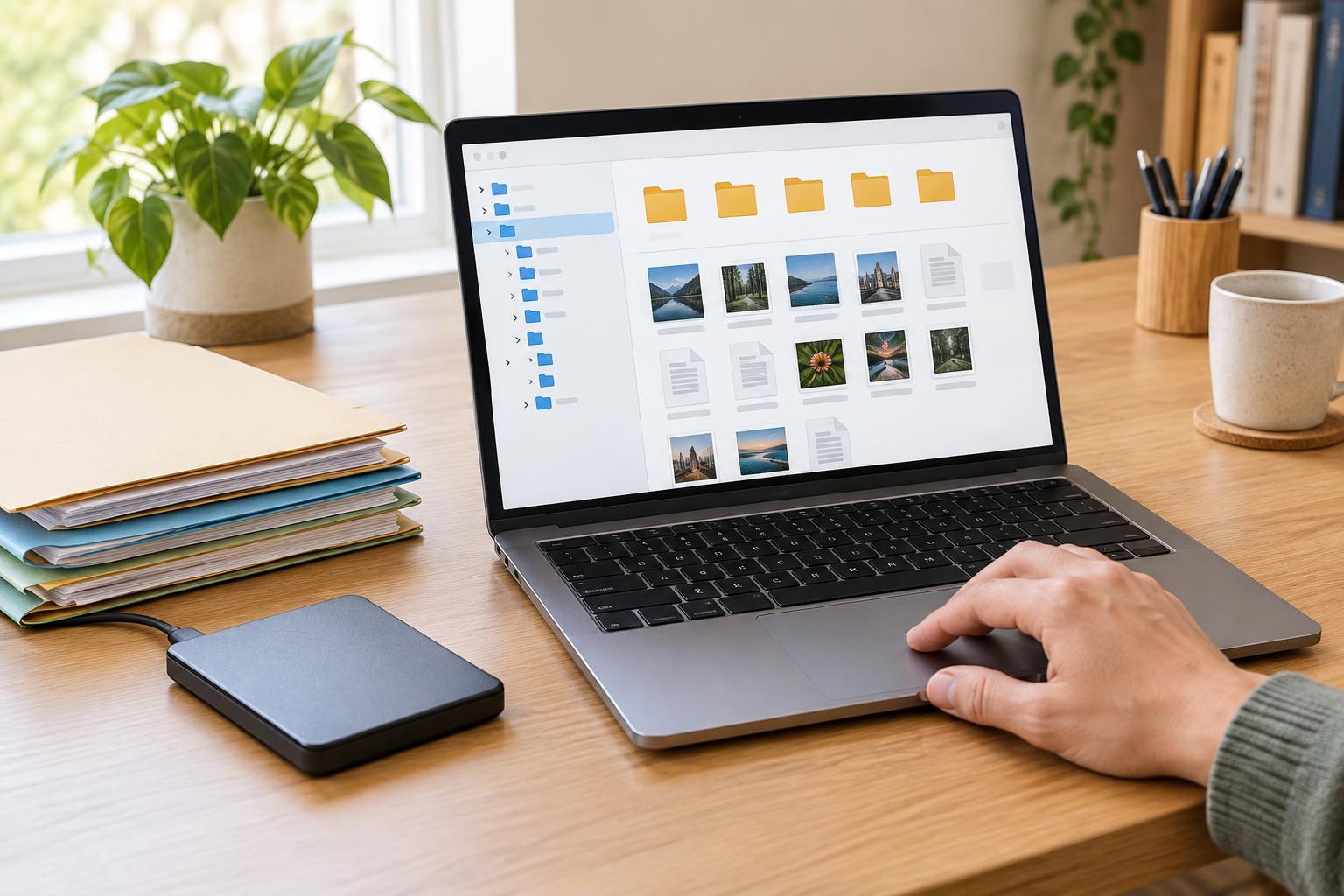
Before comparing drives, decide what you need to back up. A copy of documents and photos may take far less space than a full-computer backup that includes applications and system files. Check how much storage the files you want to protect currently use, and look at the requirements of your computer’s backup software. Some backup tools keep earlier versions of files or multiple restore points, which can use considerably more space than one copy.
Also decide how the drive will fit into your routine. A drive that stays beside a desktop computer can back up automatically whenever it is connected. A drive shared among several laptops may be plugged in less often and will require a deliberate schedule. Neither approach helps if backups stop happening, so choose a setup you can maintain.
Choose capacity with room to grow
Look for a drive with substantially more free space than your first backup needs. That extra room allows for new files and, if your software supports them, older versions you may want to recover later. If you are unsure how large a full backup will be, check the backup tool’s guidance before buying rather than assuming its size will match only your documents folder. A nearly full drive may force the software to remove older backups sooner than you expect.
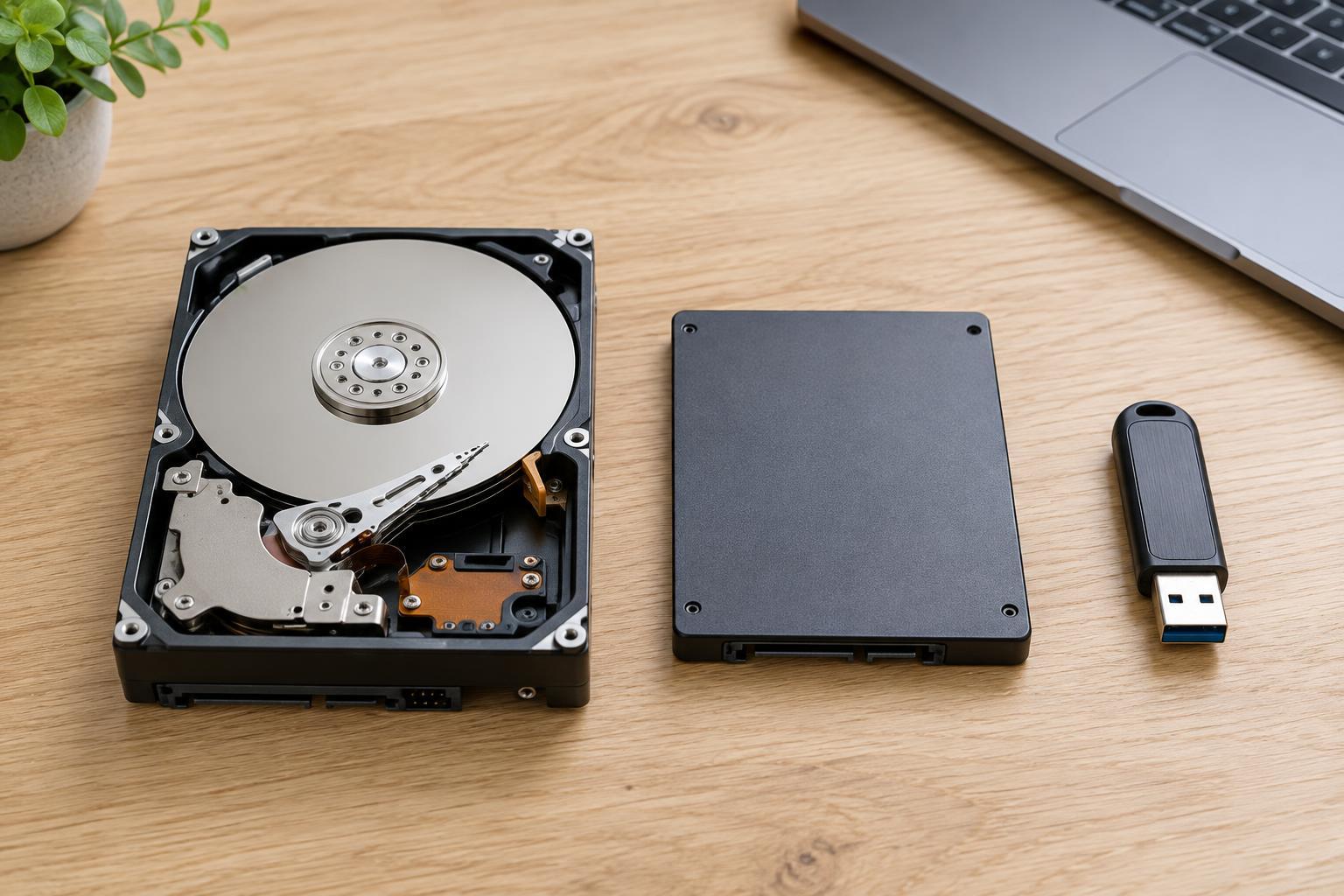
External hard disk drives (HDDs) often make sense when you want a large amount of backup space and the drive will spend most of its time on a desk. External solid-state drives (SSDs) are typically smaller and easier to carry, and they have no moving disk inside. Either type can fail, however. Do not treat an SSD’s portability or an HDD’s capacity as a substitute for keeping another copy of important data.
Check the connection and the computer
For most buyers, the first connection question is simple: does the drive’s cable fit the computer you plan to back up? USB-A and USB-C describe connector shapes, not a guaranteed transfer speed. A drive, cable, adapter, or computer port can limit performance, so check compatibility across the whole setup. If you have several computers, make sure each one can connect without relying on a cable you are likely to misplace.
Speed matters most when copying a large collection for the first time or restoring it after a problem. Later backups may transfer only changed files, depending on the software. An SSD paired with a suitable port may save time on large transfers, but paying for a fast drive provides little benefit if the computer or connection cannot use that speed. Confirm, too, whether the drive takes power through its data cable or needs a separate power adapter; the latter is easier to accommodate at a fixed desk than while traveling.
If the drive will work with different operating systems, check both the backup software and the drive format. A format that lets two computers exchange ordinary files is not necessarily the format a full-system backup tool expects. Follow that tool’s setup instructions, and copy off any files already on a drive before reformatting it.
Match portability to protection
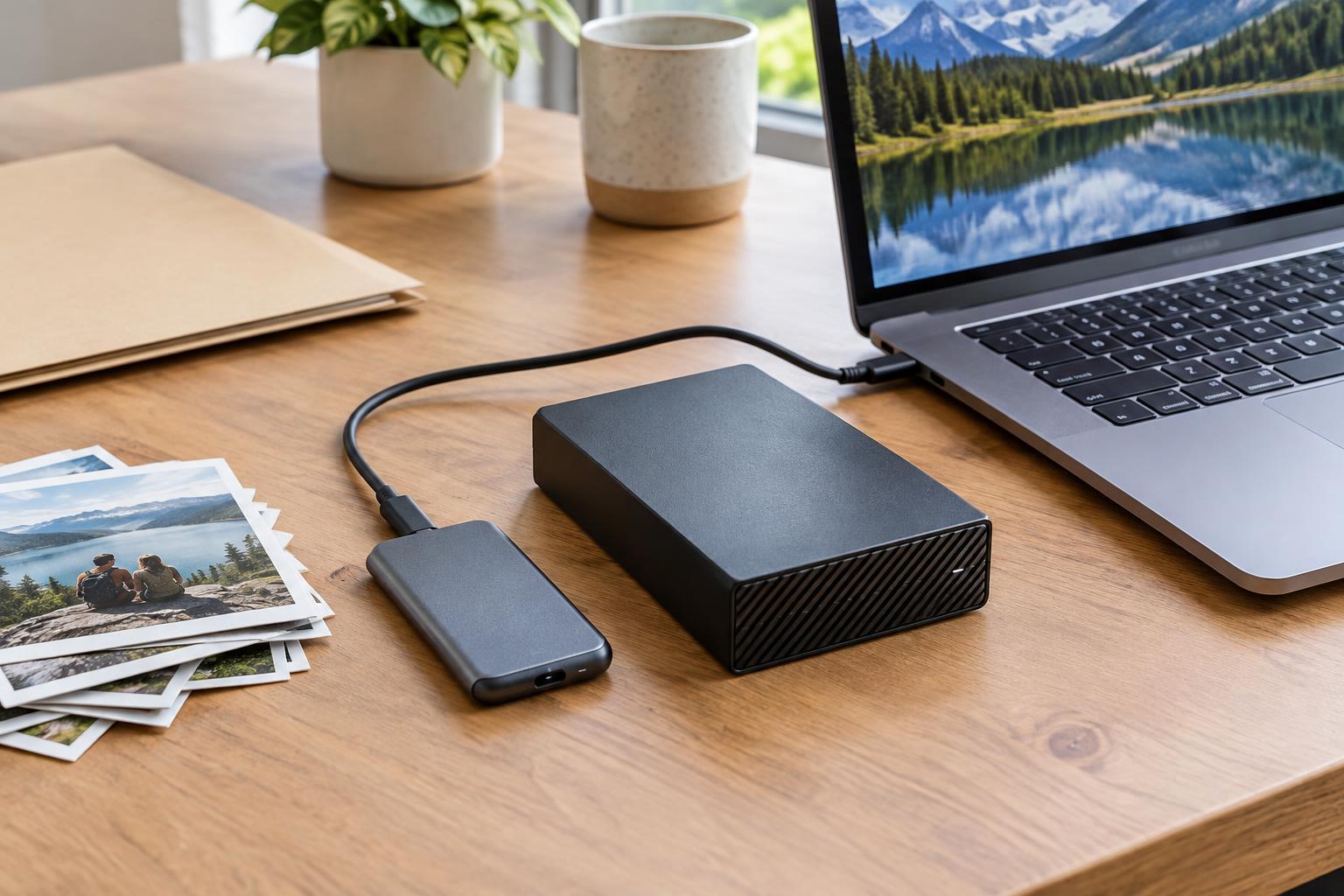
A compact, cable-powered drive is convenient for a laptop bag, but portability brings a greater chance of loss or accidental damage. A larger desktop drive is less convenient to move but may be easier to leave connected for regular backups. Consider where the drive will live, whether it has a safe place away from spills and knocks, and whether its cable and power supply will remain readily available.
If you carry backups outside your home or office, consider encryption so someone who finds the drive cannot simply browse its contents. Your operating system or backup software may provide an encryption option. Keep the recovery key or password somewhere secure and separate from the drive: encryption also prevents you from reading the backup if you lose the means to unlock it.
Finally, remember that a drive stored next to the computer can be affected by the same theft or physical damage. For files you cannot replace, keep an additional backup in another location, using a method you are comfortable managing. After setting up any drive, let a backup finish and practice locating or restoring a test file. That small check tells you more about your protection than the drive’s capacity printed on the box.