Start with the job, not the device
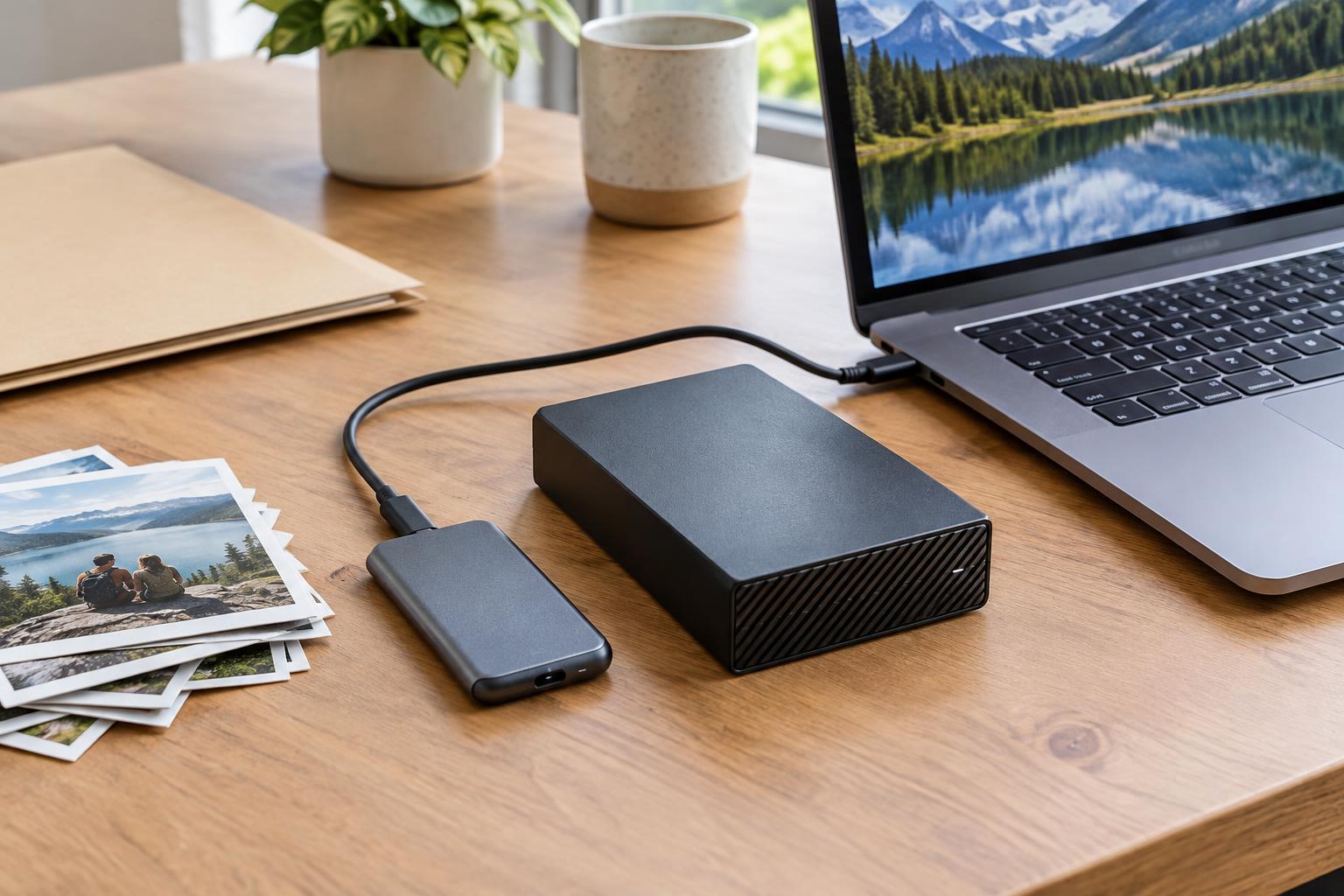
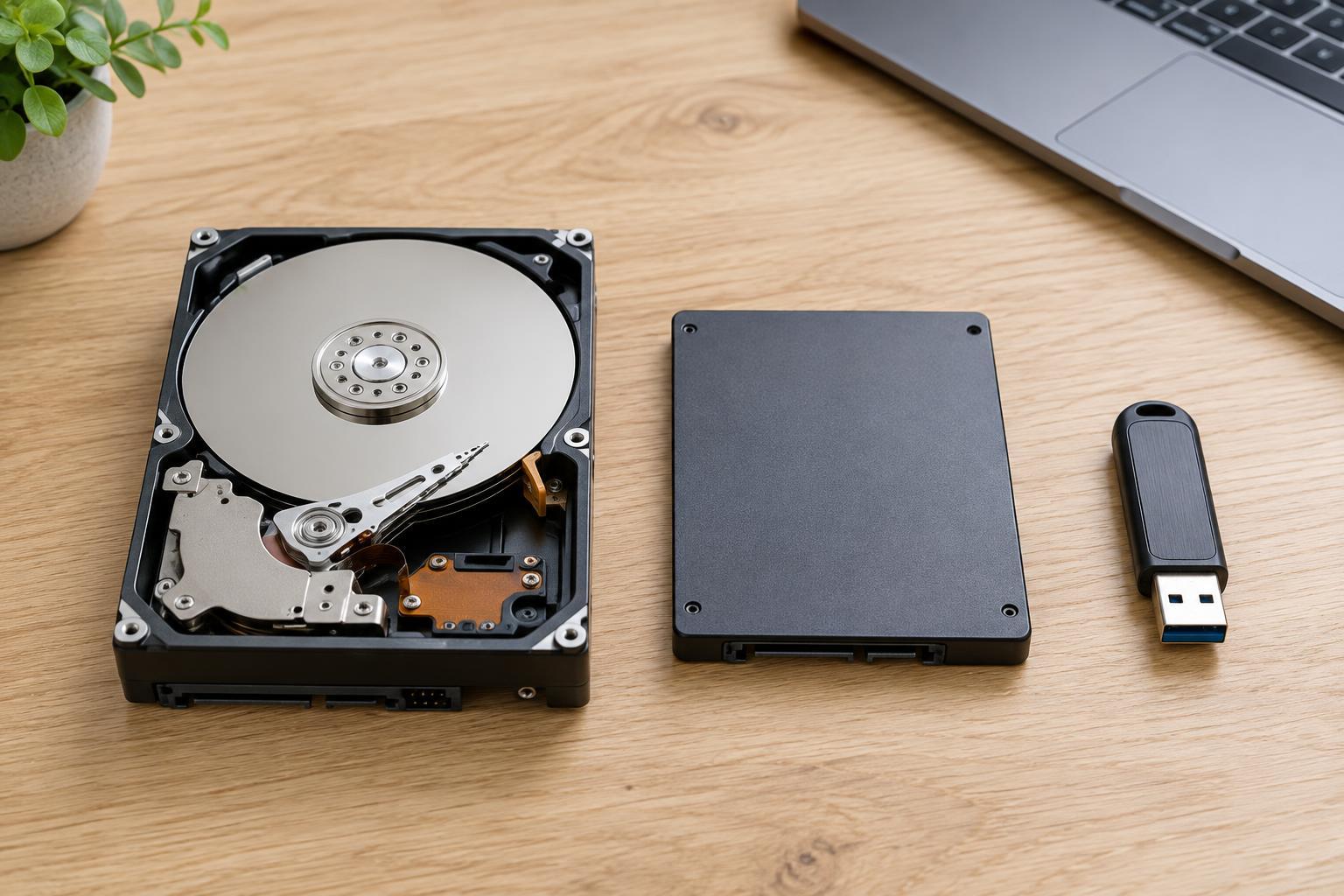
An HDD, an SSD, and a USB flash drive can all hold documents, photos, and other files. The useful question is what you need the storage to do. A computer’s main drive must respond quickly to many small requests. A media collection may need lots of space at a reasonable cost. A drive used to move a few files between computers should be easy to carry and connect.
Capacity, speed, portability, and cost all matter, but no single device leads in every category. Think about how often you will access the files, how much space you need, and whether the device will stay in one place. Also decide whether you are choosing working storage or a backup. A drive that holds your only copy of a file is not a backup, regardless of which technology it uses.
HDDs: room for large collections
A hard disk drive stores data on spinning magnetic platters and uses moving parts to read it. HDDs are often a cost-effective way to get substantial capacity, making them useful for large photo libraries, video files, archives, and local backups. They can work well when files are written or read in long, continuous stretches and immediate response is not the priority.
The trade-off is that an HDD generally feels slower than an SSD when starting a computer, opening programs, or handling many small files. It can make noise, and its moving parts make it particularly important to avoid bumps while it is operating. An external HDD is practical for a desk or shelf, but less convenient if you intend to carry it around every day. Like any storage device, it can fail without giving you enough warning to rescue your files.
SSDs: responsive storage for regular use
A solid-state drive stores data in flash memory and has no spinning parts. For most people choosing a main drive for a laptop or desktop, an SSD is the better fit: it helps the computer start, load applications, and work with files more responsively. External SSDs are also useful when you regularly edit or transfer sizable files and want a portable drive.
Not every SSD delivers the same speed. The drive’s design, its connection, and the computer using it all affect performance. An external SSD connected through a slow port will not reach the speed it might achieve through a faster one. SSDs also have finite write endurance, though ordinary users need not treat every file save as a problem. More importantly, an SSD is not immune to failure or accidental deletion, so valuable files still need separate copies.
USB flash drives: convenient for short trips
A USB flash drive, sometimes called a thumb drive, is also flash-based storage. Its main advantage is convenience: it fits in a pocket and plugs directly into a compatible USB port. It is a sensible choice for carrying a presentation, sharing a modest set of files, or keeping an installer handy. Check the connector before buying; a USB-A plug and a USB-C plug do not fit the same ports without an adapter.
A flash drive is not necessarily a miniature external SSD. Models vary widely in sustained speed, especially when writing many files or one very large file. Small size also makes a drive easy to misplace. For a computer’s main storage, a frequently used project drive, or the sole home for important files, an SSD or HDD paired with a backup plan is usually a more suitable choice.
Make the choice and protect the files
For a computer’s main drive, choose an SSD if it fits your budget and the computer supports it. For a large collection you access occasionally, consider an HDD. For frequent portable work, consider an external SSD; for moving a small set of files between devices, a USB flash drive may be enough. Check available capacity and connections before buying, and leave some free space so the drive remains useful as your files grow.
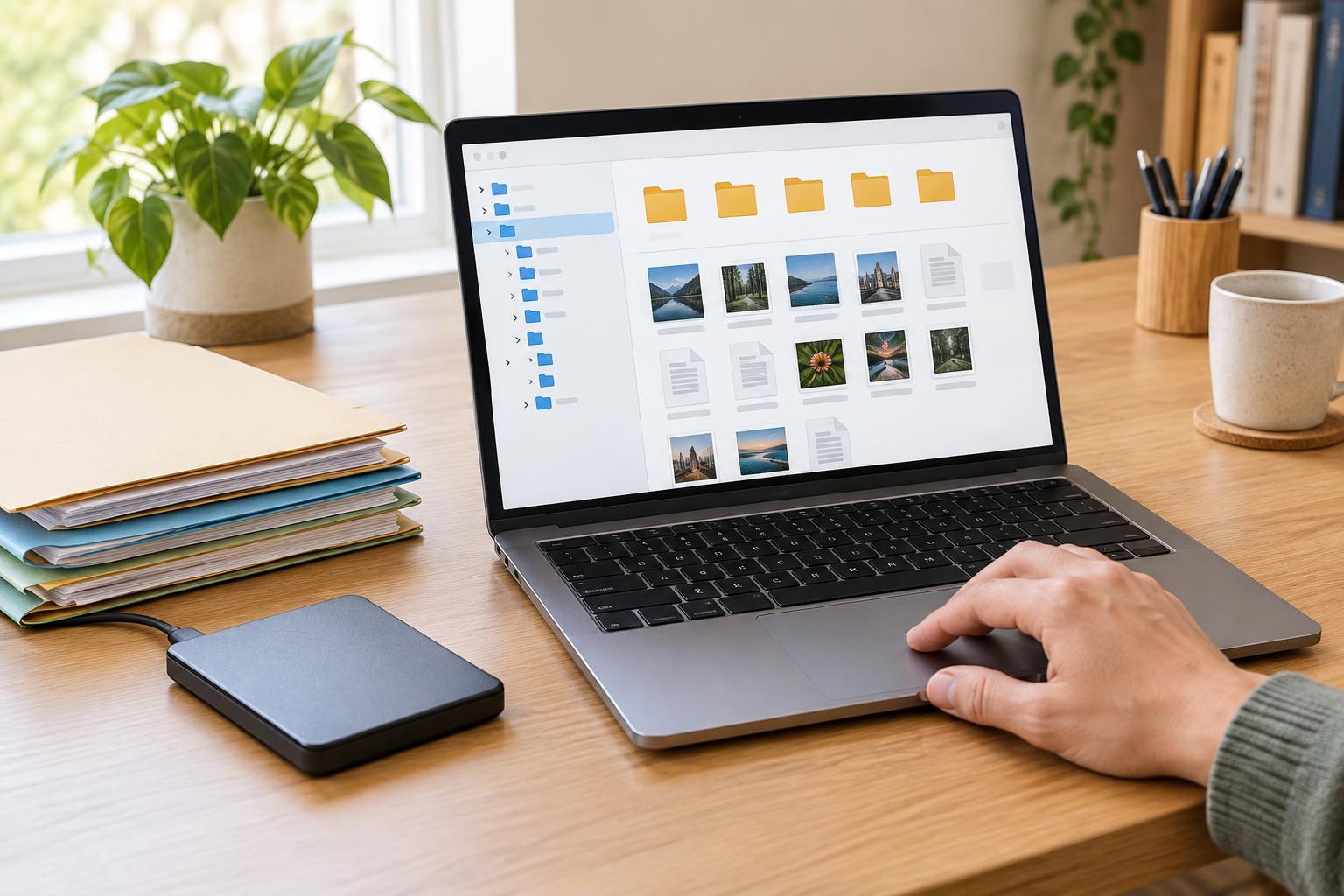
Whatever you choose, keep at least one additional copy of files you cannot afford to lose, on a separate device or service. A backup you leave connected all the time can be affected by the same accidental deletion or malware incident as the original, so consider keeping a copy disconnected or otherwise separate. If a portable drive holds sensitive files, use appropriate encryption and a strong password. Safely eject removable storage before unplugging it, and occasionally confirm that you can open files from your backup.