How a fake support call begins
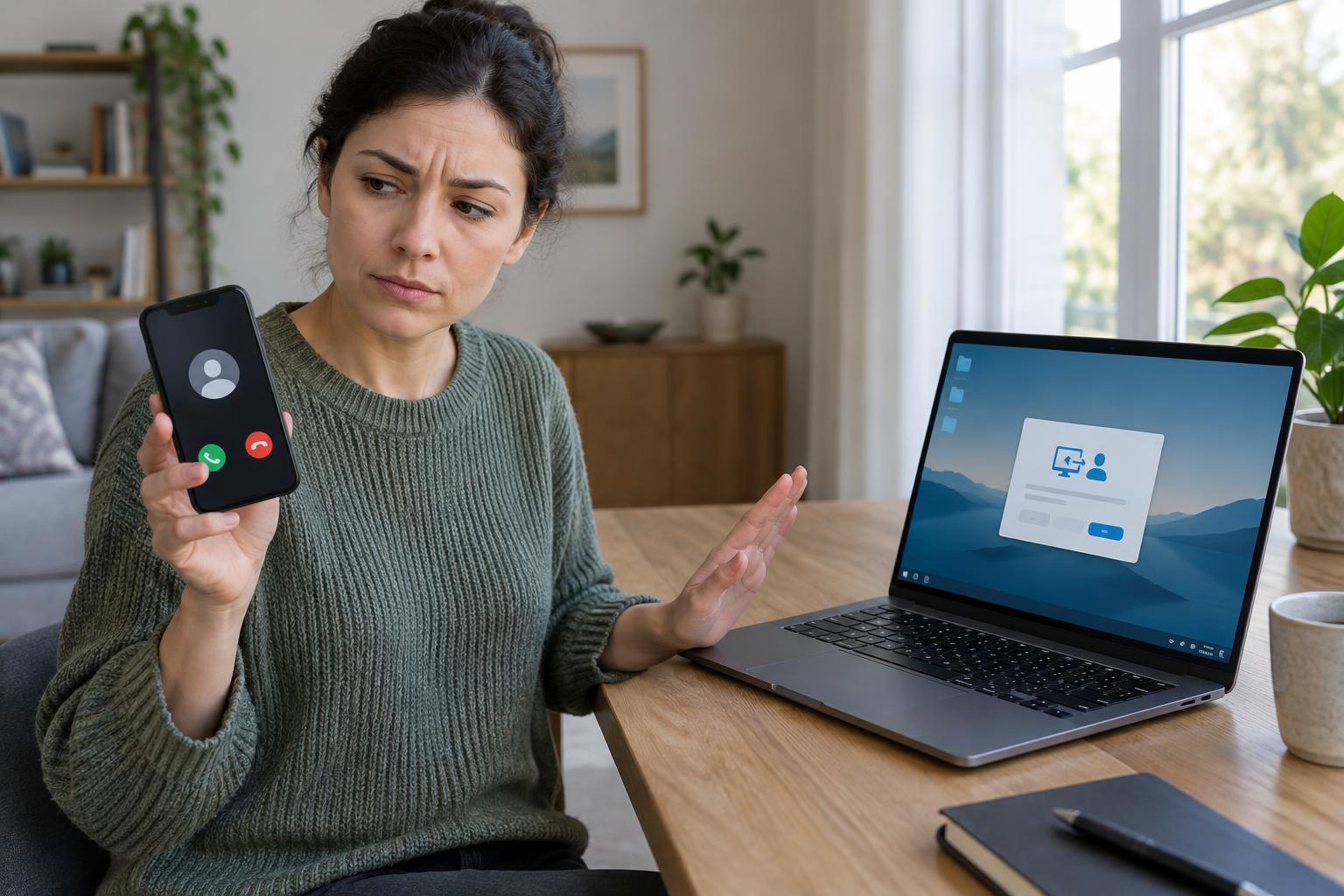
A fake tech-support call often starts with an alarming claim: your computer is infected, your account has been compromised, or a problem must be fixed immediately. The caller may say they represent a familiar software company, an internet provider, or your workplace’s IT team. Some scams begin with a pop-up that displays a phone number and urges you to call. Treat an unexpected call or on-screen warning as a reason to pause, not as proof that something is wrong.
A caller may know your name or use a convincing company name. Neither confirms their identity. Caller ID can be misleading, and a phone number shown in a pop-up may belong to whoever created the message. Even if the caller describes a real problem you have noticed, verify the person separately before discussing accounts, installing software, or allowing access to your device.
Recognize the pressure and the request for access
The clearest warning sign is a request to let a stranger control your computer or phone. A scammer might direct you to install a remote-access app, visit a screen-sharing page, or read out a session code. Legitimate remote-support tools exist, but the tool itself does not make the person using it trustworthy. Once connected, someone may be able to view your screen, open files, change settings, or watch you enter credentials.
Scammers may try to make ordinary technical details look frightening. They might show you a list of background processes, an event log, or a routine error and call it evidence of a serious infection. Be especially cautious if the person insists you must act immediately, refuses to let you call back through an independently found number, asks for a password or verification code, or tells you to keep the conversation secret.
Payment requests are another warning sign. A supposed repair may lead to a demand for a support fee or an unusual payment method. A caller may also claim to have issued an accidental refund and ask you to send money back. Do not make a payment or share banking details to resolve a problem described only by an unverified caller.
Verify support without using the caller’s instructions
If someone contacts you unexpectedly, end the call or close the message. Then use a contact method you find independently, such as a number on a bill, a saved support contact, or a company’s official website that you navigate to yourself. Do not rely on a number, link, or search phrase supplied in the suspicious message. For a work device, use your organization’s established IT help channel.
If a browser page claims your device is locked or infected, try closing the tab or browser without calling the displayed number. A web page can imitate a system alert; its appearance alone does not establish a diagnosis. If you cannot close it normally, restart the device and seek help through a trusted channel if the warning returns. Keep software and browsers updated, but do not install a “fix” from the warning itself.
What to do if you already let someone in
If a suspicious person still has a remote session open, disconnect the device from the internet and end the call. When it is safe to do so, remove the remote-access software or ask a trusted technician to help. Do not assume closing a visible window removed the software or reversed any changes. Run a security scan using tools you already trust, and consider a professional review if the person had extensive access.
From a different, trusted device, change passwords for accounts the person may have seen or used, starting with your main email account. Review account activity, sign out unfamiliar sessions where the service allows it, and turn on multifactor authentication. If you shared a verification code, tell the affected service. If you entered payment details or sent money, contact your bank or payment provider using its official contact information and explain what happened. For a work device, notify your IT team promptly so they can assess possible access to organizational data.
Make the next call easier to handle
Decide in advance where you will get help with your devices. Save trusted support contacts and let household members or coworkers know that unexpected callers do not get remote access. When a caller creates urgency, a simple rule helps: hang up, find the official contact yourself, and start a new conversation. A genuine support issue can be checked through that channel; an unverified caller does not need access while you decide.