Start with the way you look for files
A good filing system answers the question you are likely to ask later: “Where would I look for this?” Before creating folders, think about the kinds of files you keep and how you search for them. You might remember a project name, a household task, a client, or the year a document was created. Use those clues as the basis for your structure rather than copying someone else’s elaborate folder tree.
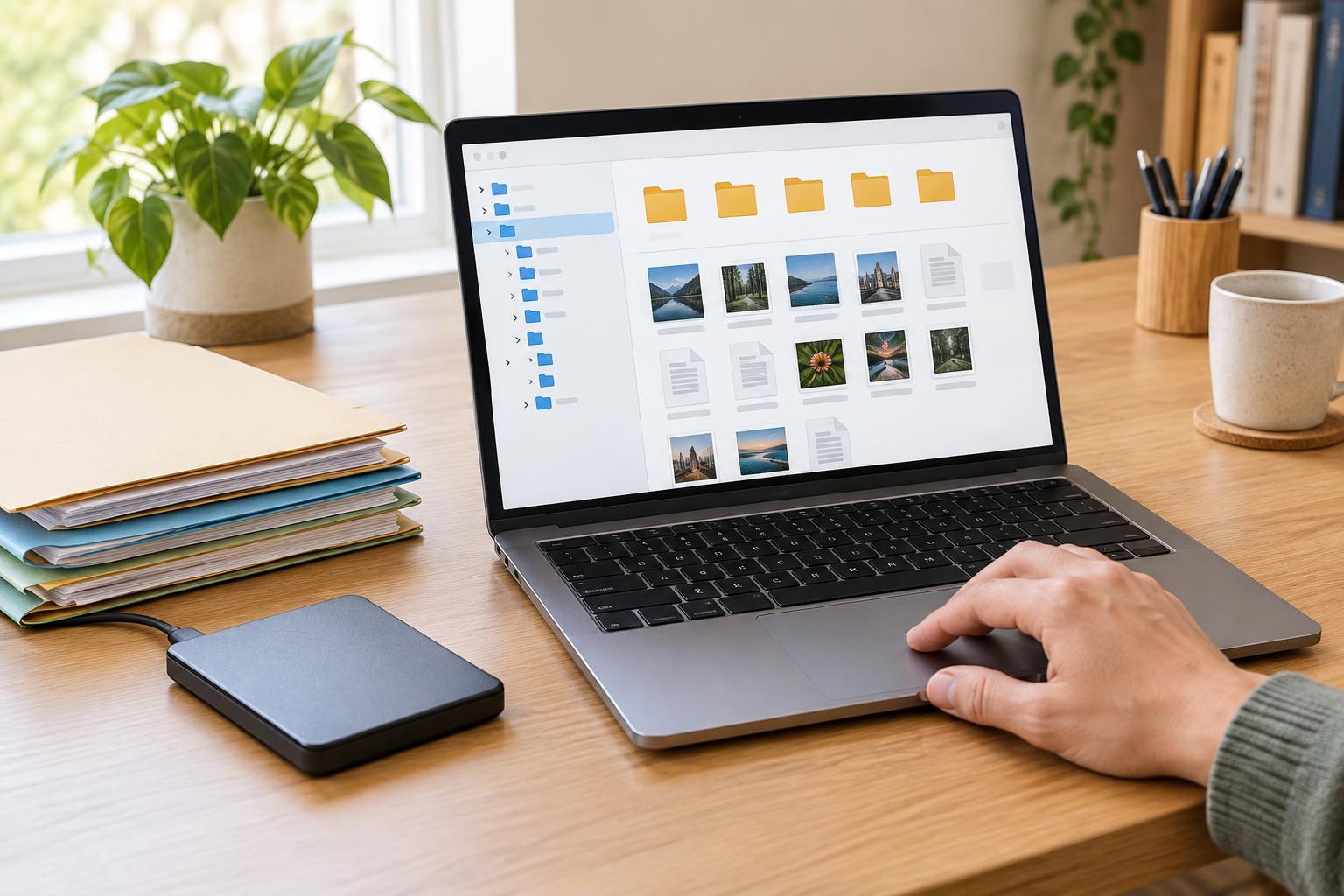
Choose a small number of top-level folders with distinct purposes, such as Personal, Household, Work, and Projects. Inside them, add folders only when they help separate groups of files you regularly need. For example, Household might contain Appliances, Insurance, and Repairs. A folder should make its contents more predictable; if you hesitate every time you save a file, the categories may be too similar or too narrow.
Keep one clear home for each file when possible. If a document could fit in two places, choose the location you would check first and use search to find it from other contexts. Multiple copies scattered across folders can leave you wondering which one is current.
Give files names that work without their folders
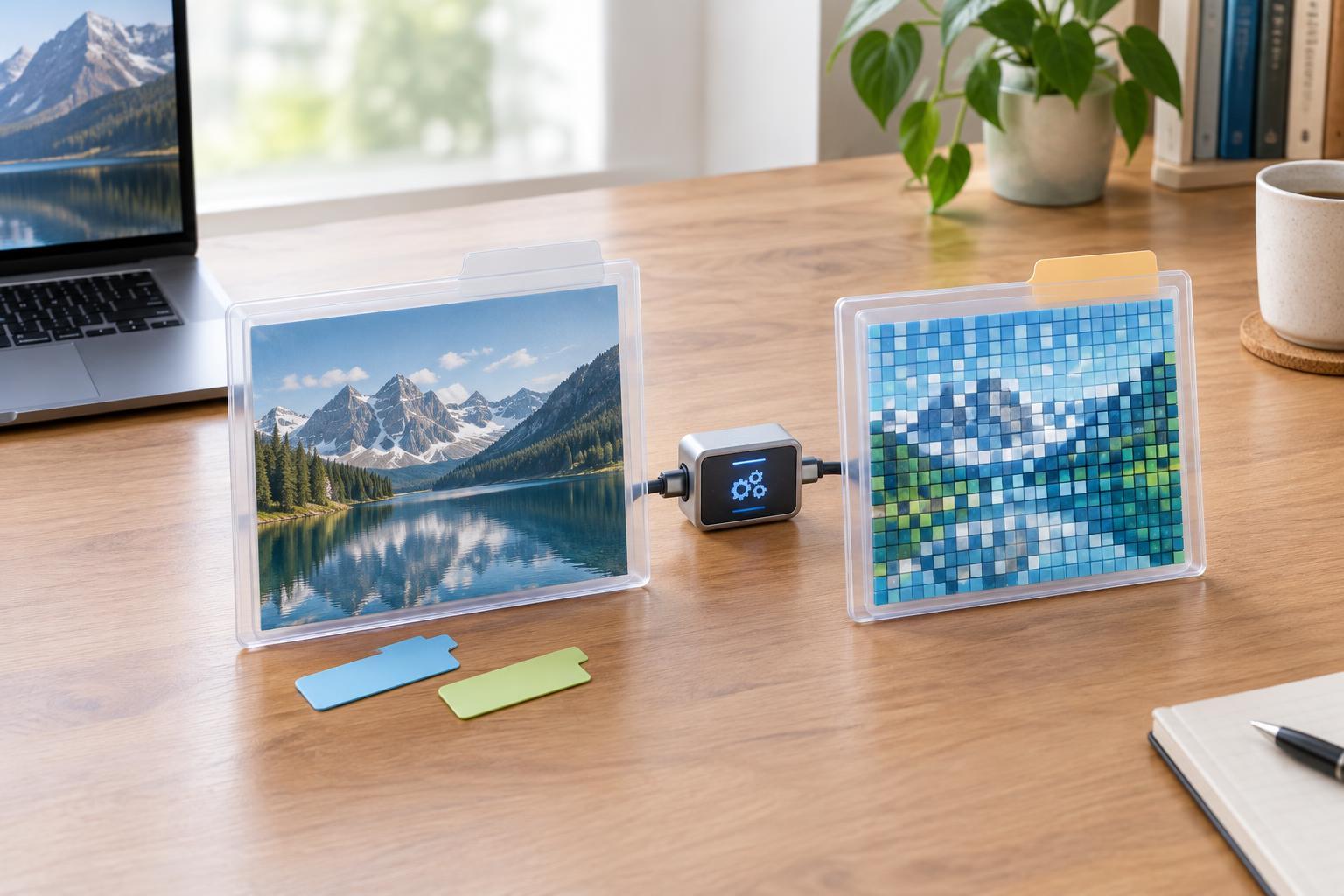
Descriptive filenames make search results useful and help files retain their meaning if they are moved or shared. Replace names such as scan001.pdf or final-new.docx with names that identify the subject and purpose. A pattern like Project - Document type - Detail can work well: Kitchen Renovation - Appliance Manual - Oven.pdf. You do not need to rename every old file at once; start with the files you use most.
Dates are helpful for records that repeat, such as statements, meeting notes, or monthly exports. Writing dates in year-month-day order, such as 2025-04-09, makes filenames sort chronologically in many file browsers. Use a date that means something consistent: the meeting date for notes, for instance, or the period covered by a report. If several versions matter, add a clear label such as draft, reviewed, or approved rather than relying on a string of “final” filenames.
Aim for names that are readable by another person, even if you are the only one using the files today. Avoid obscure abbreviations and unnecessary punctuation. If your files sync between devices or move between operating systems, simple letters, numbers, spaces, hyphens, and underscores are generally easier to work with.
Create a routine for incoming files
Downloads, email attachments, scans, and photos often become difficult to find because they never leave their arrival location. Treat Downloads as a temporary holding area rather than a permanent archive. When you receive a file you expect to need again, give it a useful name and move it to its long-term folder. Delete an installer, duplicate attachment, or temporary export when you no longer need it.
You can also keep a single To File folder for items you cannot sort immediately. The important part is to review it regularly, before it becomes another unsorted archive. During that review, decide whether each item needs a permanent home, a better filename, or deletion. This small habit is usually easier to maintain than a large cleanup after months of accumulation.
For shared folders, agree on the same basic routine with the people who use them. Decide where new files go, who moves completed work into the archive, and how to indicate that a document is ready for use. Consistency matters more than a complicated set of rules.
Use search and folders together
Folders help you browse; search helps when you remember only part of a name. Test your system by looking for a few real files using both methods. If a search for “warranty” misses a warranty document because its filename says only “receipt,” consider renaming it. If you cannot guess which folder holds a file, consider simplifying the folder structure.
Some apps can search within documents or use tags, but those features may behave differently across devices and file types. Do not make an app-specific tag your only clue to a file’s identity if you need to access it elsewhere. A meaningful filename and a predictable folder remain useful even when you change software.
Avoid building many levels of folders for tiny distinctions. If you repeatedly open several nearly empty folders to reach one document, a broader folder with well-named files may be faster. Conversely, a folder containing hundreds of unrelated items may benefit from a few clear subfolders. Let the files you actually have guide the structure.
Clean up gradually and protect what you keep
For an existing collection, begin with one area that causes frequent frustration, such as important records or an active project. Create its new structure, move a manageable batch of files, and check that you can find them before continuing. When comparing apparent duplicates, verify their contents and versions before deleting anything. Similar names do not always mean identical files.
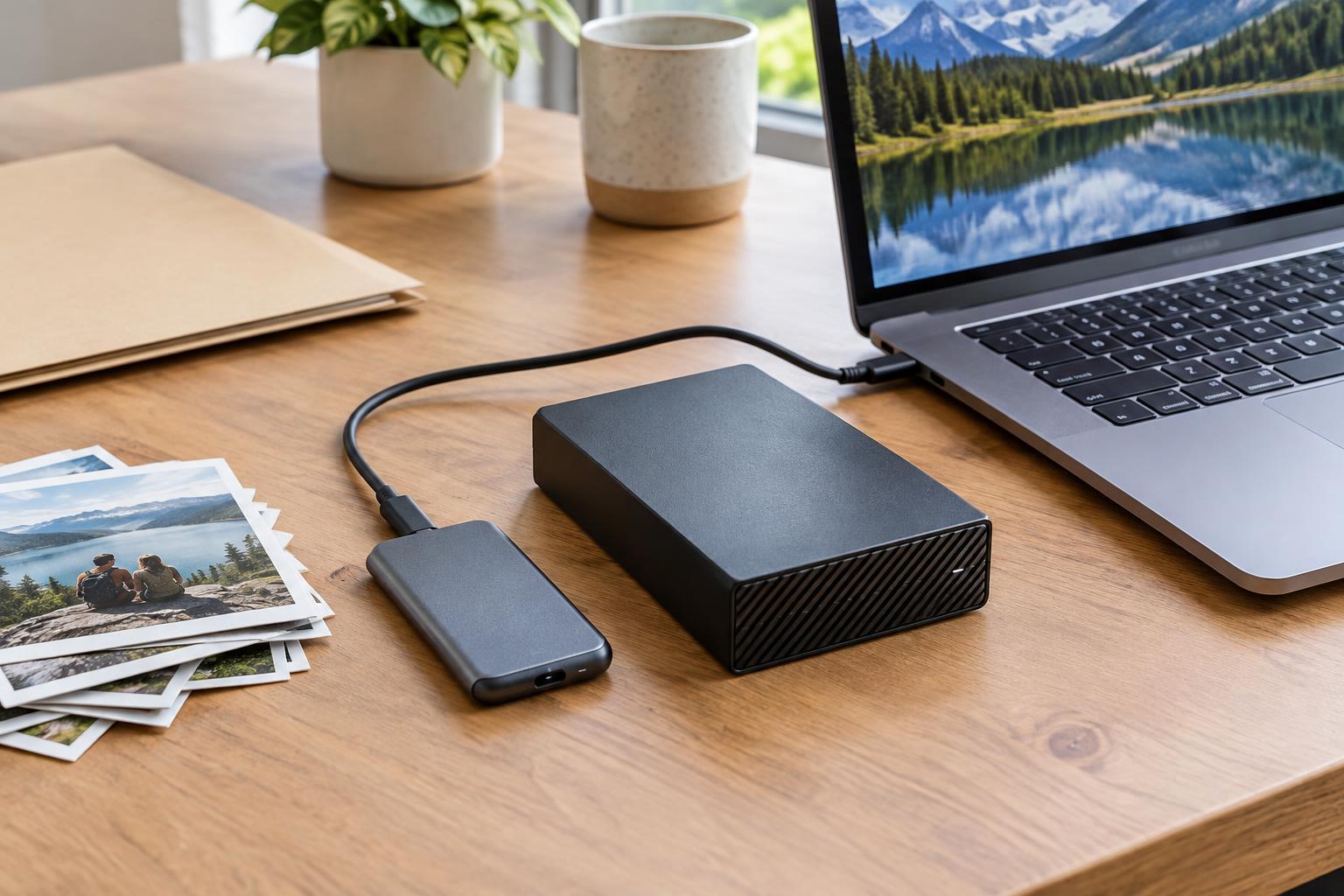
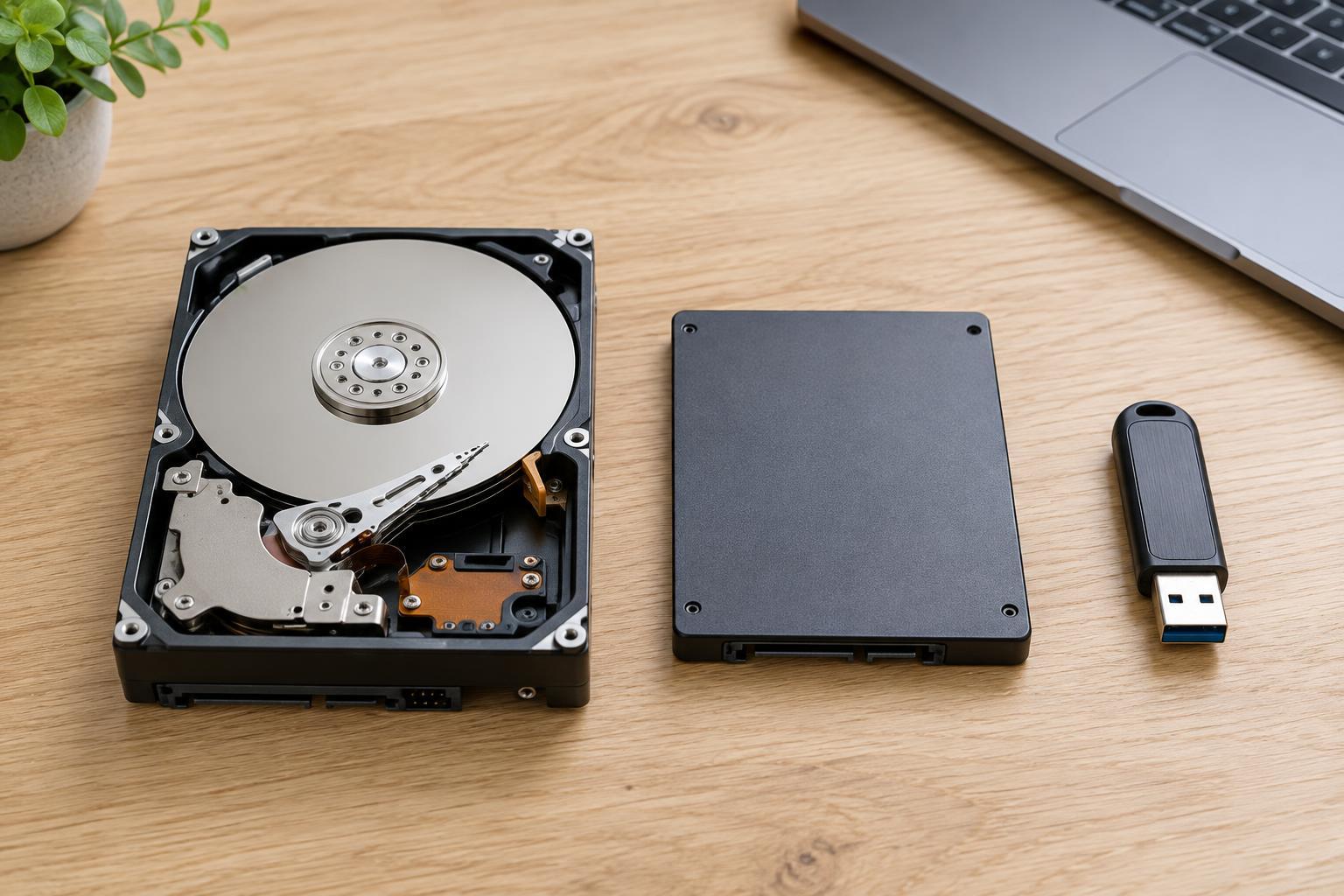
Organization and backup solve different problems. Folders make files easier to find; backups help you recover them after accidental deletion, device failure, or other loss. Keep a backup plan for files you cannot easily replace, and make sure you know how to restore a file from it. If you use cloud synchronization, remember that a deletion or unwanted change may also sync, depending on the service and its settings.
A filing system is successful when it is easy to maintain, not when it looks perfect. Use a few reliable locations, name important files for the clues you will remember, and revisit the system when your work or household needs change.