Sync keeps files consistent; backup keeps recovery options
Cloud sync is designed to make a set of files available in more than one place. Edit a document on a laptop, and the service copies the change to its cloud storage and other connected devices. That convenience is valuable when you move between devices or collaborate with others. It also means the synced folder is usually treated as one changing collection, not as several independent copies you can rely on after a mistake.
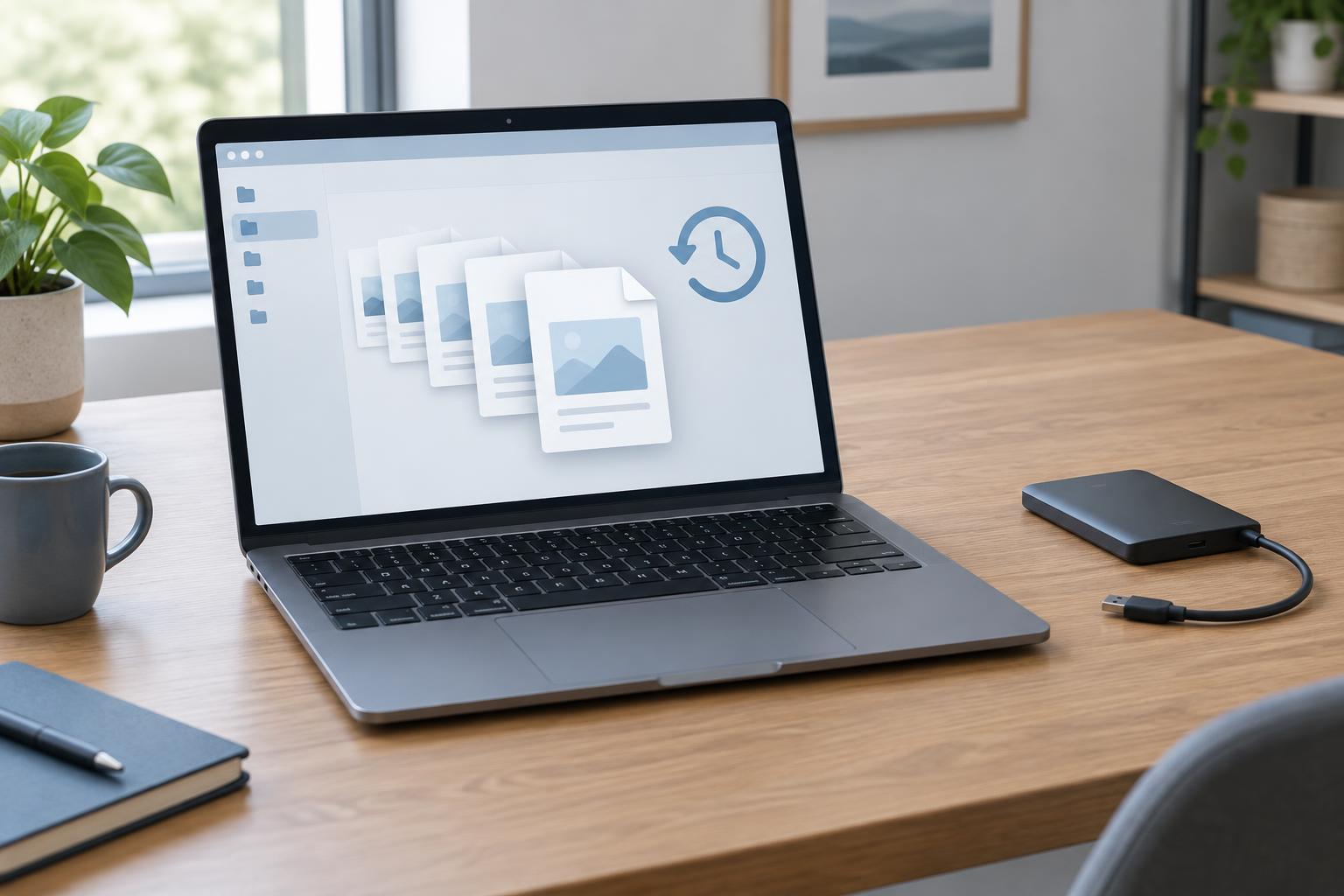
A backup serves a different purpose: it preserves a recoverable copy from an earlier point in time. If today’s file is damaged, missing or unwanted, a backup should let you retrieve a usable version. Some sync services include recovery features, so the distinction is not simply “cloud versus local.” The useful question is whether you can restore the files you need after a particular failure, within the time and effort you can tolerate.
Why a synced folder can carry a problem everywhere
Suppose you accidentally delete a project folder. A sync service may interpret that deletion as an ordinary change and remove the folder from its cloud copy and your other devices. The same principle applies if you overwrite a good document with an incomplete one or save changes you later regret. Sync has done its job correctly: it has kept every location consistent with the latest action.
A compromised or malfunctioning device can create a similar problem. If files in a synced folder are encrypted by malicious software, the altered files may sync too. A bad application setting, an automated process or an unintended bulk edit can also affect many files quickly. Disconnecting a device may stop further changes from reaching it, but it is not a dependable recovery method once the changes have already propagated.
A synced folder can still help if one device is lost or its drive fails, provided the cloud copy and your account remain accessible. That is a real benefit, but it covers only some failure scenarios. It does not guarantee an older, clean version of every file.
Understand what your sync service can restore
Many sync services offer a recycle bin, file version history or a way to reverse recent changes. These features can be useful first steps after an accidental deletion or overwrite. Their limits matter, though: recovery windows, eligible file types, account tiers and behavior for shared folders can vary. A deleted file may remain recoverable for a while, while an older version may not be kept indefinitely.
Check the settings and documentation for the account you actually use. Find out how to restore an individual version, a deleted folder and a large batch of changed files. If other people can edit a shared folder, learn whose actions affect the contents and who can perform a restore. Do not assume that a file visible in a web interface has an unlimited history behind it.
Also consider access to the account itself. If you cannot sign in, a cloud-only copy may be difficult to retrieve when you need it. Strong, unique credentials and multifactor authentication can reduce the risk of unauthorized access, but they do not replace a separate copy of important data.
Build a backup that is separate from everyday sync
Start by identifying files you could not easily recreate: personal records, photos, project work, configuration exports and other originals. Then choose a backup method that saves them on a schedule and retains earlier versions for a period that suits your needs. A backup drive can provide a local copy; a separate cloud backup service can provide a copy away from your devices. Either choice needs enough capacity for both current files and retained versions.
Separation is important. A second folder within the same sync account may be affected by the same account problem, mistaken deletion or automated change. An external drive that remains connected all the time may also be exposed to problems on the computer. For especially important files, consider a copy that is disconnected when not in use or stored through a separately managed backup system.
Check exactly what the backup includes. Some sync tools keep files online and download them only when opened. Depending on the backup software and its settings, those online-only files might not be captured as expected. Confirm that the backup covers the underlying files you care about, not just shortcuts or placeholders.
Test a restore before you need one
A backup is most useful when you know how to recover from it. Periodically select a few files, including an older version and a file from a less obvious folder, and restore them to a temporary location. Open them to confirm that their contents are intact. This small test can reveal missing folders, insufficient storage, confusing account access or a retention period that is too short.
Keep brief notes on where your backups live, what they cover and how to start a restore. For a household or small organization, make sure the person who may need to recover the files can access those instructions without relying on the missing device. Use sync for convenient access and collaboration, but judge your protection by whether you can recover a clean copy after a realistic mistake or failure.