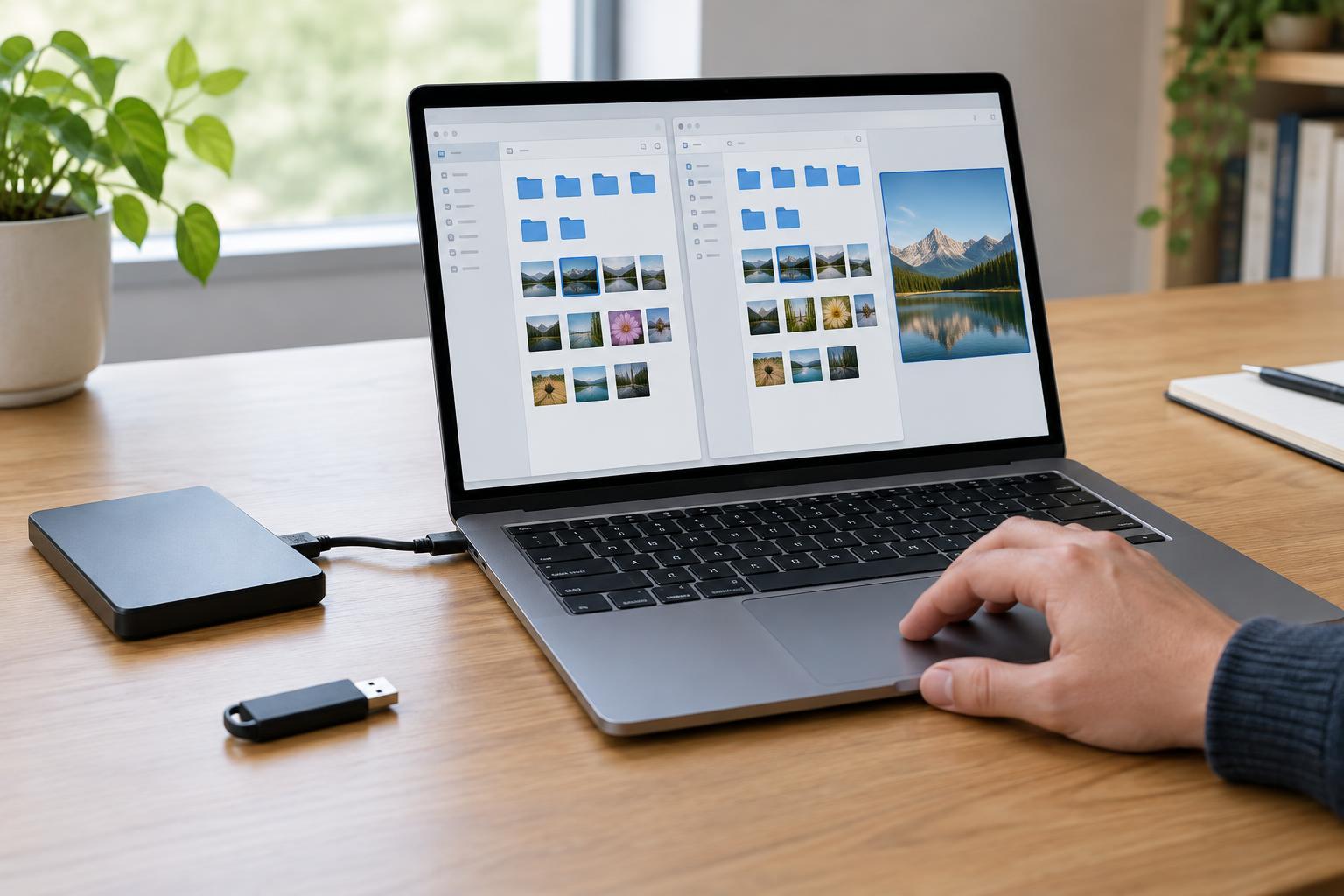
Decide what needs backing up
Start by listing the files you would struggle to replace: documents, photos, project folders, device settings, and any data kept only in an app. Check where each item actually lives. Files on a laptop, a shared office computer, and a network drive may need different backup jobs. A sync folder deserves special attention: syncing can make files available on multiple devices, but deletions or unwanted changes may also sync across them.
You usually do not need to back up every installed program if it can be reinstalled, though saving configuration files may spare you setup work. For each important group of files, decide how much recent work you could afford to lose. That answer is more useful than choosing a schedule simply because it sounds thorough.
Match the schedule to how often files change
A daily backup is a reasonable starting point for files you edit most days. Files that change rarely might need a weekly job, while an active project may call for more frequent copies. The aim is to keep the gap between backups small enough for your needs without creating a process that regularly fails because a device is unavailable.
Choose a time when the computer is normally powered on and the backup destination is reachable. If a laptop is often asleep at night, use backup software that can run a missed job when it next starts. Check whether the software needs the user to be signed in. If backups use an external drive, decide whether it will stay connected for scheduled jobs or be connected on a predictable routine. A schedule cannot run automatically when its destination is absent.
Set up automatic copies with room for older versions
Use a backup tool that can save the chosen folders to a separate destination and run on a schedule. Follow its setup process, then confirm the source folders, destination, frequency, and retention settings before treating the job as finished. Look for an option to keep older versions. Those versions can help when a file was changed incorrectly or deleted before anyone noticed.
If possible, keep more than one backup copy, with at least one stored away from the original device. An external drive helps if the computer’s internal storage fails, but a drive left connected may be exposed to some of the same problems as the computer. A second destination, such as a separately managed remote backup or a drive disconnected between runs, can reduce that shared risk. Protect backup accounts with strong authentication, and consider encryption for backups containing sensitive files. Store any recovery key somewhere you can find it without relying on the device being backed up.
Make failures visible
Automation removes a repetitive task; it does not remove the need to check results. Turn on failure notifications if the backup tool offers them. Know where to see the last successful run, and check that status regularly. A job marked as scheduled is not proof that files were copied.
Common interruptions include a full destination, a changed password, a disconnected drive, a sleeping computer, or a source folder that was moved. Review warnings rather than repeatedly dismissing them. After a major change, such as replacing a computer or reorganizing folders, revisit the job settings to make sure the new data is included. For a small organization, assign someone to check the backup status so alerts do not sit unnoticed in a shared inbox.
Test a restore and revisit the plan
The clearest way to check a backup is to restore a few files to a different folder, open them, and confirm they are the versions you expected. Include a recently edited file and, if your tool supports version history, an older version. Do not overwrite the originals during a routine test. If you cannot find a file in the backup or cannot access the destination, fix the problem before depending on the system.
Repeat a small restore test periodically and whenever you make a significant change to your devices or backup software. Also check whether retention rules still give you enough time to discover an accidental deletion. A dependable schedule is a cycle: choose what to protect, automate the copies, notice failures, and prove you can retrieve the data.