Make an inventory before you copy
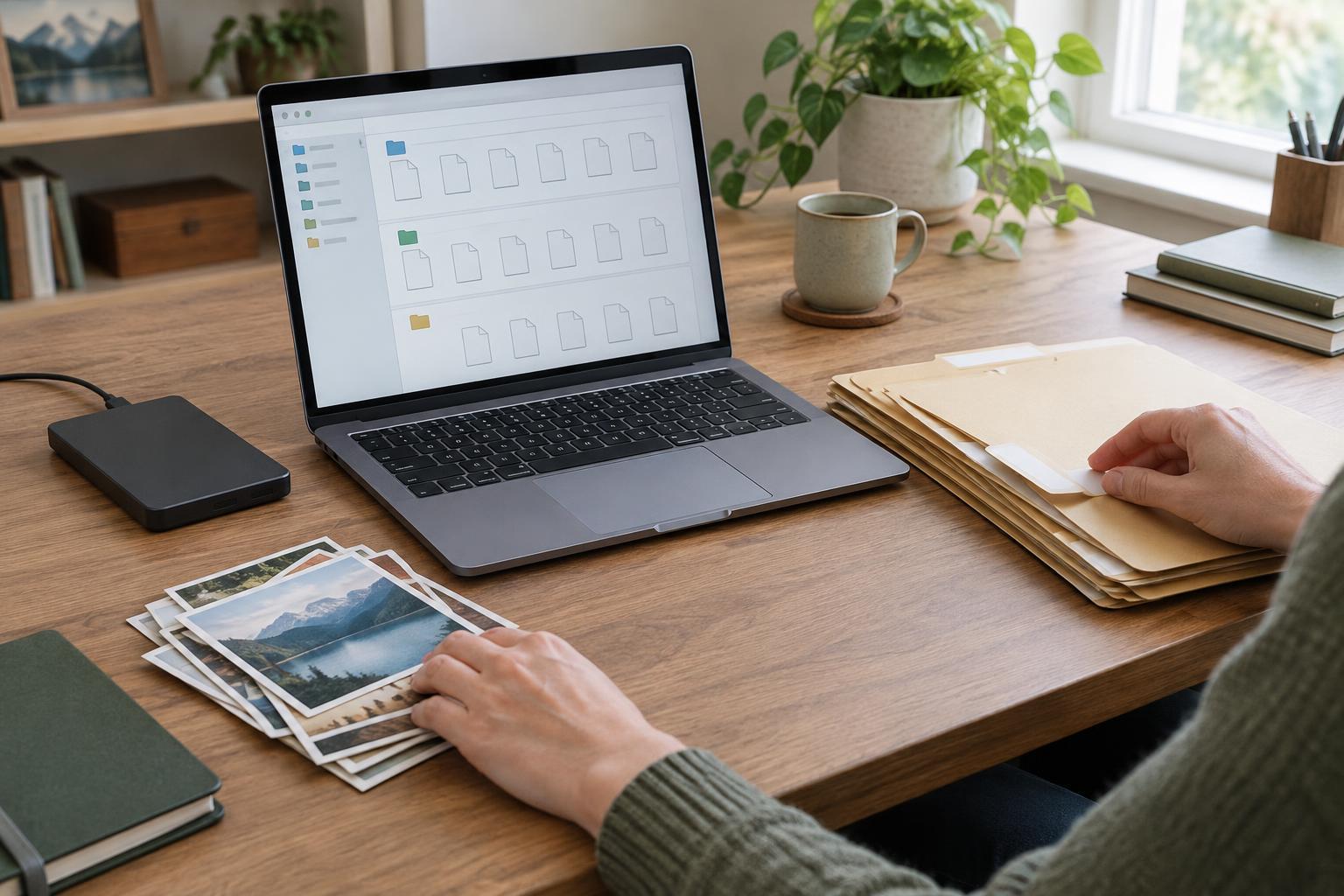
Start by listing what you actually need on the new computer. Check the Desktop, Documents, Downloads, Pictures, Music, and Videos folders, but do not stop there. Look for project folders you created elsewhere, files saved to external drives, and folders used by applications such as photo editors or accounting tools. Search the old computer for file names or extensions associated with important work if you are unsure where it lives.
Separate personal files from programs. Copying a program’s folder usually does not install that program on another computer; you may need to reinstall it and sign in or restore its data separately. Make a short list of the applications you use, any license details you are entitled to retain, and the data each application stores. If the new computer uses a different operating system, check that you can open essential file types before retiring the old one.
Also note what is already synchronized through a cloud service. A file that appears in a cloud folder might be stored locally, available only online, or still waiting to upload. Check the service’s sync status and open a few important files through its website or another device. This helps distinguish data that has reached the cloud from data that only appears to be there.
Choose a transfer method that fits the move
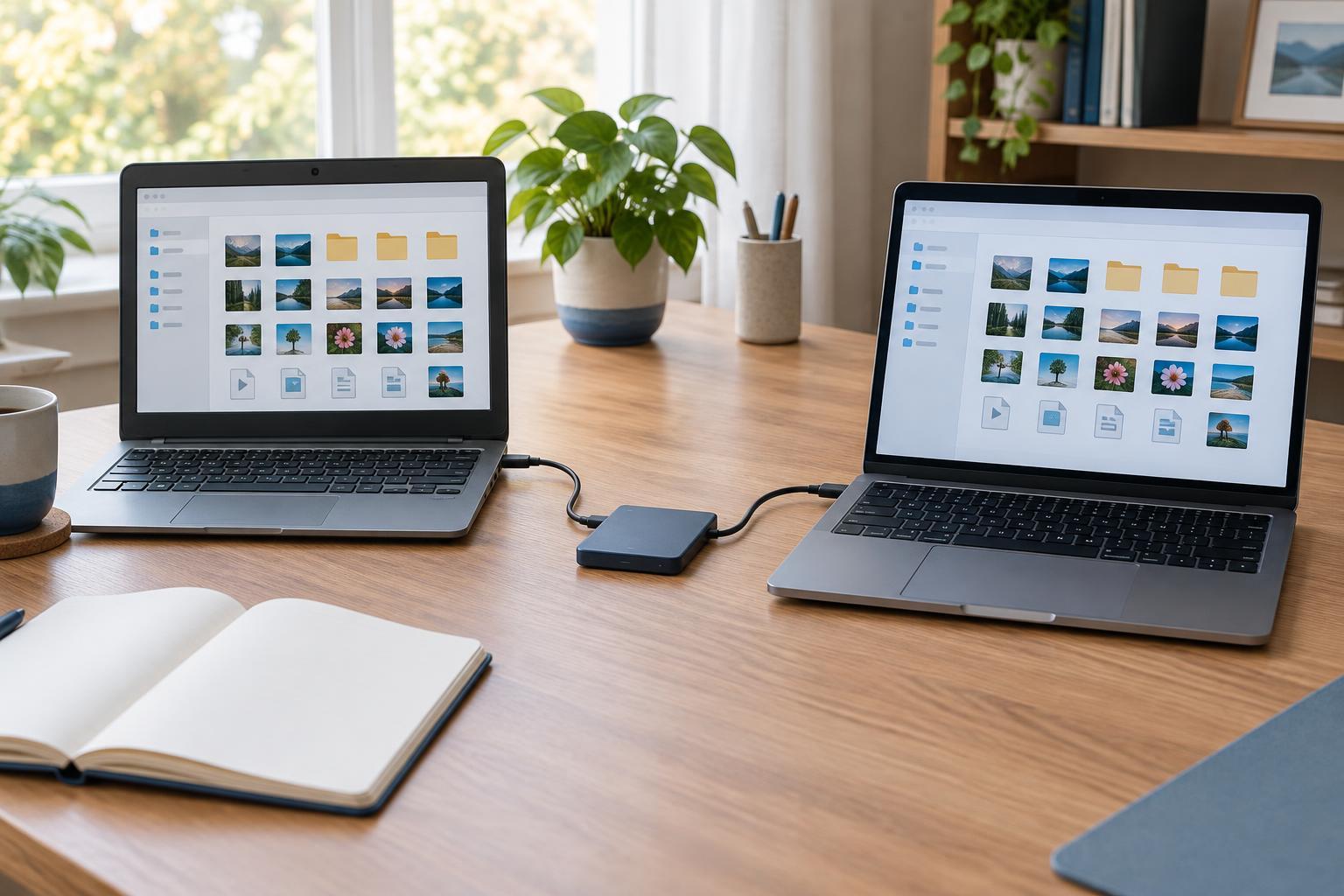
An external drive is a straightforward choice for a large collection of files or a slow internet connection. Copy your selected folders to the drive, safely eject it, then copy them to the new computer. Use a drive with enough free space and, for sensitive files, consider its built-in encryption options. Keep the drive somewhere secure during the move.
Cloud storage can work well when you already use it and have enough storage and time for uploads and downloads. Confirm that uploads finish on the old computer before signing in on the new one. Do not assume that seeing a folder name means every file is available offline. If both computers are on the same trusted network, a direct transfer or a built-in migration tool may be convenient; follow the tool’s prompts and review which accounts, settings, and files it will move.
Whatever method you choose, make a separate backup first if the files matter and you do not already have one. A transfer is not a backup when deleting or damaging the source would leave you with only one copy. Avoid moving files by cutting and pasting them from the old computer: copy them, verify the copies, and keep the originals for now.
Catch the data that is easy to overlook
Some important information does not live in the usual folders. Check browser bookmarks and saved passwords, email stored locally rather than on a mail server, contacts, calendars, notes, chat exports, and game saves. For each application, look for its own export, sync, or backup option. Reinstalling an app and signing in may restore some data, but do not rely on that without checking.
Pay particular attention to password managers and accounts protected by two-factor authentication. Before resetting the old computer, make sure you can sign in on the new one and that you still have access to your authentication method and any recovery codes you previously saved. Handle exported password files carefully: if an export is unencrypted, keep it off shared storage and remove it securely after a successful import.
If you use external drives or memory cards, label which files are staying on them and which need to be copied. Review shared folders too. A file accessible through a work, school, or family account may not belong to the old computer’s local storage, and access on the new computer may depend on signing in with the right account.
Verify the new computer before retiring the old one
Compare the main folders on both computers. Folder sizes and file counts can reveal an obvious omission, although they do not prove that every file transferred correctly. Open a selection of documents, photos, videos, and project files, especially recent or irreplaceable ones. Confirm that the applications you need can read them and that cloud folders have finished syncing.
Test everyday tasks rather than checking files alone: open your email, find a bookmark, access your password manager, and retrieve a file from any shared or external location you use. If something is missing, return to the old computer while it is still working and signed in. Keep it unchanged until you have used the new computer long enough to feel confident about the move.
Once you are satisfied, set up a regular backup for the new computer. Only then decide what to do with the old one. If you plan to sell, donate, or recycle it, sign out of relevant accounts and use the operating system’s appropriate reset or erase procedure. Do not erase the old computer merely because the first copy operation finished; verification is what turns a transfer into a successful move.