Start with the source, not the download button
The safest download decision usually happens before a file reaches your device. Start with the software maker’s official website or a trusted app store or package manager for your operating system. If you do not know the maker’s address, examine search results carefully: a sponsored result or a page that closely resembles a familiar brand may lead somewhere else. Check the full site address, not just the page title or logo, and be wary of extra words, unusual spellings, or an unexpected domain ending.
For a small organization, a shared list of approved software sources can save people from repeating that guesswork. It should identify the application and where to obtain it, rather than relying on an old installer passed around by email or chat. If the official site offers a download page, navigate there from its main site when possible. Avoid third-party download portals unless there is a clear reason to use one; some wrap legitimate programs in their own installers or promote additional software.
Recognize pages designed to rush or confuse you
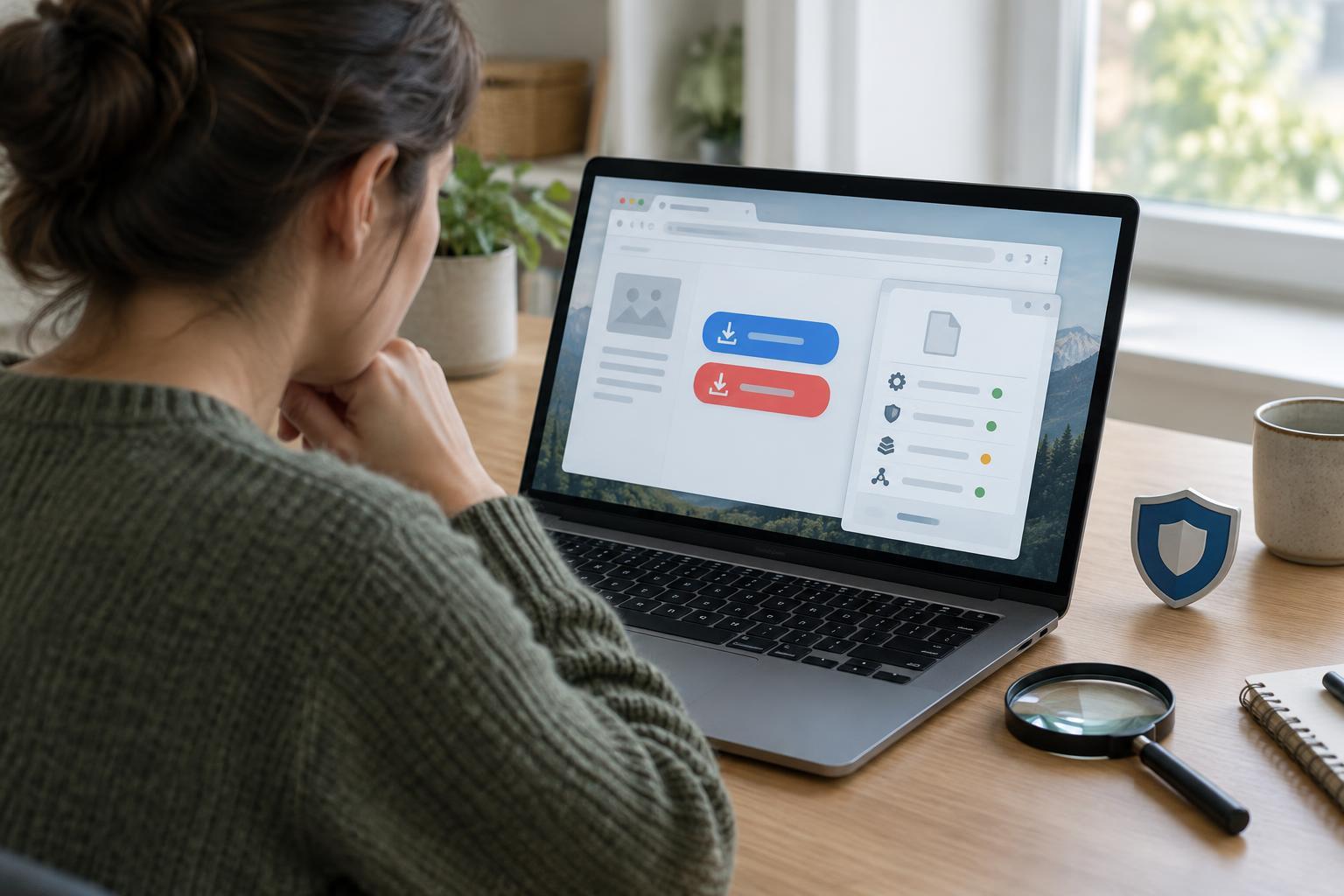
A genuine download page may still contain advertising, but multiple large “Download” buttons are a reason to slow down. Identify which button belongs to the software you intended to get. Pop-ups claiming that your browser, video player, or security software must be updated immediately are especially suspect when they appear while you are visiting an unrelated site. Close the page or notification and check for updates through the application or operating system itself.
Be cautious when a page demands that you disable your security tools, run a command copied from the page, or install a “download manager” before obtaining an ordinary application. Those steps are not automatically malicious, but they deserve a clear explanation from a source you trust. A countdown timer, alarming warning, or claim that you must act before you can continue browsing is not evidence that an installation is necessary.
Check the file before you open it
After downloading, compare the file name, type, and location with what you expected. An installer for your device should match the operating system and the format described on the software maker’s site. Treat a file that arrives as an unexpected archive, script, or document with instructions to enable macros as a warning sign. Be careful with names that appear to have two extensions, such as a name ending in “.pdf.exe”; some file managers hide known extensions by default, so viewing the full name can help.
On systems that show a verified publisher or developer, compare that name with the company or project you meant to use. A missing signature does not prove a file is harmful, particularly for smaller projects, and a signature alone does not prove a program is trustworthy. It is one useful check alongside the source and the file you expected. Keep built-in security protections enabled and pay attention if they flag the download rather than clicking through a warning automatically.
Watch what the installer asks to do
Even a real installer can offer optional browser changes or bundled applications. Read each step instead of repeatedly selecting the most prominent button, and decline additions you do not want. If a simple utility asks for broad access to personal files, passwords, browser settings, or system administration, pause and consider whether that access makes sense for its function. Some legitimate installations need elevated permission, so the question is whether the request fits the software and the source.
If you are unsure, cancel rather than testing the installer to see what happens. Return to the official source, check its installation instructions, or ask someone responsible for your organization’s devices. Once software is installed, use its built-in update feature, your app store, or your package manager for later updates. That reduces the need to decide whether a surprise “update required” message on a website is genuine.
If you opened a suspicious installer
Stop interacting with it and do not enter passwords or payment details into any windows it displays. If the installation has not started, close it and delete the file. If it ran, use your device’s security tools to scan for threats and review recently installed applications and browser extensions. In a workplace, tell the person who manages your devices promptly; reporting early gives them a better chance to assess what happened.
If you entered a password, change it using the real service’s website or app, preferably from a device you believe is safe, and enable multifactor authentication where available. Watch for unexpected account activity. You may not be able to tell from appearances alone whether an installer caused harm, so avoid treating a quiet screen or a completed scan as a guarantee. The most reliable habit is to slow down at each decision point: source, file, warning, and permission.