What an app permission actually controls
An app permission is a setting that allows an app to use a device capability or read certain information. A messaging app might request camera access so you can take a photo inside a chat. A map app might request location access to show where you are. Granting a permission can make a feature work, but it may also give the app more information than you intended to share.
A useful rule is to match access to a task you want the app to perform. You do not have to accept every request to keep using an app, although a feature that depends on a denied permission may stop working. Permission choices are usually reversible in your device settings, so you can start with limited access and expand it if needed.
Camera access: allow it for a clear purpose
Camera access makes sense when you are taking a picture, scanning a code, or joining a video call. It is less obvious why an app that never uses images would need it. Before approving a prompt, consider what action brought it up. A request that appears just as you tap “Scan” is easier to evaluate than one that appears when you first open an unrelated app.
If you deny camera access, the rest of an app may still work; only its camera-based features may be unavailable. Many devices also show an indicator when an app is using the camera. If that indicator appears unexpectedly, close the app and check its permission in device settings. Remember that permission to use the camera is different from access to photos you have already saved, which may have its own setting.
Location access: choose when and how precise
Location settings often offer more than a simple yes or no. Depending on your device, you may be able to allow access only while using an app, grant it once, or permit access in the background. Some devices also let you share an approximate location instead of a precise one. Choose the narrowest option that supports the feature: a local weather forecast may need only a general area, while turn-by-turn navigation needs a more accurate position as you travel.
Background location can be useful for features such as recording a route or triggering an automation when you arrive home. It is not required merely because an app offers a map. If you rarely use a location-based feature, consider granting access when prompted rather than leaving it on continuously. Also check settings within the app: turning off device location access does not necessarily delete places you previously entered or shared through your account.
Contacts access: think beyond your own details
A contacts permission may let an app read names, phone numbers, email addresses, and other details stored in your address book. That information includes details about other people, not just you. Apps often ask for it to find friends, invite people, or make sharing easier, but those conveniences do not always require access to your entire contact list.
Before granting access, look for an alternative such as entering a recipient manually or sharing a single contact through your device’s share menu. If your device offers a selected-contacts option, use it when the app needs only a few entries. You can also decline and see whether the feature you care about still works. Revoking access later can stop future reading through that permission, but it may not remove contact information already uploaded to an app’s account or service; check the app’s account settings for that.
Make permission reviews a simple habit
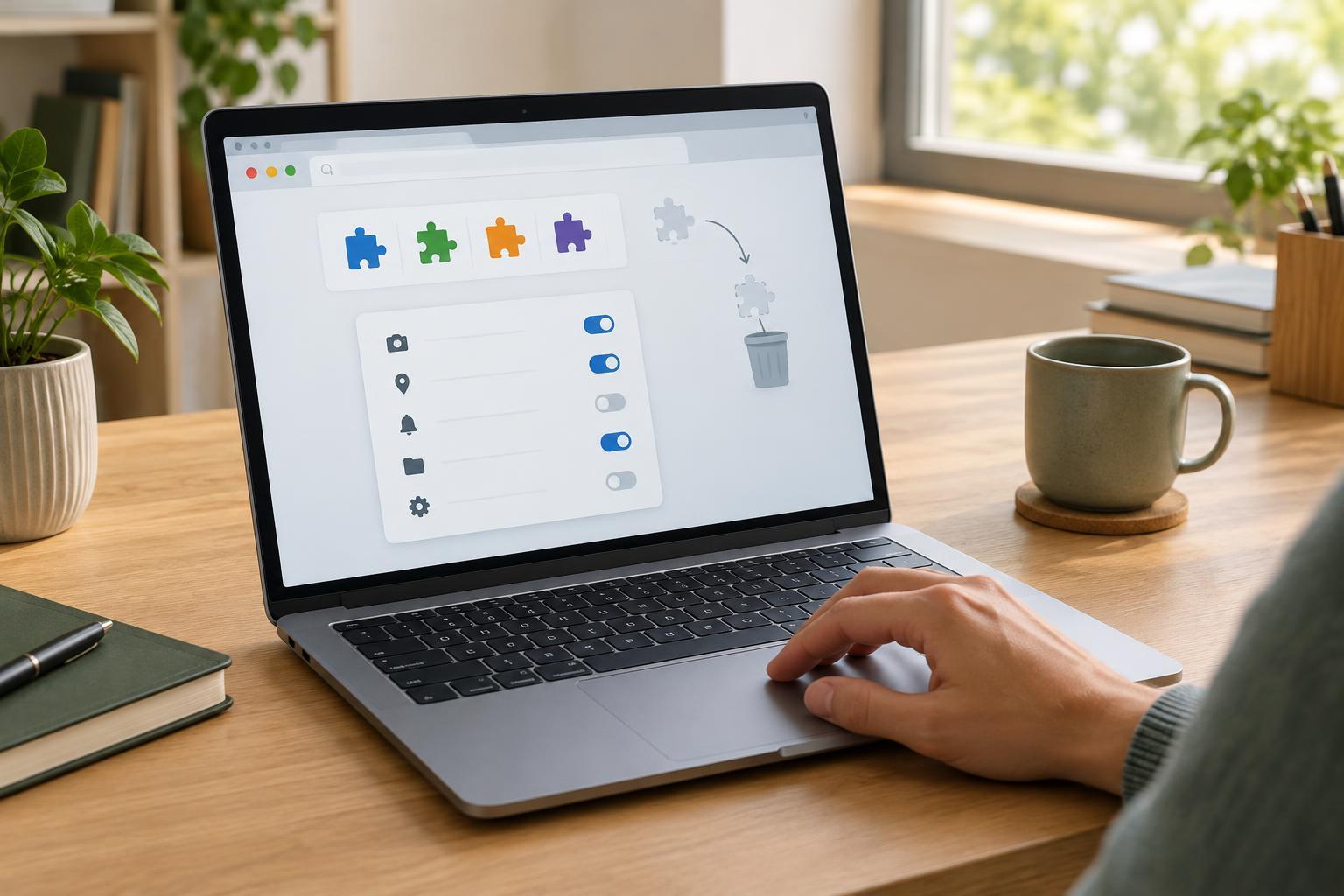
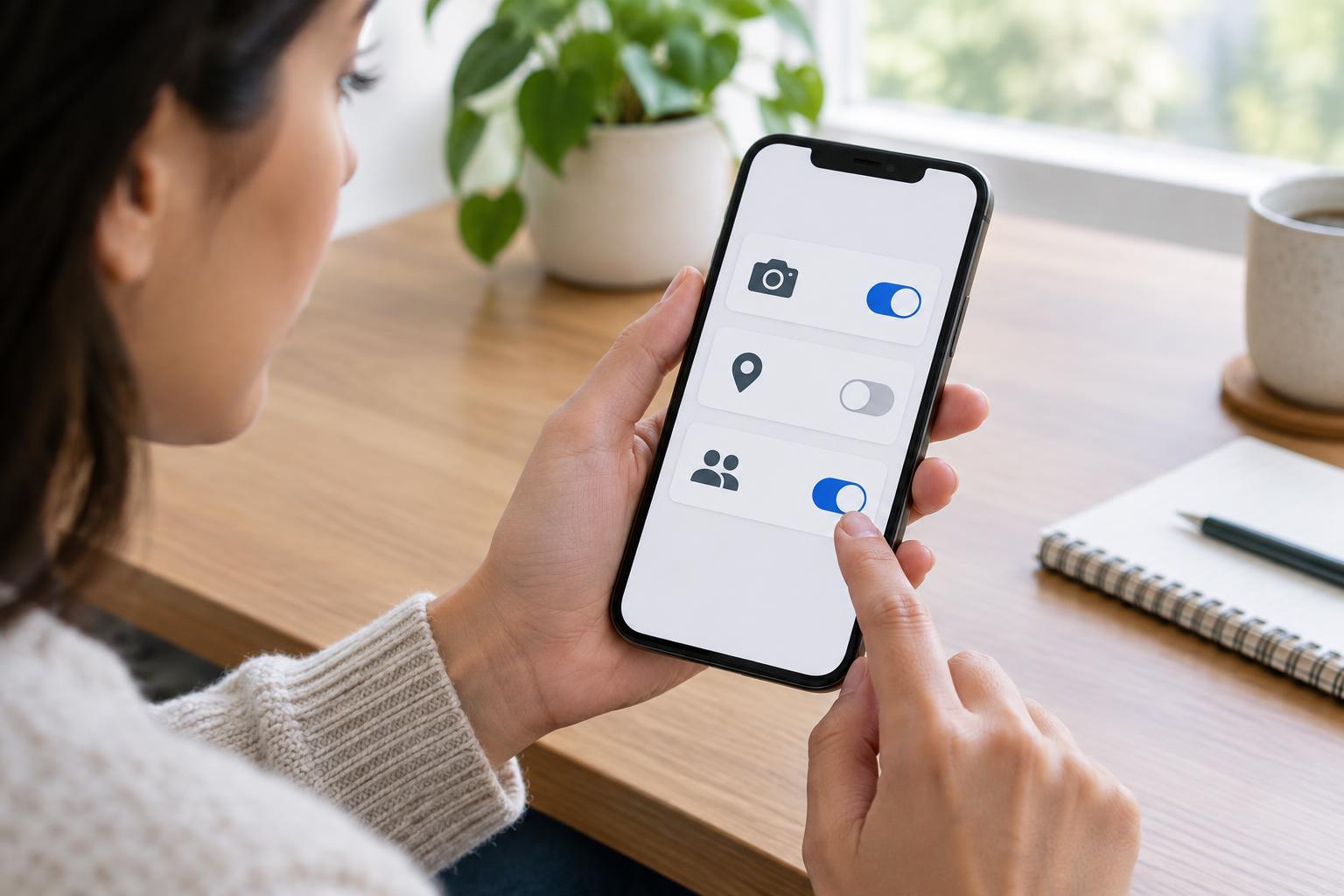
Open your device’s privacy or app settings and review permissions by category or by app. The exact menu names vary, but look for Camera, Location, and Contacts. Pay particular attention to apps you no longer use, apps with background location access, and apps whose permissions do not fit their purpose. Change one setting at a time if you are unsure; you can test the app afterward and restore access if a needed feature fails.
Treat permissions as one layer of control, not a complete privacy guarantee. An app can still use information you type into it, files you choose to upload, or data associated with your account. Browser-based services may have separate site permissions for the camera or location as well. Keeping apps and your device updated, removing apps you no longer need, and choosing limited permissions together give you a manageable way to reduce unnecessary access.